
Open PDF to PS, add the document and choose the pages to export. PS supplies PostScript page descriptions for a workflow that requires that format.
Open the PDF and choose its pages
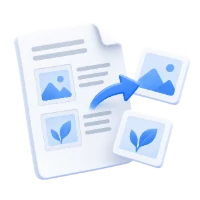
Add your PDF and check the preview. Leave the page range blank to export every page, or enter a range such as 1-3 or a list such as 1, 4.
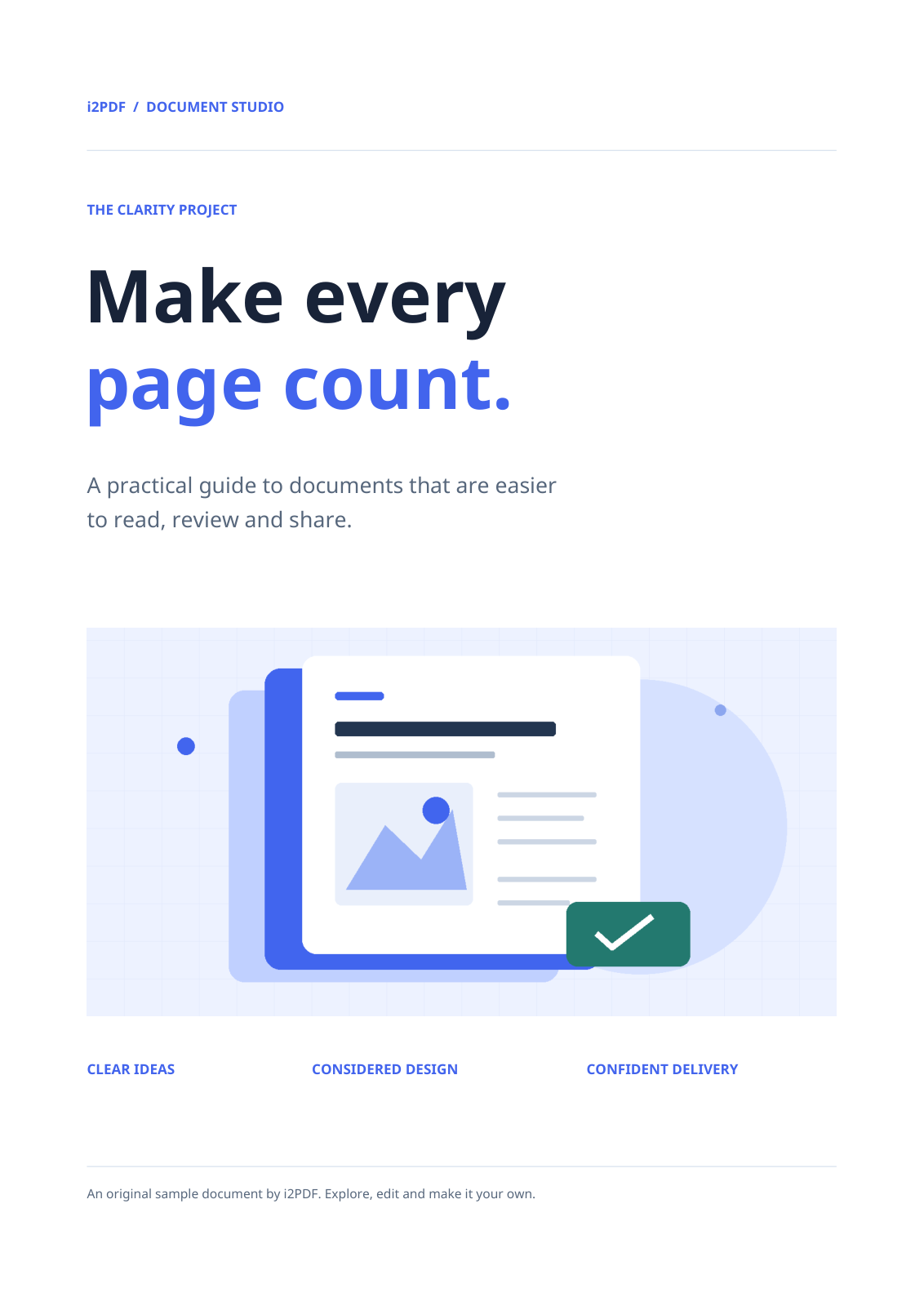
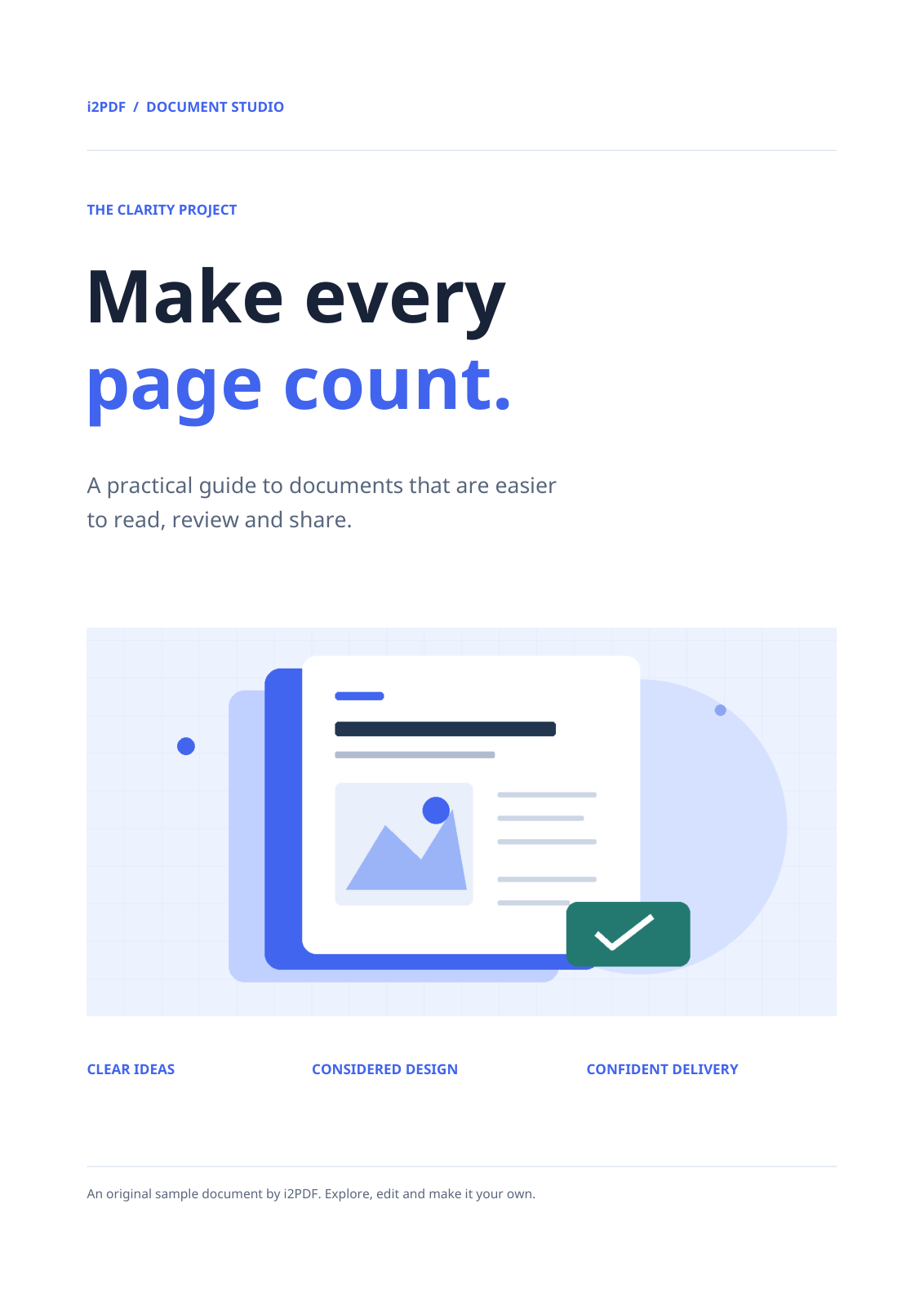
Our example includes all four pages. Limit the selection when you only need a particular illustration or sheet.
Set the output rotation
Keep rotation at 0° to retain the existing page orientation, as in the example. Choose another offered angle if the receiving workflow needs rotated pages.
Choose Start to generate the files. The conversion preserves vector content where possible; content that needs rasterization uses 200 DPI.
Download and inspect the native files
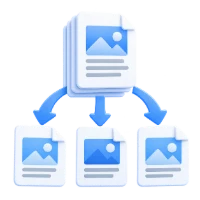
One selected page produces one PS file. Multiple pages produce a ZIP with one file per page. Download it and extract the archive before opening the files in a compatible application.
Inspect fonts, thin lines, colors and transparent objects in the receiving application. Our four-page example produced four separate PS files; it did not combine the pages into a single multi-page output.
Common questions
Will I get a single PostScript file for the whole document?
This tool creates one PS file per selected page. Selecting several pages produces a ZIP of those files.
How do I convert PS back to PDF?
Use PS to PDF. Review the result after a round trip because format conversions can change the document.
Try it with your document
Review the result, then save the version you need.