

Use Extract Images from PDF to save the pictures embedded in selected pages. Our four-page sample contains one extractable image; the downloaded ZIP contains a JPG measuring 1440 × 744 pixels.
Open the PDF
Add your PDF and review the pages that contain the pictures you need. A page can combine text, vector artwork and embedded images; only the image objects are extracted by this tool.
A scanned page may be a single large embedded image. A logo made entirely from vector paths may have no extractable image at all.
Choose pages and image format
Leave the page range blank to examine all pages, or enter the pages you want. Select JPG to reproduce this example; PNG and TIFF are also available.
JPG is re-encoded and uses a white background where the picture is transparent. Choose PNG when you need to retain available transparency. The output files use the selected format rather than necessarily preserving the original compressed image bytes.
Extract and unpack the ZIP
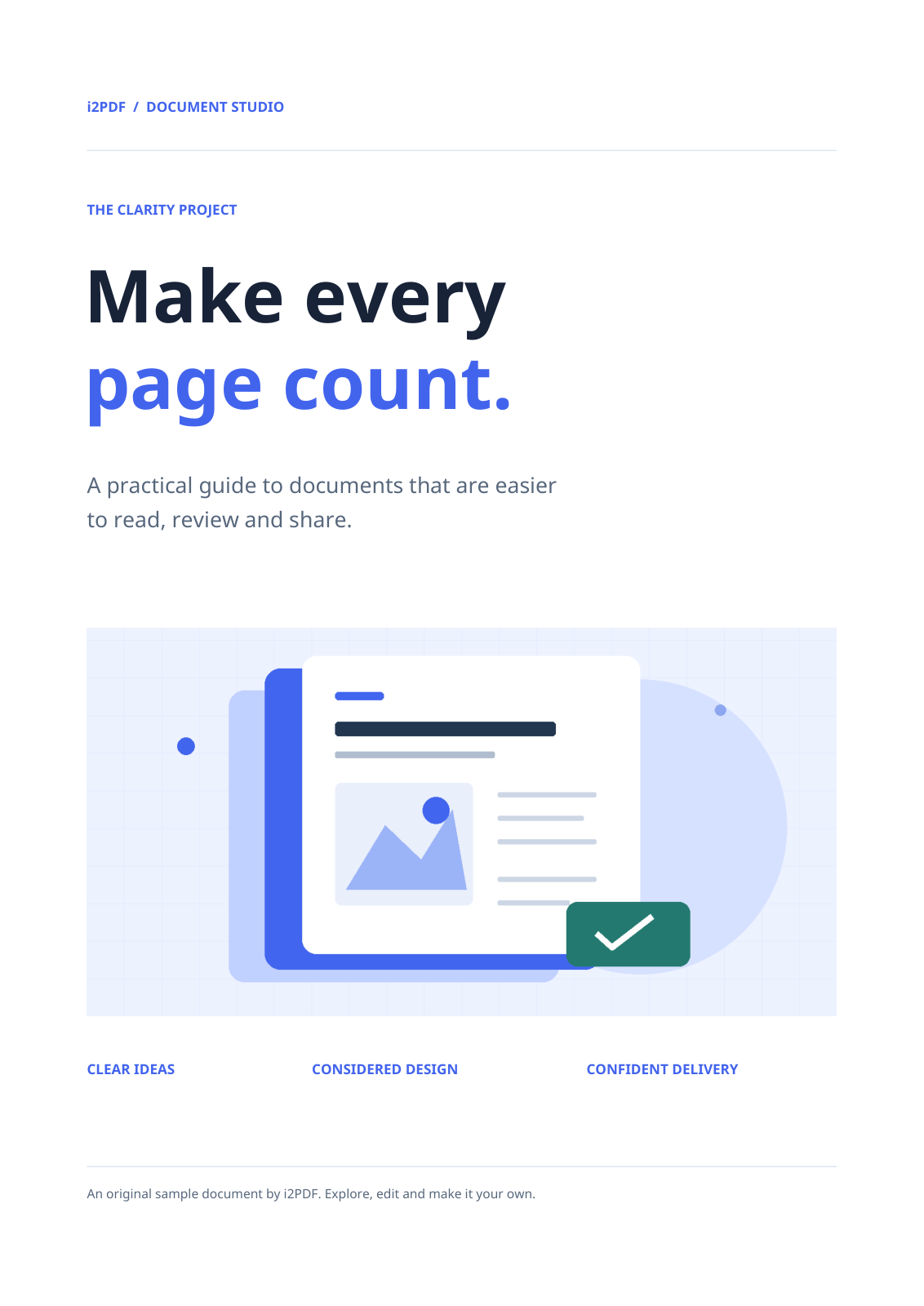
Choose Start, download the ZIP and extract it. Filenames identify the source page and image number. This example produces page-001-image-001.jpg at 1440 × 744 pixels.
Open the extracted files to check the picture, transparency and resolution. If you need the entire page, including its text and layout, use PDF to Images instead.
Common questions
Why does the result omit the page heading?
The heading is separate PDF text in this example. Image extraction saves the embedded picture without surrounding text or vector objects.
Why are there no images in my PDF?
Some PDFs contain only text and vector artwork. Convert the whole page to an image if you need a visual copy of that content.
Try it with your document
Review the result, then save the version you need.