
Students & researchers
Scanned PDF to text
Extract passages from scanned books, articles and lecture notes for quotation, study or translation. Compare the recognized text with the source before reusing it.
Make scanned words searchable and editable.
Drag on the page to select an area. Move or resize the box; arrow keys move it and Shift + arrows resize it.
Select the whole page or draw, move and resize a box around the text you need. Each click processes this selection only.
Your result is ready. Download a copy, or return to adjust the settings.
Open a PDF or try the sample. Previewing does not upload your document.
Display the page you need. Choose Classic or Future, the recognition language and an available output format.
Recognize this page, review the result and download it. Other pages need separate clicks.
PDF OCR (optical character recognition) reads text inside scanned PDF images so you can copy and edit it. Recognize one page or selected area at a time, download TXT or editable Word text, and review the result beside the scan. Smart edit helps refine the wording and formatting. Classic also offers a searchable PDF; Future offers a text-only PDF in a new layout.
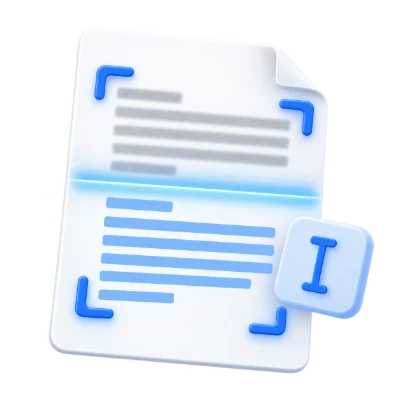
Extract passages from scanned books, articles and lecture notes for quotation, study or translation. Compare the recognized text with the source before reusing it.
Turn a scanned letter or report page into editable Word text. Review and correct the wording without retyping everything; the Word file uses a new layout.
Use Classic to add searchable text to the selected page or area while retaining its scanned image. Each run creates a result for that page, not the whole document.
Can you already select and copy the text? Extract it directly without OCR:
PDF to TextNavigate to a page, select its recognition language and recognize the full page or a drawn rectangle. Each request processes one page at a time.
Draw, move or resize the recognition rectangle in the page preview to exclude unrelated columns or borders, then choose Recognize selection. To process another page, return to the workspace, select that page and run recognition again; this is not a whole-document OCR batch.
Set the recognition language to the actual text. Clear, upright scans are easier to recognize than blurry or skewed images. Recognition uses a fixed 200 DPI; it cannot restore detail absent from the original.
Classic works well for most printed documents. Future uses advanced AI recognition optimized for difficult scans, some handwritten documents and complex multilingual text.
Classic is a good choice for most printed documents and offers single-column or multiple-column layouts. Its Searchable PDF retains the selected image area and adds a text layer aligned with the recognized words for searching and selection.
Future is the default for supported languages. Its advanced AI recognition is optimized for difficult scans, some handwritten documents and complex multilingual text. Handwriting results depend on legibility and scan quality, so compare the recognized text with the source image. Its Simple PDF contains selectable text in a new layout instead of preserving the source image. Languages not supported by Future use Classic.
Both engines offer TXT and a genuine Word document (.docx), with clean, editable text and right-to-left formatting where appropriate. Choose the recognition language that matches your document.
The main Download button saves the format chosen in Settings. PDF, TXT and Word links below it offer the other formats from the same recognition run. Choose TXT or Word (DOCX) in Settings to open the source-image and editable-text panels, including Smart edit. Choosing PDF opens PDF preview and download.
For TXT and DOCX results, review the recognized text beside the source image. Correct it directly or open Smart edit beside Copy.
The source panel shows the full page. When you recognize a selected area, the rest of the page is faded and a blue outline marks the selection. Zoom in to inspect small characters and use Fit to see the full page again. Compare names, numbers, punctuation and reading order with the image.
Corrections in the editable result update the main TXT or DOCX download. Copy beside the text copies the current result with a brief fading effect. Smart edit opens a larger window for AI actions and formatting. Text changes do not alter the source image or repair a previously generated searchable PDF layer.
In Smart edit, choose an AI action and select Apply. Highlight a passage to work on that text, or leave nothing selected to use the whole editor.
Summarize text condenses a passage, Paraphrase text rewrites it, and Fix grammar requests language corrections. These actions replace the selected passage or, with no selection, the entire editor content. Suggest a title adds a heading above the document; a selected passage can guide the title without removing the body.
Each AI request accepts up to 600 words and 12,000 characters, with a 64-KB UTF-8 request limit. Select a shorter passage if a long result exceeds these limits. AI actions send that text to our servers only when you select Apply and request output in the same language.
Review proposed changes before keeping them. AI can omit details, alter meaning or introduce mistakes, especially when the input contains recognition errors. Undo returns to an earlier version. The main result is updated only after Apply Changes; running an AI action alone does not replace it.
Add headings, lists, emphasis and text direction in Advanced editor, or use Simple editor for plain-text changes.
Advanced editor provides paragraphs and three heading levels, sans-serif, serif and monospace fonts, font size, bold, italic and underline. Set text color or highlighting, use bulleted or numbered lists, adjust alignment and choose automatic, right-to-left or left-to-right direction. Clear formatting removes styling for a simpler result.
Formatting happens in your browser. Switching to Simple editor does not itself discard the advanced document; editing its plain text removes formatting. AI replacements insert unformatted text in the affected area, so apply final styling after reviewing the wording.
Use Formatted copy to keep this styling in an HTML download. Copy and Apply Changes transfer plain text. Formatting the result does not change the original PDF’s fonts, page layout or text layer.
Remove accents and vowel marks, normalize digit shapes, or use Undo, Redo and Restore to revisit your edits.
Remove accents & vowel marks removes Latin accent marks and common Arabic vowel marks from the chosen passage or the whole editor. Normalize numbers standardizes Western, Arabic or Persian digit shapes according to the text’s script; it does not change their numeric values. These cleanup actions run locally in your browser.
Undo and Redo let you review editing steps, including AI changes. Restore OCR text or Restore translation returns the editor to the original result from processing. You can undo that restoration too. Cancel closes the window without applying its current changes to the main result.
Smart edit is a working editor, not a saved project. Download any text or formatted copy you need before reloading the page or starting over.
Apply Changes updates the TXT or Word (DOCX) result. Formatted copy saves your Smart edit styling as a separate HTML file.
TXT contains the current plain text. Word document (.docx) is a genuine editable Word file, created with clean text and right-to-left paragraph and text formatting for RTL languages. After text corrections or Smart edit changes, Download sends the current text to our server to regenerate the Word file without repeating OCR. The Word file does not recreate the scan layout or keep Smart edit’s rich styling.
For headings, colors, lists and other Smart edit formatting, choose Formatted copy inside the editor. It downloads HTML that can be opened in a browser and printed with the browser’s print controls. This is an additional text document, not a searchable PDF or an edited source scan.
Smart edit accepts up to 100,000 characters in the editor; individual AI actions have the smaller limits described above. If you chose PDF output in OCR settings, use that separate PDF preview and download. Choose a TXT or DOCX recognition result when you want text corrections with Smart edit.
Open one PDF up to 50 MB and 750 source pages. Protected files need an unlocked copy unless this tool explicitly offers password entry. Large or complex pages can require more memory or reach processing limits even when the file is within these limits.
The source can contain up to 750 pages, but each request processes one page only.
Processing uses our servers. Source files, temporary files and results are deleted from our servers within 30 minutes after processing finishes. We do not share document contents with third parties or use them to train AI models.
A few answers before you get started.
Server processingOpen your PDF, choose the page and recognition language, and adjust the rectangle if you only need part of the page. Run OCR, then choose TXT or Word to copy, review and edit the recognized text. OCR reads words inside the scanned image; each request processes one page or selected area.
Yes. Both Future and Classic provide a Word document (.docx) with editable text from the selected page or area, including right-to-left formatting for RTL languages. Review the recognized words and correct any mistakes before downloading. The Word file uses a new text layout; it does not recreate the original tables, images or page design.
Usually not. If you can select and copy the words correctly, use PDF to Text to extract the existing text without recognition. OCR is useful for image-only scans or pages whose existing text copies incorrectly. Check the copied words first to choose the right tool.
No. Each run recognizes one selected PDF page or one rectangle on that page at 200 DPI. Choose another page and run OCR again to continue. The source PDF may contain up to 750 pages, but that is the upload limit, not a whole-document OCR batch.
Classic works well for most printed documents. Future uses advanced AI recognition optimized for difficult scans, some handwritten documents and complex multilingual text, and is the default for supported languages. Handwriting results depend on legibility and scan quality. Both engines offer TXT and Word (.docx), with right-to-left formatting where appropriate. Classic also creates a Searchable PDF that keeps the source image and an aligned text layer; Future creates a text-only Simple PDF with a new layout.
Yes. For TXT and Word results, the source panel shows the full page beside editable text. A blue outline marks the recognized area and the rest of the page is faded. Zoom in to check names, numbers and punctuation, or use Fit to see the full page again.
It can summarize, paraphrase, fix grammar or suggest a title, and offers formatting, cleanup, Undo and Redo. Select a passage or use the whole text. AI actions run when you click Apply and accept up to 600 words and 12,000 characters per request. Review the result, then choose Apply Changes to update the main text. Formatted copy downloads HTML; Copy and Apply Changes transfer plain text.
TXT and DOCX downloads use the corrected plain text, including Smart edit’s Apply Changes. DOCX creates clean, editable Word text with RTL paragraphs for RTL languages. After editing, Download regenerates the Word file on our server without repeating recognition. Use Formatted copy in Smart edit for headings, lists and colors as HTML. Text corrections do not change an existing searchable PDF layer.
Open one PDF up to 50 MB and 750 source pages. Protected files need an unlocked copy unless this tool explicitly offers password entry. Large or complex pages can require more memory or reach processing limits even when the file is within these limits.
This tool uses our servers for processing. Your original file is not overwritten; the result is a separate download. Preview and review the result where available, and download the copy you need before starting over.