
Use Scan to PDF to turn camera captures or existing photos into one document. Complete the whole task on a phone, or connect the phone to a computer and finish on its larger screen. Open Scan to PDF
Choose where you want to finish
For a phone-only workflow, open Scan to PDF on the phone. Choose Start scanning or Choose photos. The PDF downloads on that same device.
For a desktop workflow, open the app on your computer and choose Scan with your phone. Scan the QR code with the phone camera and open the link. The phone captures the pages; the computer assembles and downloads the PDF. The connection lasts 10 minutes.
Capture or choose the pages
Allow camera access when prompted. Place the paper on a contrasting surface in even light. Keep the whole page visible and the phone steady. Tap the round capture button for each page, then choose Review pages.
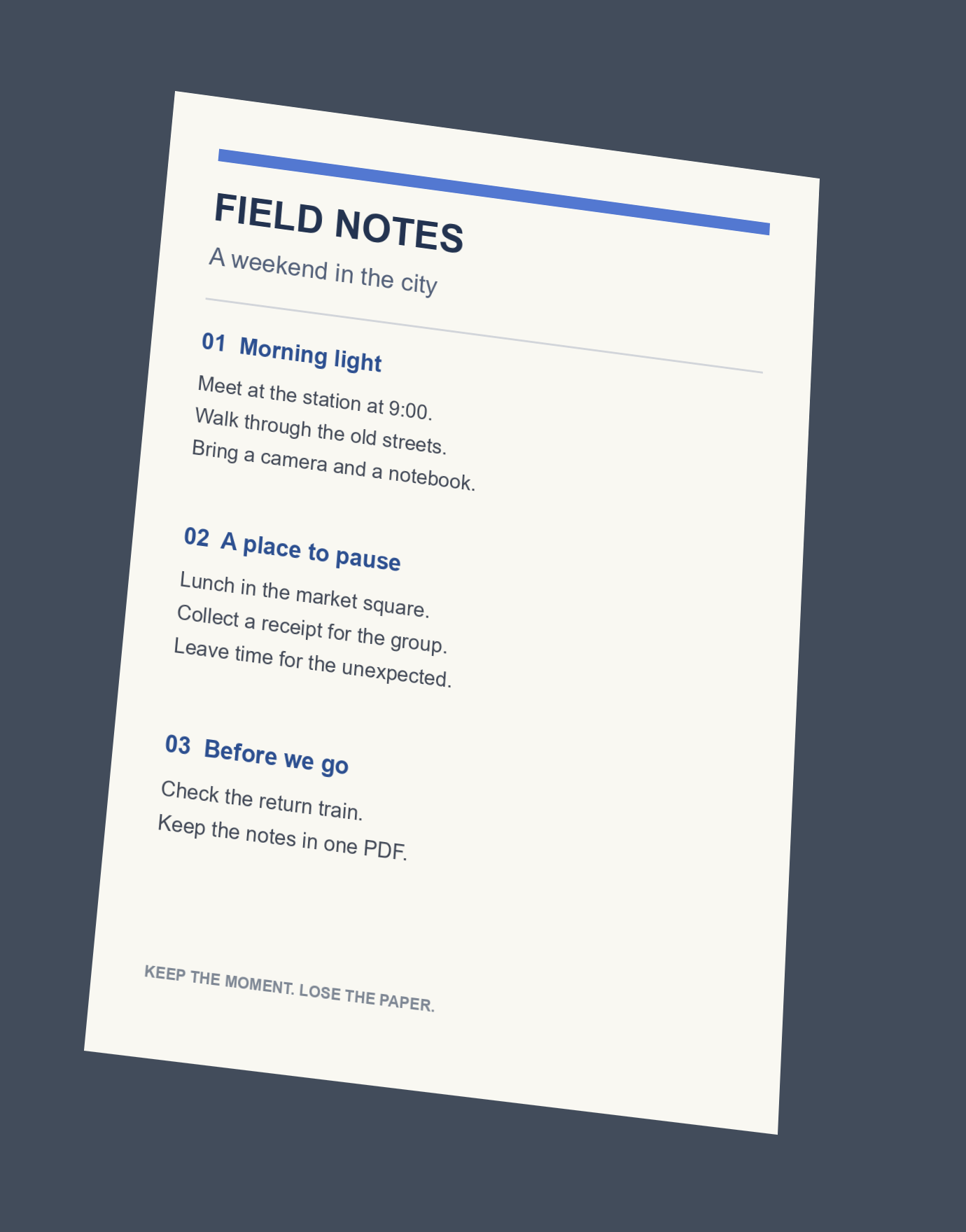
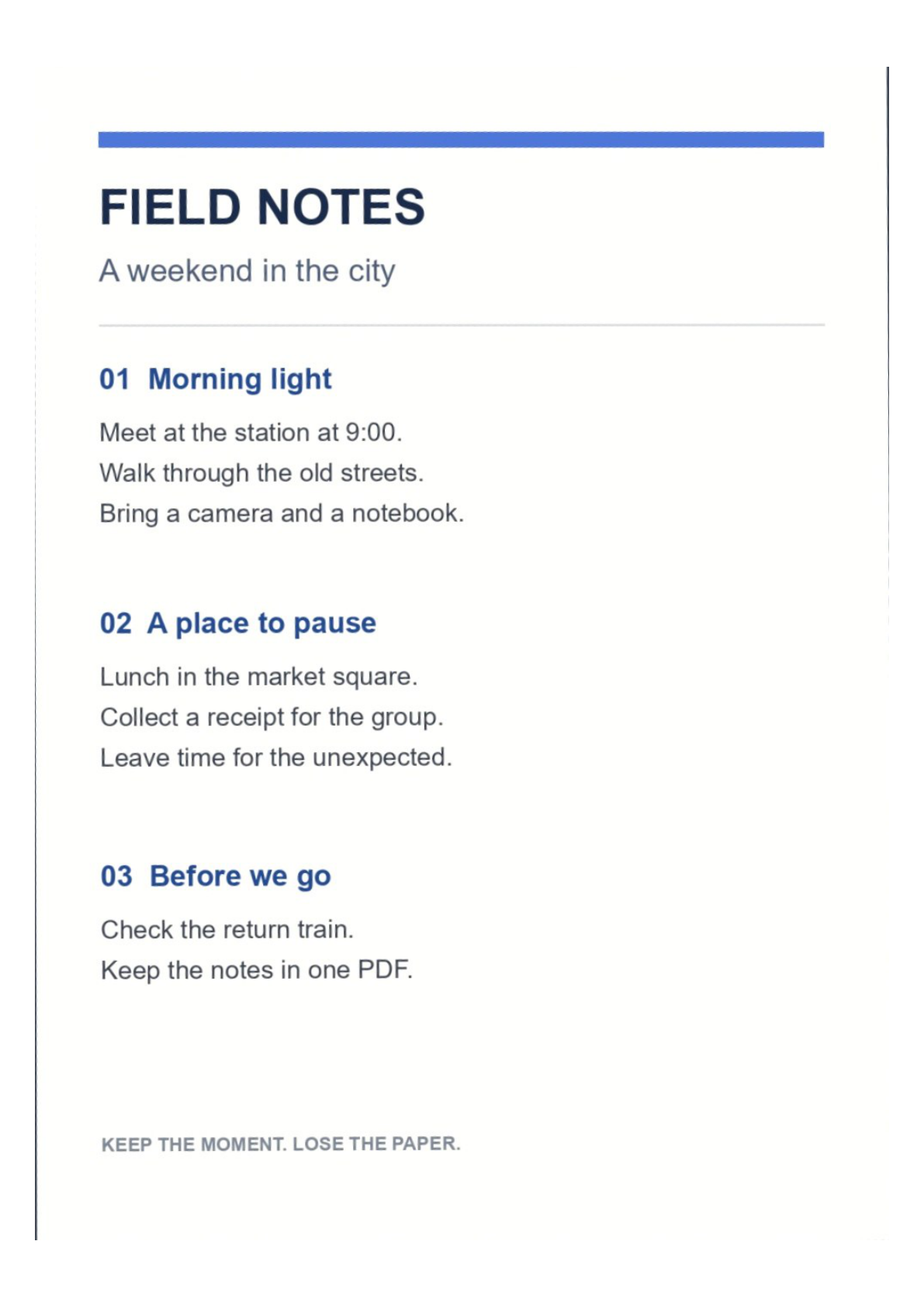
Choose photos accepts JPEG, PNG and WebP images. Try a sample photo opens the field notes used in this guide. When using a computer QR code, review the pages on the phone and choose Send to computer. Keep the computer connection window open until the transfer finishes.
Check the edges and the reading order
Start with Clean preview. Choose Adjust corners to inspect the original photo and move the four handles onto the paper corners. This straightens perspective, rather than simply cutting out a rectangle from the photo.
Find edges suggests another crop. Reset page restores the full photo and default appearance. Rotate turns the page by 90 degrees. Select pages in the tray, use Move page earlier or Move page later to arrange them, and delete duplicates or blurred captures.
Choose Color, Grayscale or Black & white. Brightness and Contrast refine the selected page. Apply appearance to all pages uses the same finish throughout. Check faint writing after black-and-white conversion; a threshold can remove lighter marks.
Choose a layout and download
Open Scan & PDF options; on a phone, tap Settings. Choose A4, US Letter or Fit to scan, then set margins and image quality. Create PDF combines the reviewed pages in tray order.
Download and open the PDF to check page count, orientation and small text. Back to scans returns to editing. The PDF contains page images. Continue with PDF OCR if you need searchable text.
Small details that make a better scan
Light matters
Avoid glare, deep shadows and motion blur. Cleanup cannot recreate text that the camera did not capture clearly.
Review every crop
Automatic corners are suggestions. Dark paper, a white desk or a busy background may need manual adjustment.
Keep important originals
Photos are resized to a maximum long edge of 2400 pixels for manageable browser processing. Keep original captures for archival needs.
Common questions
Can I scan and download entirely on my phone?
Yes. Open Scan to PDF on your phone, choose Start scanning or Choose photos, review the pages, and create the PDF. A computer and QR code are optional.
How do I send scans to a computer?
Open Scan to PDF on the computer and choose Scan with your phone. Scan its QR code, capture or select photos on the phone, and choose Send to computer. Keep the connection window open until all pages arrive. Finish and download on the computer.
Why will the camera not open?
Camera access requires HTTPS and browser permission. Another app may be using the camera. Allow access in your browser or use Choose photos. The microphone is never requested.
Are my scans uploaded?
Editing and PDF creation run in your browser. Optional phone transfer encrypts pages before temporary relay storage. The key stays with the connected browsers. Relay copies are deleted after receipt; expired sessions are removed by cleanup. Closing the computer connection cancels pending transfers.
Will the PDF contain searchable text?
The scanner creates an image-based PDF. Continue with the separate PDF OCR tool if you need searchable text.
Which files and limits are supported?
Choose JPEG, PNG or WebP images. A document can contain 30 pages, with 20 MB per image and 200 MB in total. Images must be at most 32 megapixels and are resized to a maximum long edge of 2400 pixels. HEIC and PDF input are not supported by this scanner.
Give your paper a digital home
Start with one page, make it clear, and keep the finished document together.