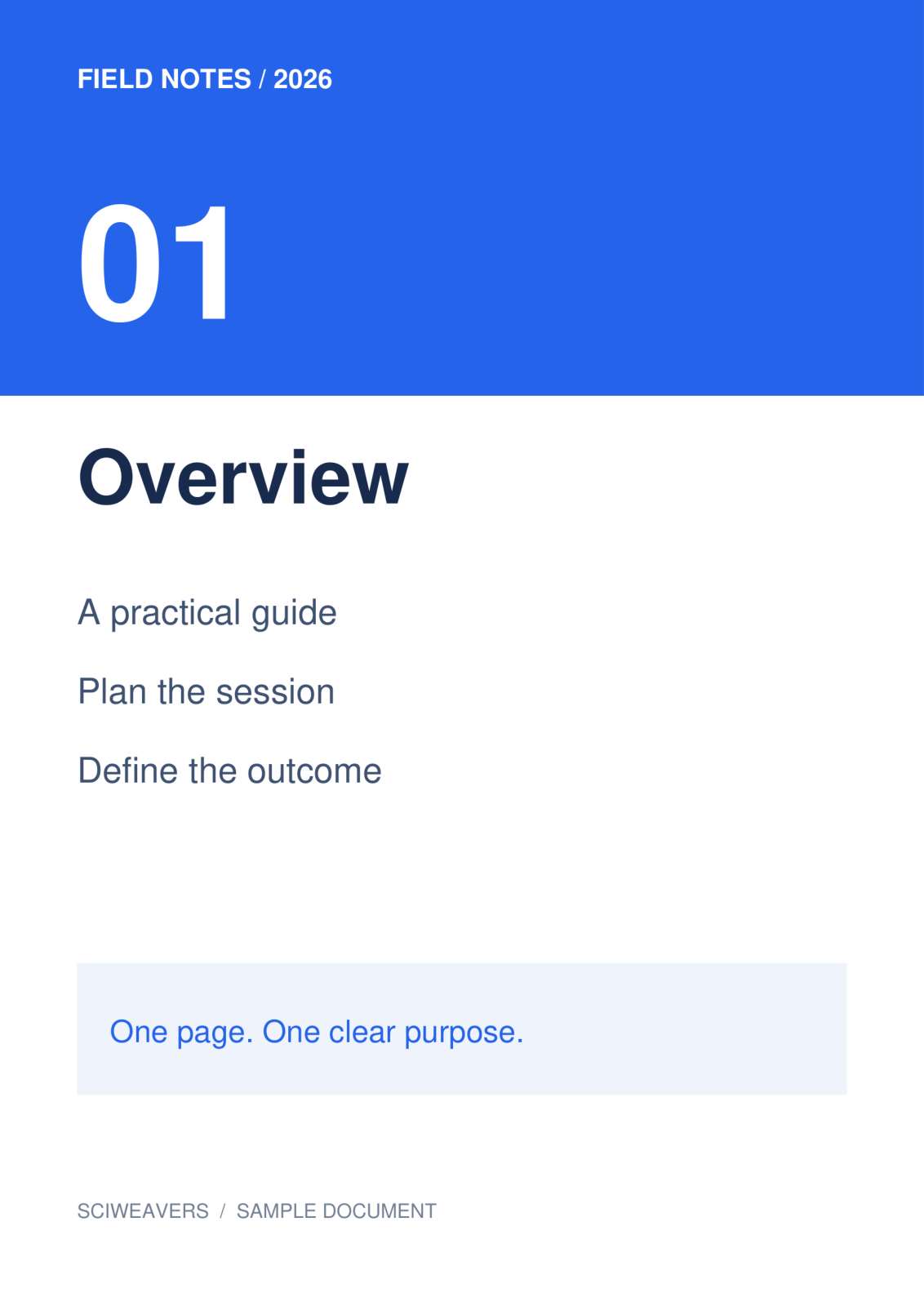
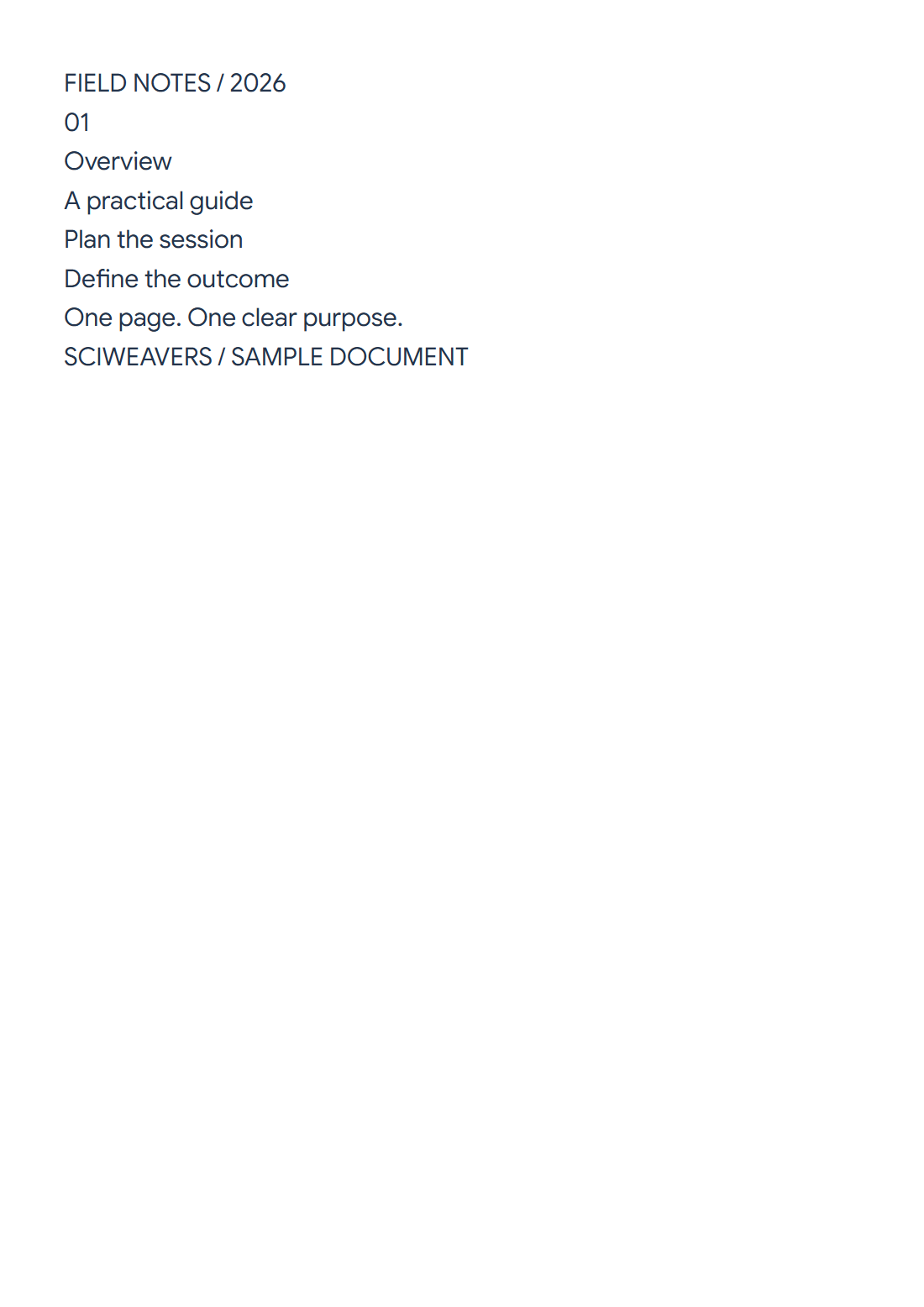

Use PDF OCR to recognize words from page images. Our example begins with a four-page image-only scan and recognizes its first page, Overview, into editable text.
Choose a page or area
Load the PDF and navigate to the page you need. Use the whole page or adjust a selection rectangle around the needed text. The example uses all of page 1.
Another page or area requires a separate recognition action. The tool does not automatically process every page of the uploaded PDF.
Choose language, engine and format
Choose the language printed on the page. For our English sample, keep Future as the OCR engine and choose Editable text (.txt).
Choose Classic when you need its searchable PDF, which retains the source image with an invisible recognized-text layer. Future provides editable text, Word and a reflowed text-only PDF.
Recognize, correct and download
Choose Start and complete the displayed verification checkbox. Compare the recognized result with the source image. Our download correctly includes Overview, Plan the session and Define the outcome.
Correct names, numbers and uncertain words before copying or downloading text. Corrections update editable exports; Classic’s positioned searchable PDF retains the original recognition, so review that file separately.
Refine the recognized text with Smart edit
For a TXT or Word result, choose Smart edit beside Copy. Select a passage to work on that text, or leave nothing selected to use the whole draft. Choose Summarize text, Paraphrase text, Fix grammar or Suggest a title, then choose Apply. The title action adds a heading above the text.
Check every AI change against the scan, especially names, numbers and missing words. The suggestion stays in Smart edit until you choose Apply Changes. TXT and Word downloads then use the edited plain text. Formatted copy downloads a separate HTML file with editor styling; the original scan and Classic searchable PDF text layer do not change.
Common questions
Can I recognize one paragraph only?
Yes. Select a rectangle around it before starting. Check the edges so nearby text is excluded and important words are not cut off.
Will Future keep the original page design in its PDF?
Its PDF is a reflowed text-only document. Choose Classic’s searchable PDF when retaining the scanned page image with a text layer is the purpose.
Can Smart edit change the searchable PDF?
No. Smart edit is available with TXT and Word results. Apply Changes updates the editable text; it does not rewrite the scanned page or a previously generated searchable PDF.
Try it with your document
Review the result, then save the version you need.