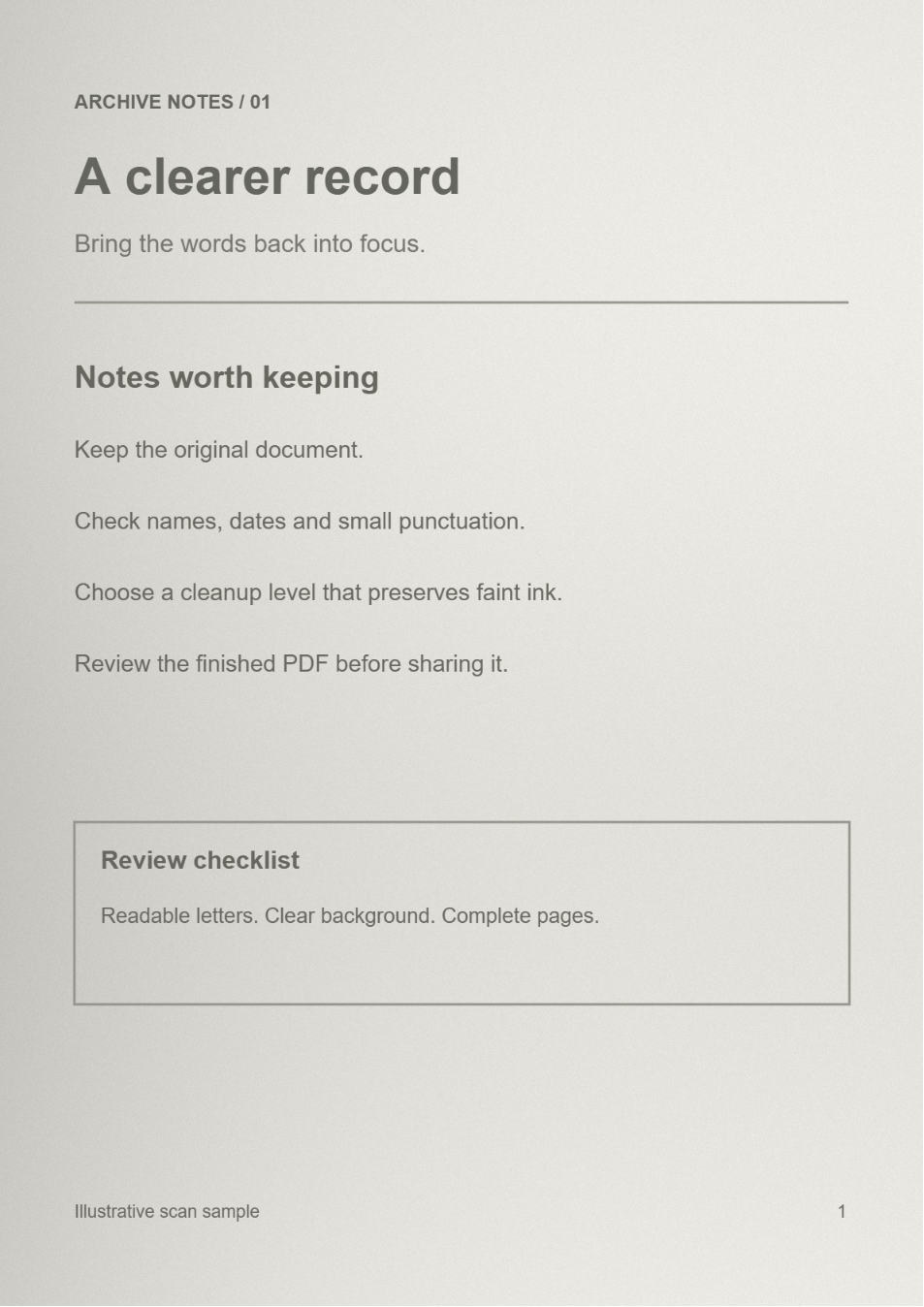
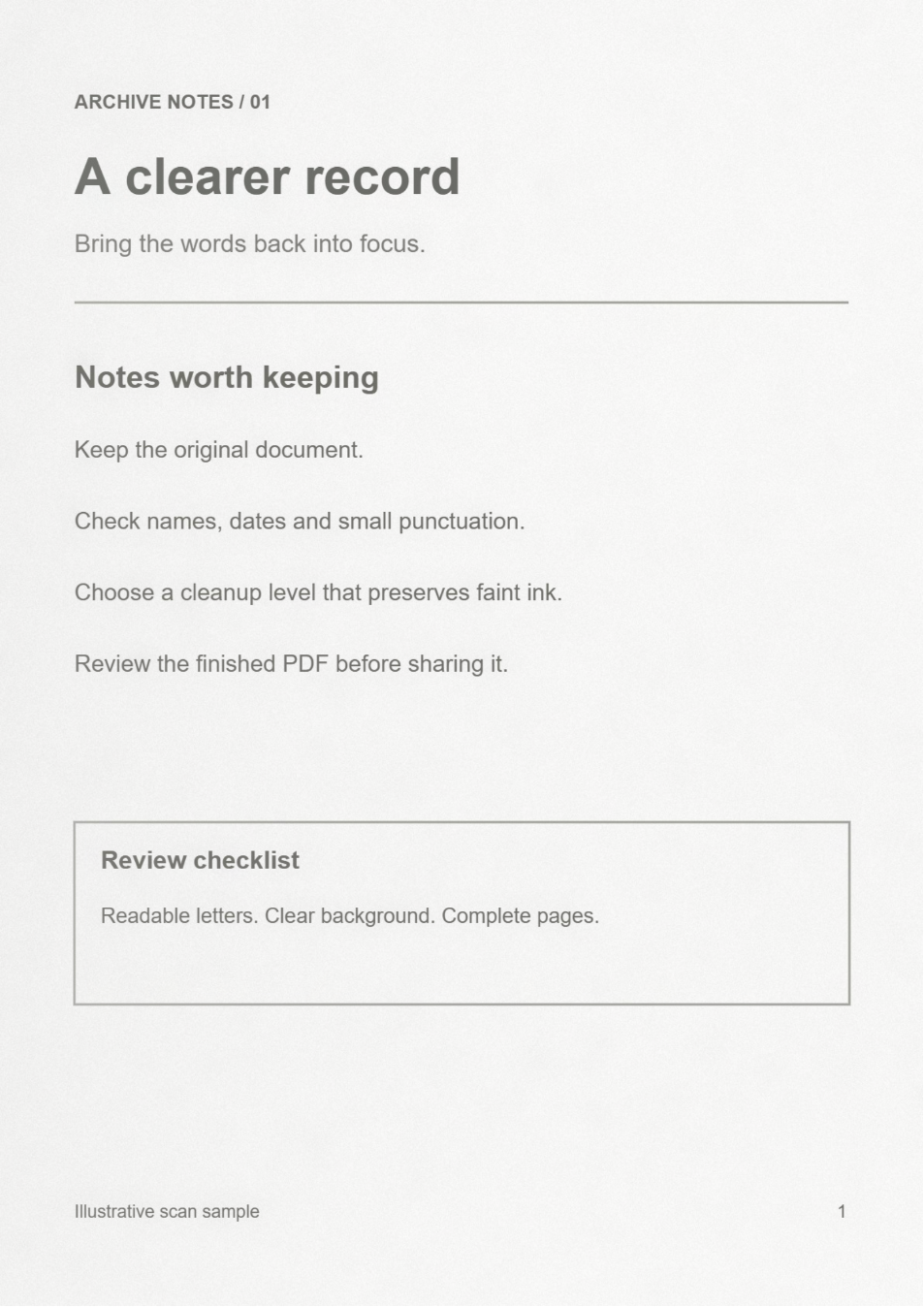

Scanned pages often carry the paper's shadows and texture along with the words. Enhance Scanned PDF offers different ways to simplify that background. Our two-page illustrative scan has uneven shading and grain, making the cleanup easy to compare.
Open a scan and find its weakest detail
Open Enhance Scanned PDF and choose the PDF you want to improve. Navigate to a representative page: one with paper shading, small text and any handwriting you need to keep.
Before adjusting anything, identify a faint word, a decimal point or a thin pen stroke. Use it as your reference so a whiter background does not come at the cost of useful content.
Choose a PDF up to 50 MB and 200 pages.
Match the profile to the document
The Enhancement profile determines the type of cleanup. A text handout and a page of colored annotations may need different treatments.
Clean scan
Reduces uneven paper backgrounds and gently smooths noise. Start here for the shaded text example in this guide.
Black & white
Produces a monochrome result with adaptive thresholding. Adjust Ink strength and watch for thin letters breaking up or filling in.
Colored notes
Simplifies paper and pen colors using lightness and color thresholds. Check every important annotation; the treatment can also change photos and shaded diagrams.
Tune cleanup and compare the original
For our example, keep the default Clean scan profile, Background cleanup at 85, and Gentle smoothing at 1. Compare those settings with the original before making them stronger.
Use Show original preview to check your reference detail. If pale writing disappears, reduce cleanup. If narrow strokes soften too much, reduce smoothing.
Apply to all pages is on initially. Turn it off to give the current page its own settings; turning it on again copies the current settings to all pages. Leave the download page range blank to include the whole document.
A little paper texture is often preferable to lost punctuation. Check more than one page when the scan quality varies throughout a document.
Save and inspect the enhanced PDF
Select Start, wait for processing and download the result. The example keeps both pages and their original dimensions while cleaning the visible paper background.
Inspect the exported file at normal reading size and zoom in on your faintest text. Verify names, numbers and handwritten marks before sharing it. Keep the source scan so you can try a gentler profile if necessary.
Common questions
Will this make a blurry scan sharp?
It can improve the separation of writing from the background. It cannot reliably recover characters that are out of focus or missing from the source scan.
Which profile should I use for colored handwriting?
Try Colored notes and inspect each pen color closely. Use Clean scan or gentler settings if pale annotations lose detail. Always compare the exported file with the source.
How is this different from adjusting contrast?
Contrast PDF gives direct control over tonal separation. Scan enhancement adds profiles aimed at paper cleanup, monochrome text and colored notes.
Give your scan a cleaner page
Let the faintest useful mark guide the settings.