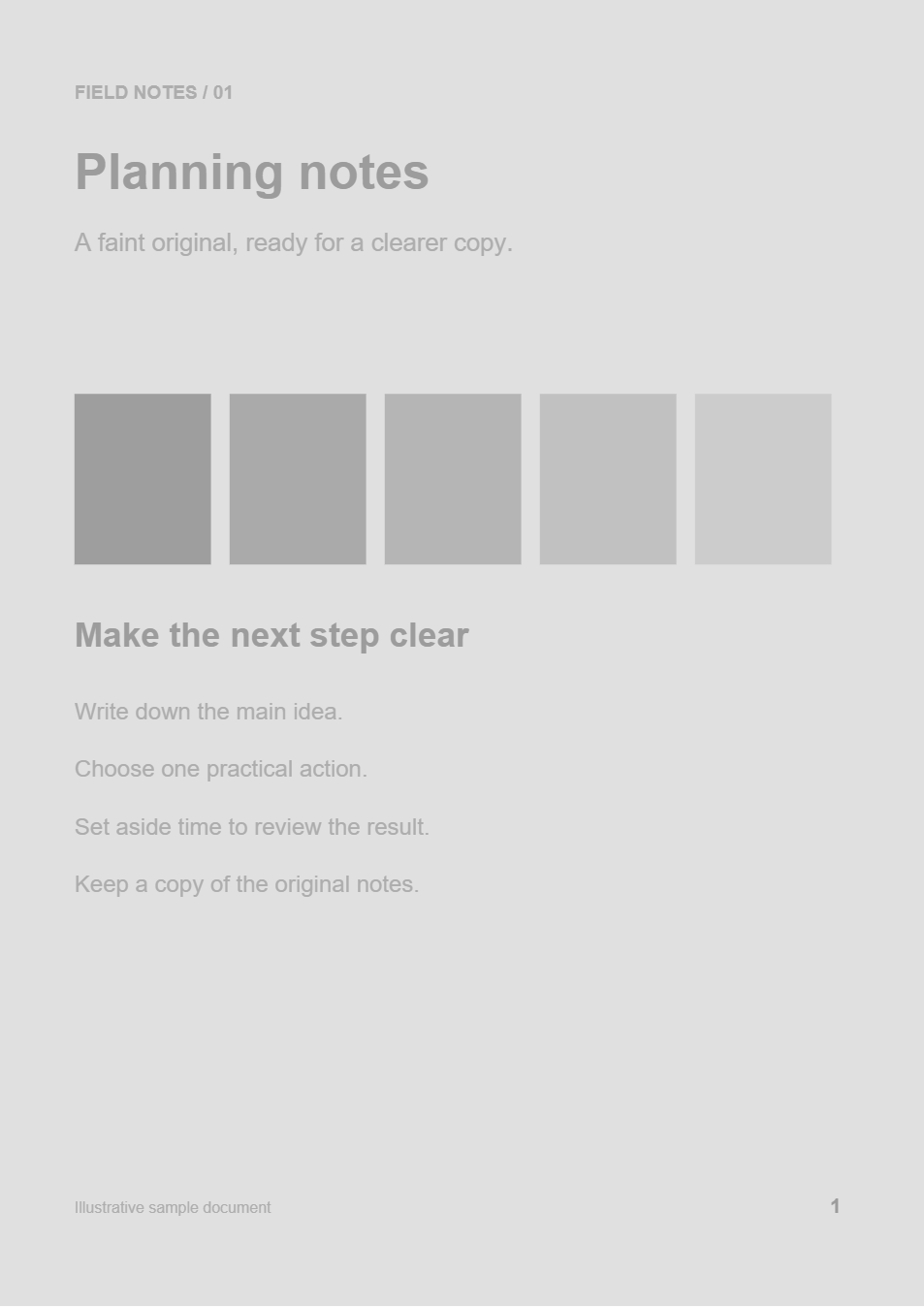
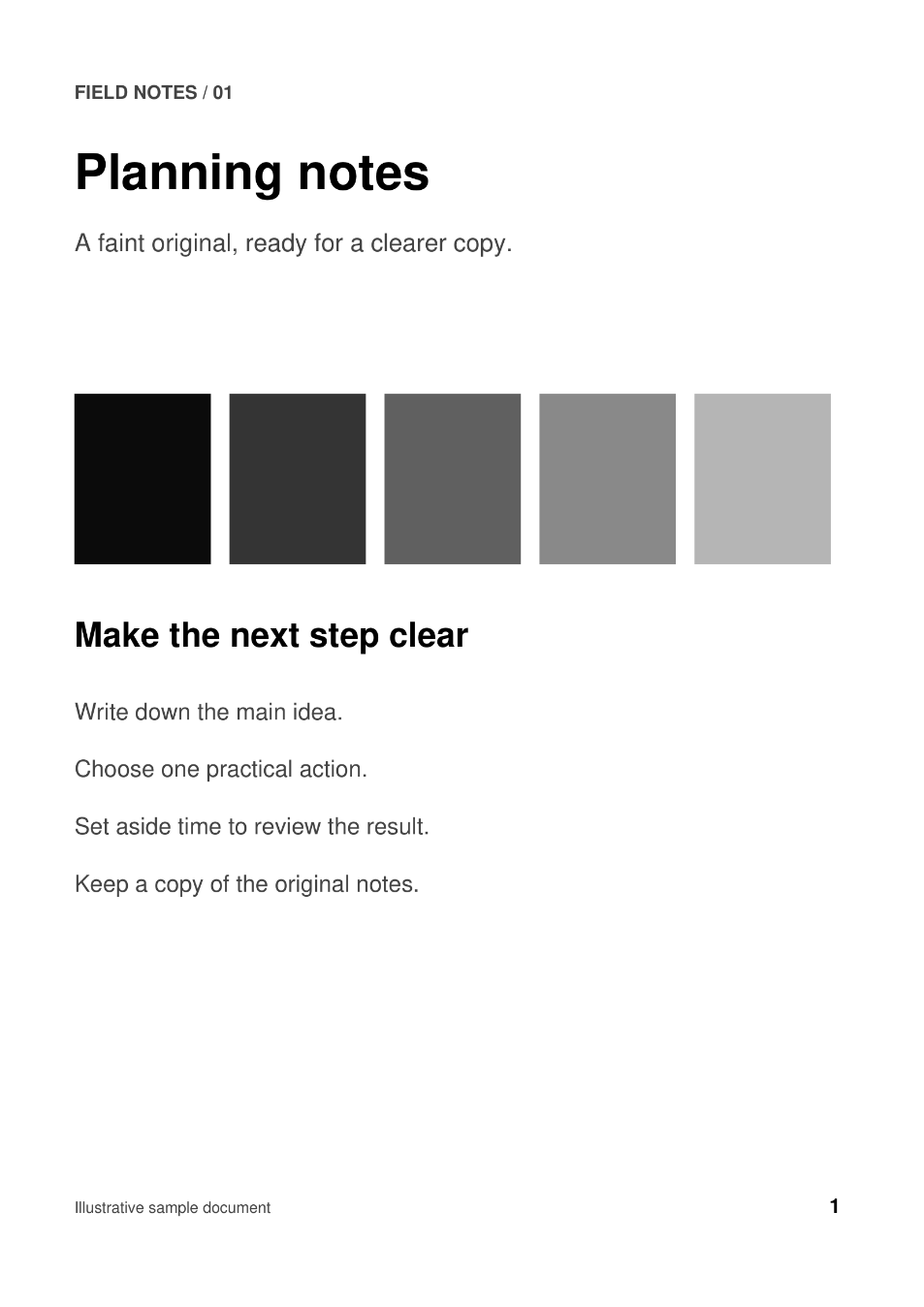

A pale PDF can be tiring to read even when its letters are sharp. Contrast PDF changes the separation between light and dark tones. In this example, Auto levels turns a deliberately faint two-page document into a clearer reading copy.
Open the PDF and inspect a faint page
Open Contrast PDF and choose your PDF, or use the sample to explore the controls. Move to a page that contains both faint writing and meaningful detail.
Zoom in enough to check small punctuation and thin lines. A setting that looks bold in a thumbnail can erase subtle detail when taken too far.
Choose a PDF up to 50 MB and 200 pages.
Choose the right contrast profile
Use Contrast profile to choose how the tones change. Start with one approach and compare the result before increasing its strength.
Manual contrast
Adjust Contrast and Brightness offset separately when you want direct control over the overall result.
Auto levels
Spreads a narrow tonal range across a wider one. It is a useful starting point for uniformly pale pages like this example.
Local contrast
Emphasizes nearby light and dark detail. Increase Detail boost carefully: paper texture and scan noise can become more noticeable too.
Set the strength and page scope
For the example, choose Auto levels, set Strength to 100, and leave Tone clipping (%) at 0.5. These values suit this faint sample; start lower on a document that already has strong blacks or bright highlights.
Leave Apply to all pages checked for the same settings throughout. To adjust an individual page, turn it off, select that page and make the change. Turning it back on applies the current settings across the document.
Toggle Show original preview to compare. The page-range field controls which pages enter the download; leave it blank to include all pages.
If letters become solid blocks or fine lines disappear, reduce the strength or clipping. More contrast is useful only while the content remains readable.
Process, download and check the copy
Select Start and download the completed PDF. This example produced faint-notes-contrast.pdf with both original page sizes and a stronger tonal range.
Open the downloaded file and inspect a few pages at normal reading size and at a closer zoom. The preview is a guide; the exported PDF is the result to judge. Keep the source if you need to try different settings later.
Common questions
Can contrast recover missing text?
It can make existing faint marks easier to see. It cannot reconstruct letters that were never captured or have disappeared into a solid background.
Should I use this for a dirty scan?
For uneven paper shading or scan noise, try Enhance Scanned PDF. Its cleanup profiles address the background more directly.
Can I change the page colors instead?
Yes. Color PDF lets you choose colors for dark and light areas. Contrast is the better starting point when the main problem is weak separation between tones.
Make a clearer reading copy
Start gently, compare the detail, and keep the original.