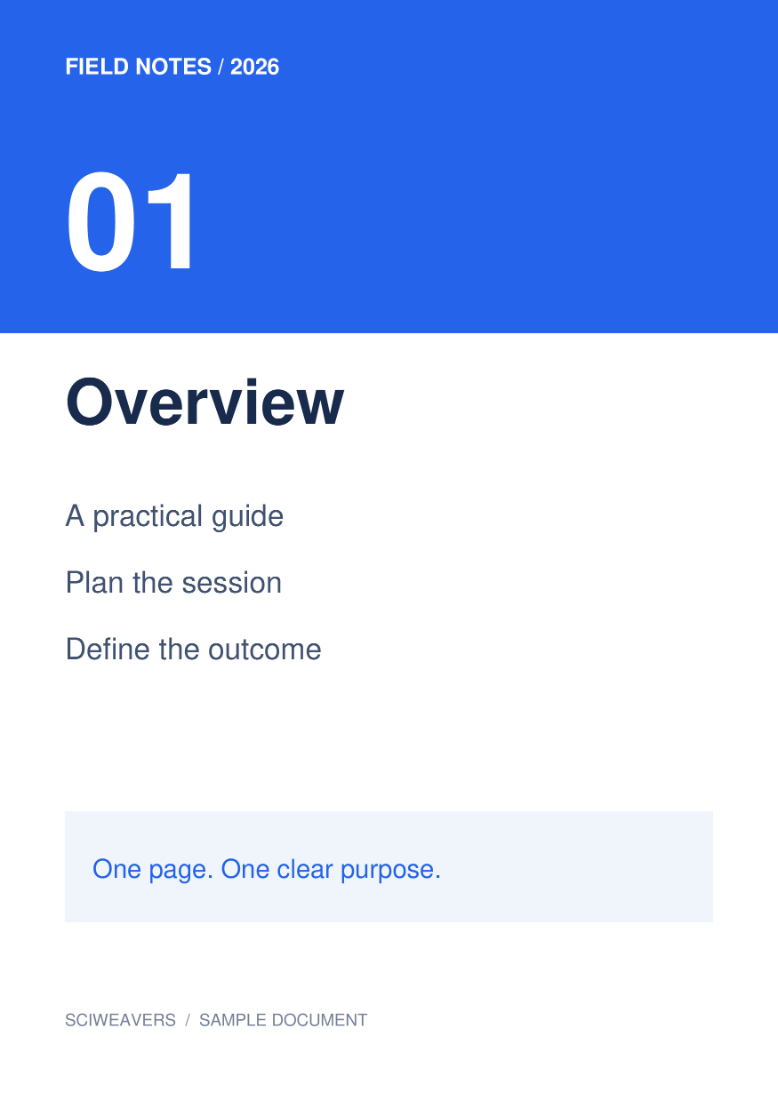

Open Compress PDF, load your document and choose an output profile. Our image-based sample falls from 295,990 bytes to 90,003 bytes, a reduction of about 70%.
Choose a PDF worth compressing
Select the PDF and note its original file size. A scan with high-resolution images is a useful candidate. Already optimized files and small text-only PDFs may have little to gain.
Balance size and image quality
Use Balanced quality, 144 DPI and Color to reproduce the example. A lower resolution can reduce image data further, while a higher setting may retain more fine detail.
Leave Pages to process blank for the whole document. A page range selects the output pages and their order, so do not use it merely to preview a subset while expecting every page in the result.
Compress and compare the download
Choose Start and download. Compare actual file sizes, then open the result and inspect small text, diagrams and photographic detail. Our example keeps one page and saves 205,987 bytes.
If the result is too soft, return and use a higher quality or resolution. Keep the version that meets both your upload limit and readability needs.
Common questions
Why do the before and after pages look similar?
The purpose is a smaller file while retaining useful appearance. The byte counts show the actual result; check the full-resolution images or downloaded PDF for detail.
Does grayscale always give the best result?
It removes color information and may help some files, but color can carry meaning in charts and highlights. Choose it only when a monochrome result is suitable.
Try it with your document
Review the result, then save the version you need.