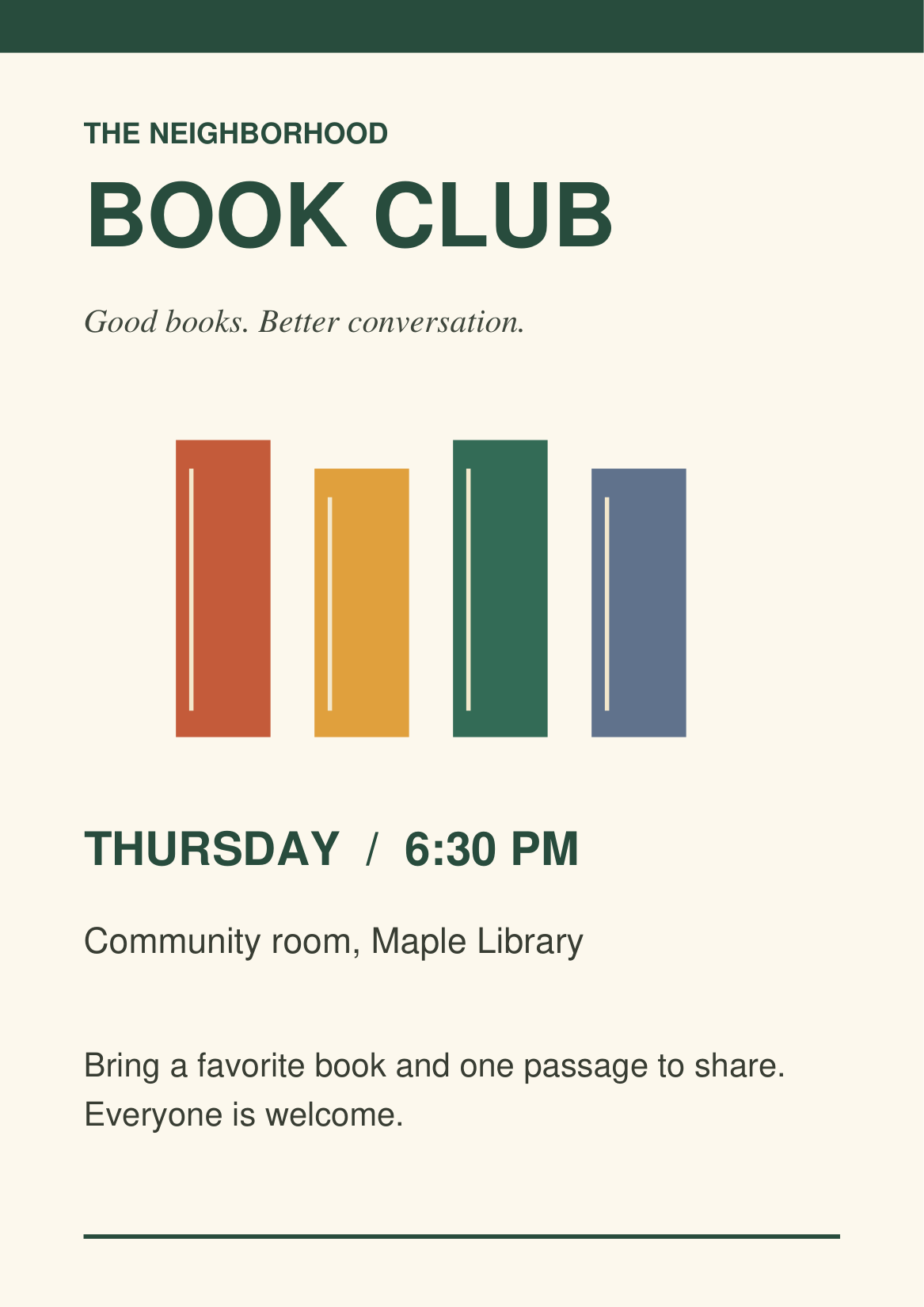

Need to share a PDF flyer as a picture, move text into another document, or export a drawing? Open Convert from PDF and choose the output you need. This guide turns a one-page book-club flyer into a PNG image that can be placed in a presentation or shared as a picture.
Choose the PDF you want to convert
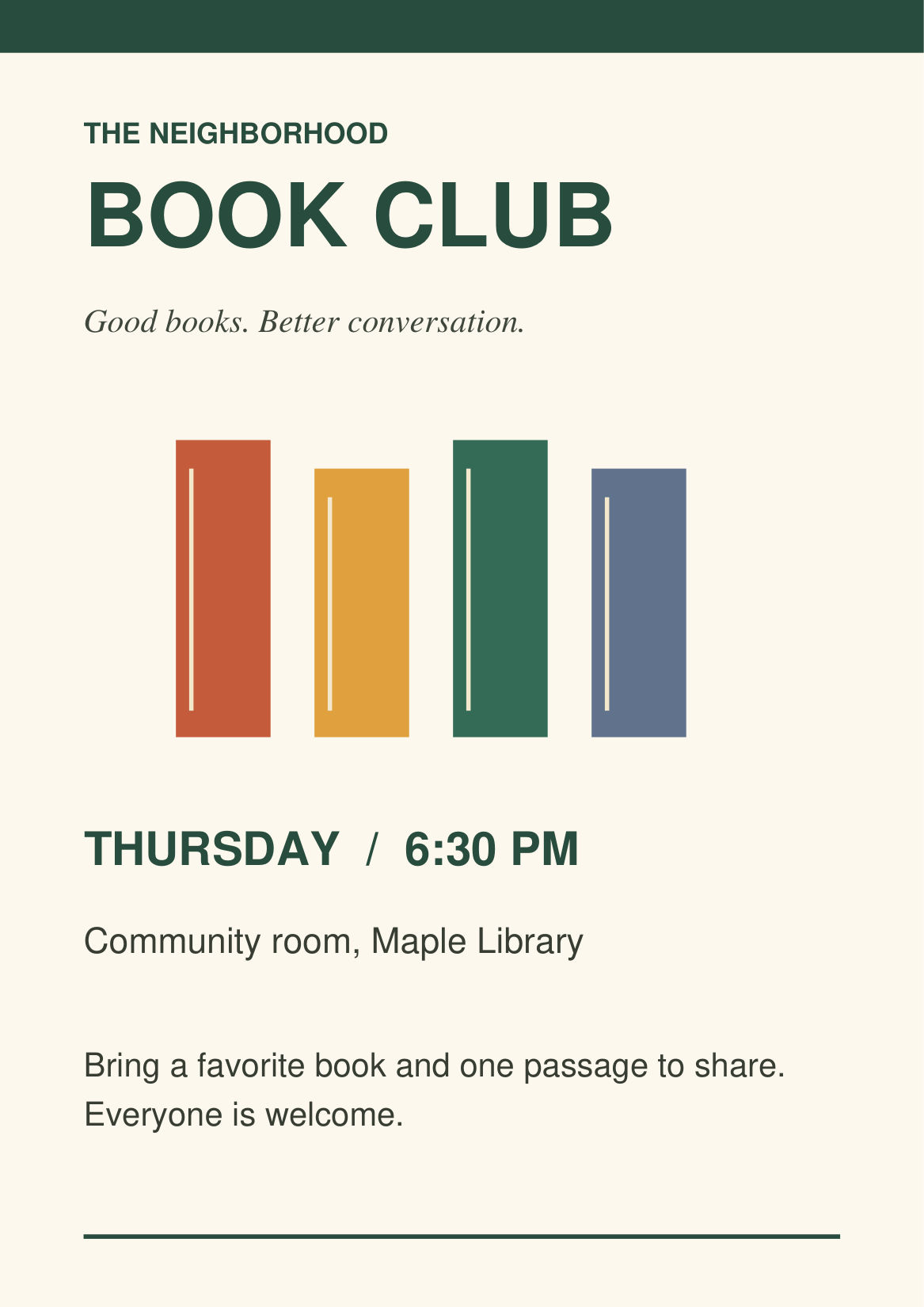
Select Upload Files, drag one PDF into the upload area, or try the sample. Our example uses Book-club-flyer.pdf, a single-page document with text and colored artwork.
The format chooser appears after the file opens. The launcher accepts one PDF up to 300 MB; each destination may have a lower file-size limit and its own page limits. Choosing the file here does not select an output format for you.
Choose a PDF up to 300 MB and 750 pages.
Choose a category, then a format card
Use the Documents, Images and CAD tabs to find an output. Documents includes Word, PowerPoint, Text, Markdown, HTML, EPUB, JSON and XML. Images includes JPG, PNG, TIFF, WEBP, SVG, GIF, BMP, HEIC, DICOM, PS and EPS. CAD contains DWG and DXF.
For the flyer, choose Images, then select the PNG card. PNG saves the page as a lossless image. The selected card is highlighted and Next becomes available.
Switching to another category clears the selection. Pick a format in the visible category before continuing. Choose Next to open the matching converter in the same tab and site language.
Review settings in the destination tool
The PDF opens automatically in PDF to PNG. Check the preview to confirm that it is the right document; you do not need to select the file a second time.
Open Settings. For this one-page example, leave Pages blank and keep rotation at 0°. Blank means all pages. For a longer PDF, enter a page range if you only need part of it.
PDF to PNG renders at a fixed 200 DPI. Close Settings and choose Start. Other destinations have different options and processing requirements, so review their controls before converting.
Download the result and inspect it
When the ready screen appears, choose Download. Our example produces one PNG measuring 1167 × 1650 pixels. The headline, book artwork and meeting details remain visible in the saved image.
One PNG page downloads directly; multiple page images download together in a ZIP. Open the downloaded image, or extract the ZIP and inspect its contents, before using it.
The example keeps the same appearance because the change is from a PDF page to a PNG picture. The PNG does not contain editable PDF text. Choose Word or Text when text is your goal, and review how well the source converts.
Common questions
Does clicking a format card start the conversion?
No. The card selects your destination. Next opens that converter with the PDF loaded, and you review its settings there. Some tools prepare a preview on arrival.
Which format should I choose for a PDF flyer?
PNG is useful for a sharp page image; JPG is another image option. Word is intended for a document workflow, while Text exports textual content. The right choice depends on what you plan to do with the result.
What if the PDF does not transfer to the converter?
Try Next again. If browser storage is unavailable, use Open converter and choose the PDF directly in that tool. Check the destination’s file-size and page limits.
Can I open a converter directly?
Yes. Use PDF to PNG or PDF to Word when you already know the format you need. For scanned text, start with PDF OCR.
Choose what your PDF becomes
Open one PDF, pick the destination and finish with the converter’s own settings.