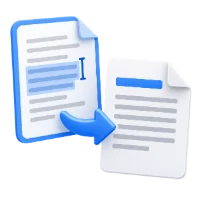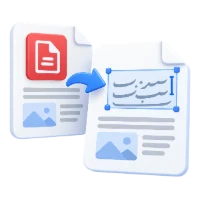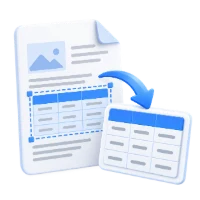

Open PDF to Word, add a PDF with selectable text and choose the pages you need. The tool rebuilds the content in a DOCX file, which you can open and revise in a Word editor.
Load a PDF with usable text
Add your PDF, or choose the sample. Try selecting a word in the source document: selectable text is a better starting point than a photograph of a page.
If your document is image-only, begin with PDF OCR and review the recognized text. OCR is a separate operation, and it can introduce recognition mistakes.
Choose the pages to convert
Leave Pages blank for the document, subject to the 50-page conversion limit. To convert a smaller section, enter a range such as 1-3, 5.
For more than 50 pages, convert separate ranges, for example 1-50 and 51-100. If a selection exceeds the limit, only its first 50 pages are converted. Our example leaves the field blank and includes all four pages.
Create the DOCX and inspect it
Choose Start, then download the DOCX and open it in a Word editor. Select a heading and place the cursor in a paragraph to check that the content can be edited.
Our result contains four pages, editable text and two native Word tables. Review table cells, paragraph breaks, columns, headers and the final line of each page. Complex PDF layouts may become several text blocks rather than one flowing paragraph.
Common questions
Can I convert a scanned PDF directly into ordinary Word text?
A scanned page may contain only an image. Use PDF OCR for recognition first, and check names, numbers and punctuation in its output.
Which tool should I try for right-to-left text?
Use the dedicated Arabic, Persian or Hebrew PDF to Word workflow and review reading direction and mixed numbers. These tools convert existing text; they do not translate it.
Try it with your document
Review the result, then save the version you need.