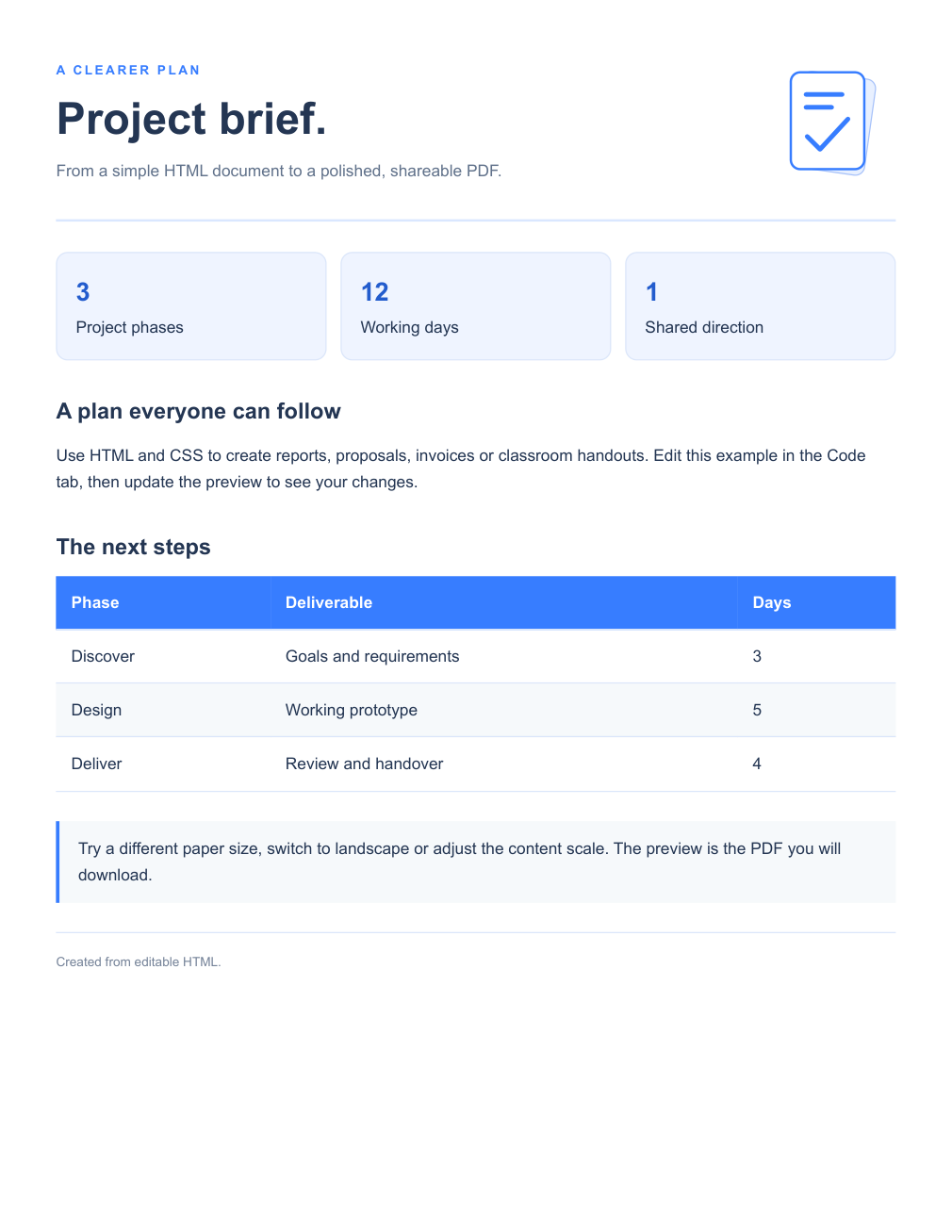

Use HTML to PDF with a file or pasted source. Choose how its CSS should be rendered, review the PDF preview and download the document.
Add the HTML and its resources
Open an HTML/HTM file or paste the markup. Review the source in the Code tab. The tool renders static HTML and CSS; scripts and embedded interactive applications are not executed.
Use embedded resources or accessible public resource URLs. Relative image and stylesheet references need a suitable public base URL; local companion files are not automatically available to the converter.
Choose CSS mode and page layout
Choose screen CSS to use screen-oriented styles, or print CSS when the document includes a print stylesheet. Set the paper, orientation, margins, scale and background option.
The default uses Letter portrait, half-inch margins and screen CSS. The authored CSS page-size option is enabled initially; an @page size can therefore take precedence over your paper choice.
Update the preview and save
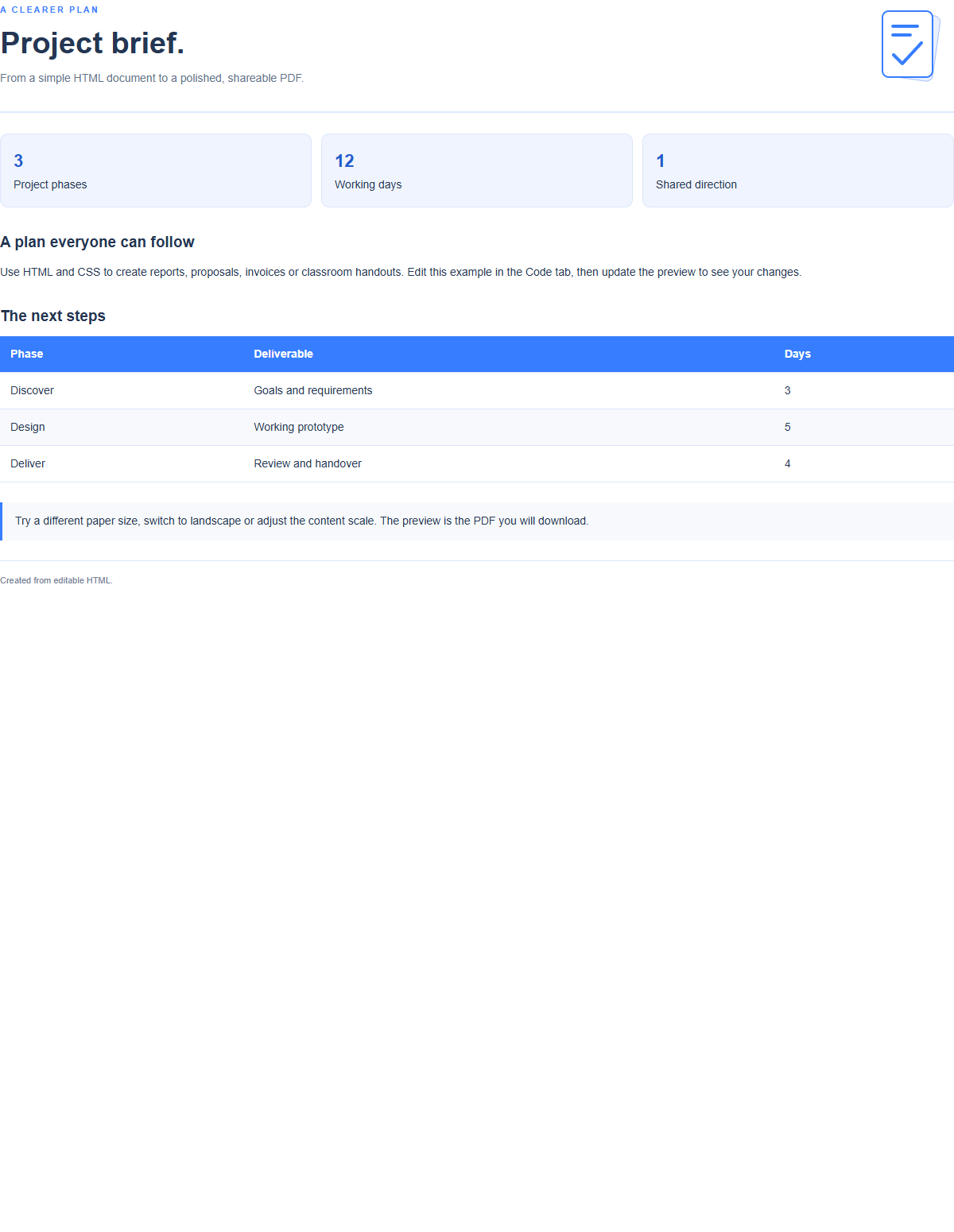
Update the preview after source or setting changes. Review the generated PDF pages and any missing-resource notice. Check headings, images, tables and page breaks.
Choose the export action to download the result. An unchanged successful preview can be reused for the download; reopen the saved PDF and verify the last page.
Common questions
Why does my selected paper size have no effect?
An authored CSS @page size can override it while the CSS page-size option is enabled. Review that setting and regenerate the preview.
Does the converter run scripts from my HTML?
No. The workflow renders static HTML/CSS. Export script-generated content as static markup before converting.
Try it with your document
Review the result, then save the version you need.