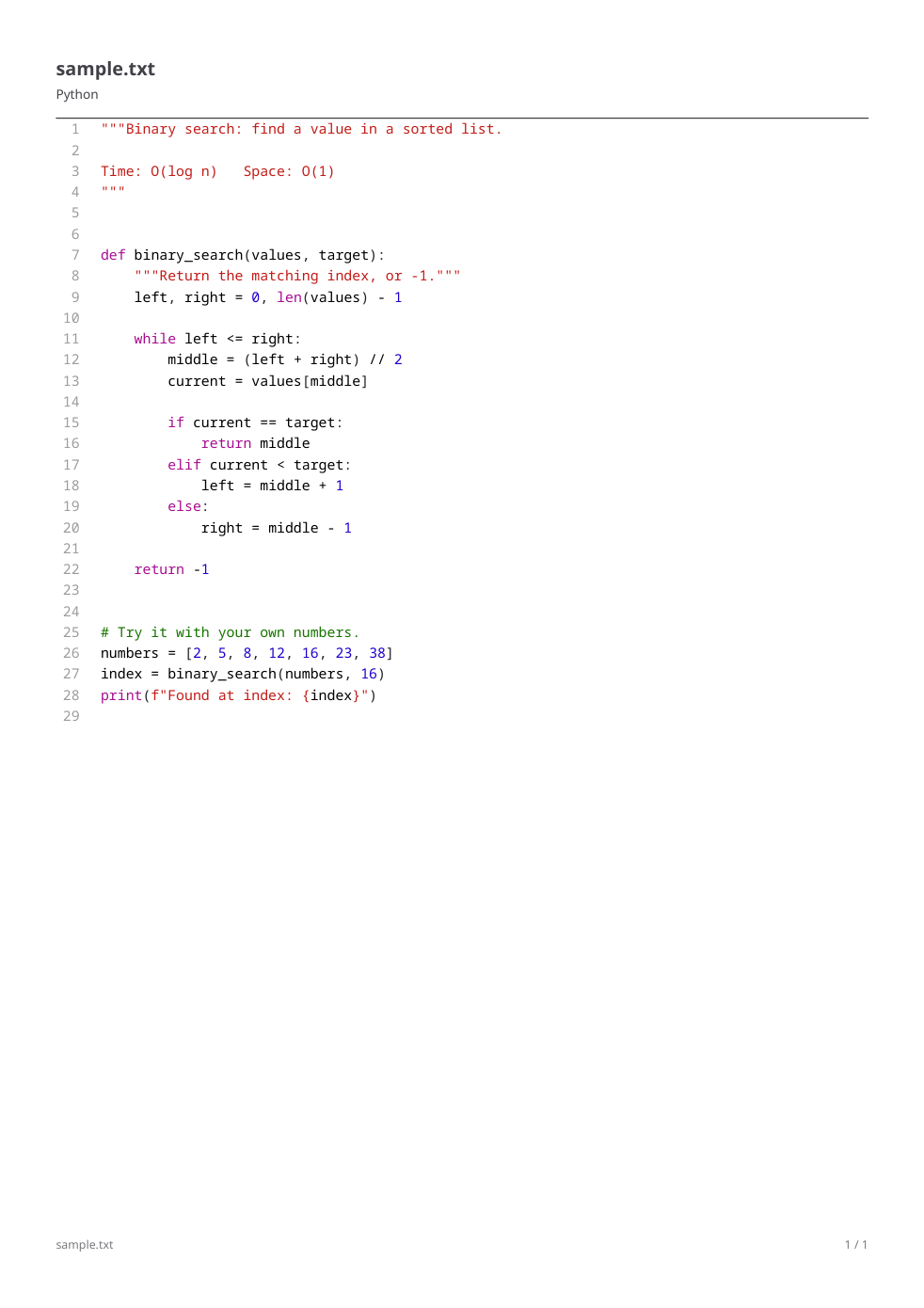

Use Source Code to PDF to format code as a document. The editor supplies syntax colors and layout controls; it does not run the program.
Open the code and select its language
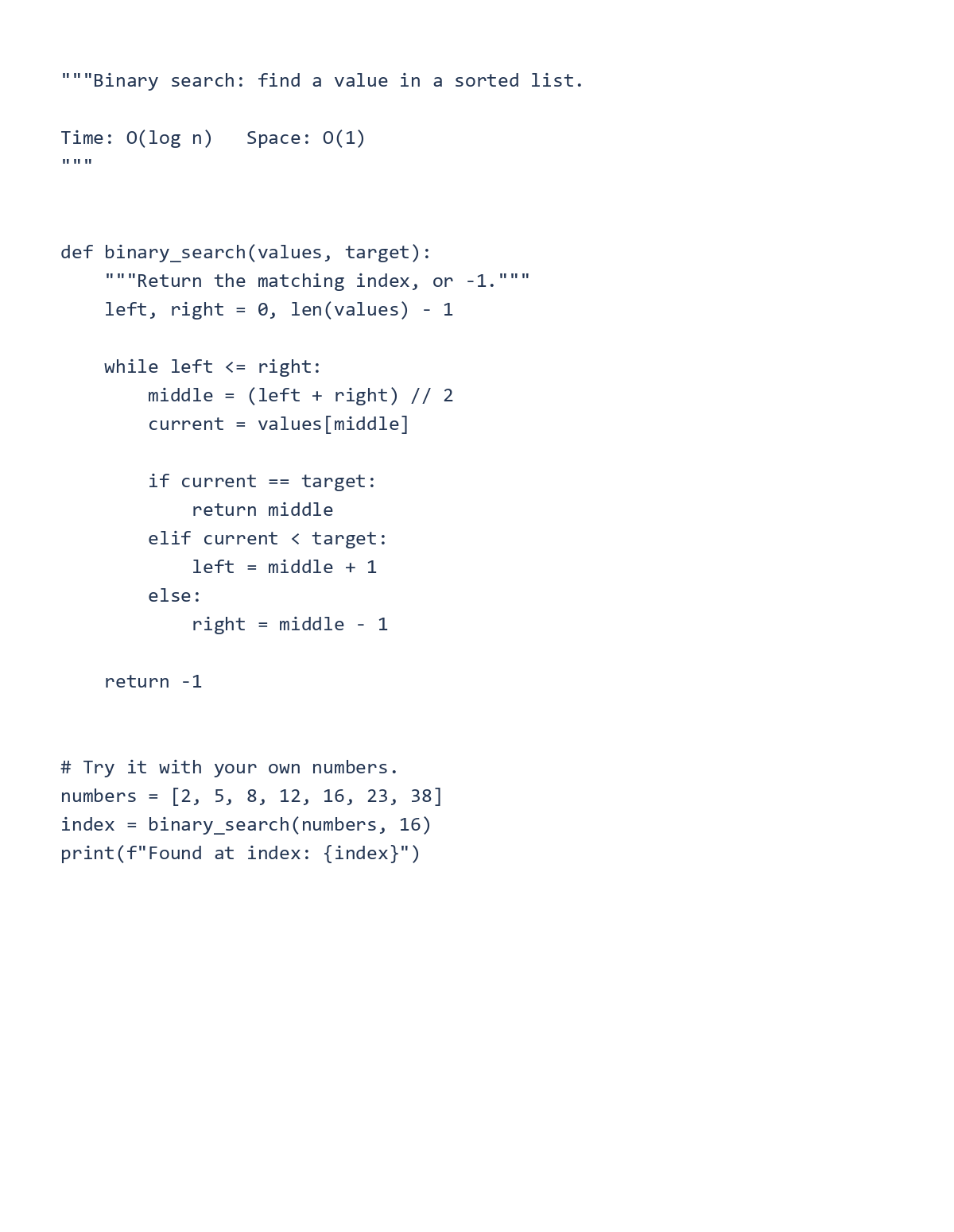
Upload or paste the source, then check the detected language. Select Python explicitly for the built-in binary-search example so keywords, strings and comments receive the intended syntax colors.
Check indentation and tab width. These affect the readability of the listing, even though this tool is not executing the code.
Choose a style and page layout
Choose a color style, monospace font and readable size. The initial example settings use A4 portrait, a half-inch margin, 9-point text, line numbers and wrapping.
Use the line-range control only when you want an excerpt, and the highlight control to emphasize particular lines. Give an excerpt enough context for readers to understand it. Long lines may fit better in landscape.
Export and check the last lines
Choose the PDF export action, download the result and check the first and last lines, indentation, highlighted ranges and page breaks. Confirm that no long statement is clipped.
Keep the original source file for running or editing the program. A PDF listing is useful for review but is not a replacement for executable source.
Common questions
Will the tool execute uploaded code?
It formats source as text for a PDF listing; it does not run the program.
Can I export only part of a file?
Use the lines-to-include control to select an excerpt and review its numbering and context before export.
Try it with your document
Review the result, then save the version you need.