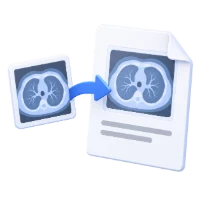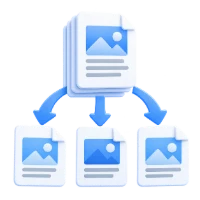

Open PDF to DICOM, choose your pages and convert them to DICOM images. Our example uses a four-page document and produces four DCM files in one ZIP.
Open the PDF and choose the pages
Add your PDF and review its pages. Leave the range blank to include all pages, or enter the range or page list you need.
The example includes four pages. Each selected page becomes a separate DICOM image object.
Set rotation and convert
Keep rotation at 0° to follow the original orientation, or choose 90°, 180° or 270°. Our example uses 0° on every selected page.
Choose Start. Pages are rendered as 8-bit RGB images at 200 DPI. Text and vectors become pixels in these image objects.
Download and open the DCM files
One selected page produces a DCM file; several pages produce a ZIP. Download and extract the archive, then open the files in a viewer that supports DICOM Secondary Capture.
Check page order, orientation and readability. The generated files use modality OT and blank patient fields. Verify that this output type meets the receiving system’s requirements.
Common questions
Can I enter patient or study details in this tool?
The conversion interface does not provide those fields. The generated objects use new identifiers and blank patient details; check compatibility with the system receiving them.
Will I be able to select the original PDF text in the DCM file?
No. The exported page is an RGB image. Keep the PDF when you need selectable text, links, forms or other document features.
Try it with your document
Review the result, then save the version you need.