Medical documents
Export PDF pages as DICOM
Reuse complete page visuals in a document, handout or review workflow. Select only the pages you need before conversion.
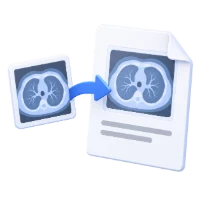
Export PDF pages as DICOM secondary-capture images.
Use the page controls to inspect your document.
Download your result, or return to the settings to make another version.
Upload one PDF from your device.
Review the available settings, then start processing.
Save the result and check it before sharing.
Convert selected PDF pages to DICOM files at 200 DPI. Each output represents a complete page. Choose page rotation and download one page directly or several pages together in a ZIP.
Reuse complete page visuals in a document, handout or review workflow. Select only the pages you need before conversion.
These are document page images with no added patient identity, not recovered medical scan data or a diagnostic validation.
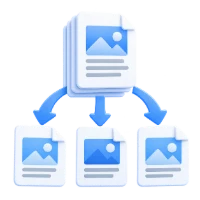
Keep page order clear with numbered output files. Download several converted pages together in a ZIP for distribution.
Render each selected PDF page into a DCM image file.
The output stores an RGB page image in a DICOM secondary-capture container. It does not recover the original medical acquisition, measurement calibration or patient information from a PDF. Patient-identifying fields generated by this converter are empty. Text already visible on the page remains part of the image.
Process the whole document or enter specific page numbers and ranges.
Use PDF positions, starting at 1, rather than numbers printed on the page. A list such as 1, 3-5 includes four pages. A blank range uses every page. Check the preview when the document includes a cover or differently numbered chapters. Only the chosen pages are included in this conversion.
Image exports use a fixed resolution; choose page rotation when needed.
Raster image output uses 200 DPI. Choose 0°, 90°, 180° or 270° rotation and select the pages you need. Check small text at the intended display or print size; conversion cannot restore detail missing from the source PDF.
A single selected page downloads directly; multiple pages arrive in a ZIP.
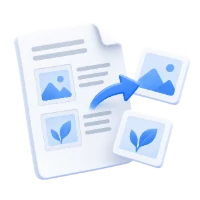
Each output represents a complete page, including text, pictures and the page background. Multiple-page downloads contain numbered files so you can identify their source positions. This is different from extracting embedded pictures: use Extract Images from PDF when you want the individual images inside the document.
Open one PDF up to 50 MB and 750 source pages. Protected files need an unlocked copy unless this tool explicitly offers password entry. Large or complex pages can require more memory or reach processing limits even when the file is within these limits.
Processing uses our servers. Source files, temporary files and results are deleted from our servers within 30 minutes after processing finishes. We do not share document contents with third parties or use them to train AI models.
Know what to expect before you start.
Temporary server processingThe output stores an RGB page image in a DICOM secondary-capture container. It does not recover the original medical acquisition, measurement calibration or patient information from a PDF. Patient-identifying fields generated by this converter are empty. Text already visible on the page remains part of the image.
Raster image exports use a fixed 200 DPI. Choose 0°, 90°, 180° or 270° with the rotation buttons. Higher detail cannot be recovered from a low-resolution scan. SVG keeps supported vector artwork and does not use a raster DPI setting.
Each output represents a complete page, including text, pictures and the page background. Multiple-page downloads contain numbered files so you can identify their source positions. This is different from extracting embedded pictures: use Extract Images from PDF when you want the individual images inside the document.
Open one PDF up to 50 MB and 750 source pages. Protected files need an unlocked copy unless this tool explicitly offers password entry. Large or complex pages can require more memory or reach processing limits even when the file is within these limits.
This tool uses our servers for processing. Your original file is not overwritten; the result is a separate download. Preview and review the result where available, and download the copy you need before starting over.