
Open Create PDF, choose a page template and add your content. This example starts with a blank A4 page and finishes with a short workshop plan containing selectable text.
Set up your page
Choose the blank template, name the document Workshop plan and keep A4 in portrait orientation. Create the document to open the editor. Other starting templates include letters, notes and planners.
Choose the page size before arranging content. A4, Letter and A5 suit different destinations; portrait and landscape determine the space available for your layout.
Add and format the text
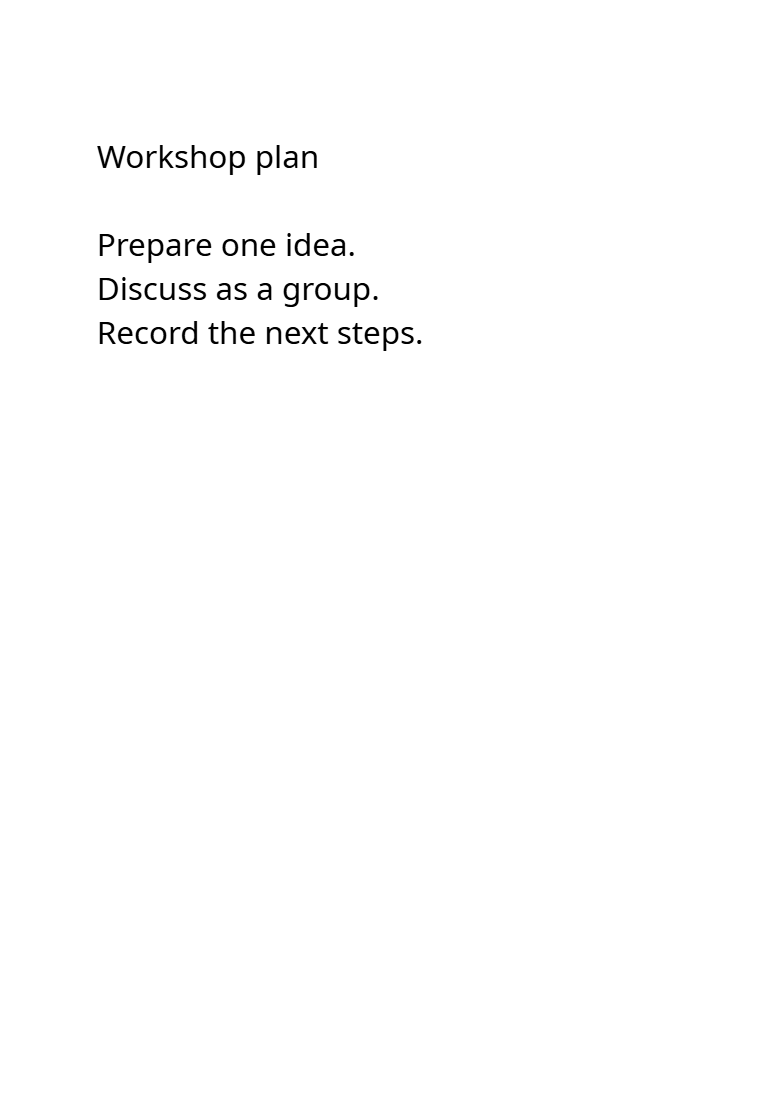
Select Text and click where the heading should begin. Enter “Workshop plan”, leave a blank line, then enter “Prepare one idea.”, “Discuss as a group.” and “Record the next steps.” on separate lines.
Use the text formatting controls to set the size to 24 points for this example. Finish editing the text, then adjust the box position if needed. Keep comfortable margins and check that the final line fits.
Review and save the PDF
Choose Save PDF and open the downloaded PDF. Check the page size, text placement and line breaks. Our result is one A4 page with the four lines of content.
Use the editor’s project-saving option as well if you want to continue arranging the editable objects later. Keep that project separately from the PDF you share.
Common questions
Can I start with an existing PDF?
Yes. Use the option to open an existing file, or go to Edit PDF to modify an existing document.
Can I add more than text?
The editor also provides objects such as images and shapes. Add them to the page, review their placement and save a fresh PDF after your changes.
Try it with your document
Review the result, then save the version you need.