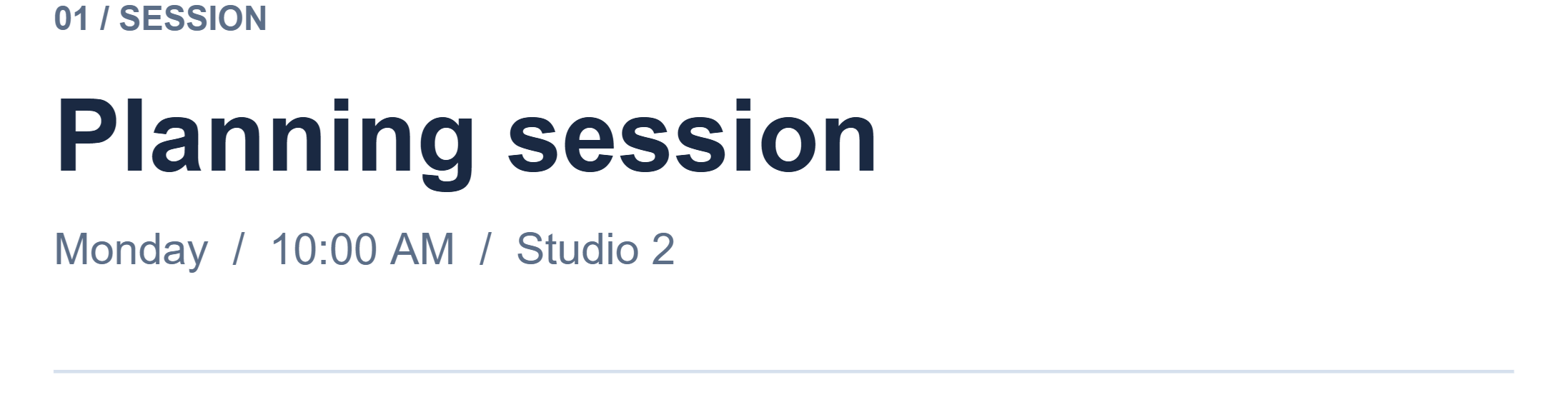
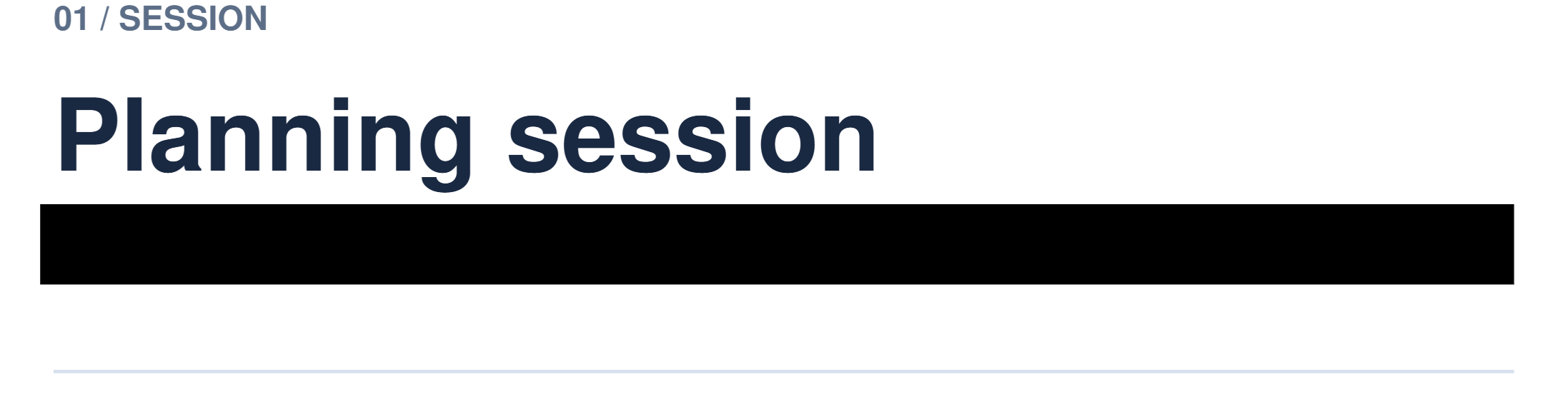

Open Redact PDF, mark the areas to remove and export the redacted copy. The example removes the entire date, time and room line from a workshop agenda.
Open the PDF and mark an area
Add your PDF, open the relevant page and select Redact. Draw a rectangle that covers the complete information, including punctuation and the edges of every letter. The Erase option removes marked content with a white cover.
You can also use Add to page, then move and resize the rectangle. The example uses a black rectangle covering the whole date, time and room line. Zoom in to check its boundaries.
Review every marked page
Check every page for repeated names, numbers or other information you intend to remove. Find & Act helps locate selectable text; image-only pages need areas marked visually.
Review nearby content too. A rectangle that reaches into another line can remove information you meant to retain. Adjust the marks before saving.
Export and inspect the finished copy
Choose Start and download the redacted PDF. Open the saved copy, zoom in and check all the covered areas. Where the source contained selectable text, search or copy text around the removed material as an additional check.
Our downloaded example no longer contains the original date line and still contains the adjacent agenda text. If the tool reports pages saved as images, review their readability as well.
Common questions
Does highlighting or covering text with an ordinary shape remove it?
A highlight or ordinary shape can leave the underlying text in the file. Use the dedicated Redact or Erase tool and inspect the exported copy.
Can I redact a scanned page?
Yes. Mark the sensitive areas on the page image. Some complex pages are saved as images during redaction, so review the saved pages and any processing notice.
Try it with your document
Review the result, then save the version you need.