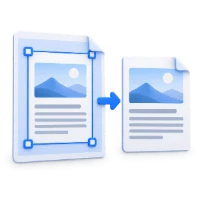

Need space for handwritten notes, a wider border or a binding edge? Add Margin to PDF extends the page around its existing content. In this example, we add one inch to all four sides of the four-page sample.
Open your PDF and choose the page
Open Add Margin to PDF and select your document. You can also choose Use Sample PDF to follow this example.
Navigate to the page you want to inspect. The starting margin values are zero: they describe additional space, beyond the white space already present in the PDF.
Set the amount of extra space
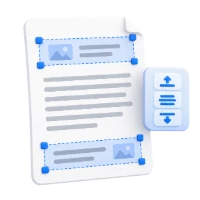
Choose Units: inches, millimeters or points. For our example, keep inches and select the 1 preset. It adds one inch to the top, bottom, left and right.
For a custom border, enter the four values individually. Turn on Keep all sides equal if you want the values linked. For an extra binding edge, leave them unlinked and increase only the relevant side.
You can also drag the margin handles in the preview. Use the numeric fields when you need an exact measurement; one inch equals 25.4 millimeters or 72 points.
Highlight added space makes the new area easier to see in the editor. The guide tint is only a preview aid; the saved extra space is white.
Apply the margins to the right pages
Leave Apply to all pages checked to use these margins throughout the document. That is how we processed all four pages in the sample.
For different margins on individual pages, turn it off, navigate to each page and set its values. Turning it back on copies the current page's margins to the other pages, so review the scope before saving.
A larger canvas
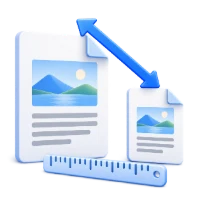
Adding one inch on the left and right makes the page two inches wider. Adding one inch above and below makes it two inches taller.
Content stays the same size
The tool adds space around the existing page. It does not shrink the text or pictures to fit the original paper size.
Save and check the new page dimensions
Select Start and download the result. Our A4 sample grew from about 210 × 297 mm to 260.8 × 347.8 mm, with all four pages retained.
Open the PDF and check the border and content. When printing, review the printer's paper size and scaling: fitting this larger page onto the original paper size will reduce the content on the printed sheet.
Common questions
Does this replace the margin already in my PDF?
No. The values add space outside the existing visible page. Any white space already inside that page remains.
Can I keep the original paper size?
This tool grows the page canvas. If your printer must use a fixed sheet size, review its fit-to-page setting and the resulting content scale before printing.
How do I remove a border instead?
Use Crop PDF to reduce the visible page area. Adding margins expands that area and cannot recover content that was removed from the original file.
Make room for the next note
Choose the border, check the scope, and save a new copy.