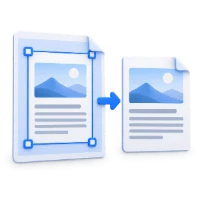
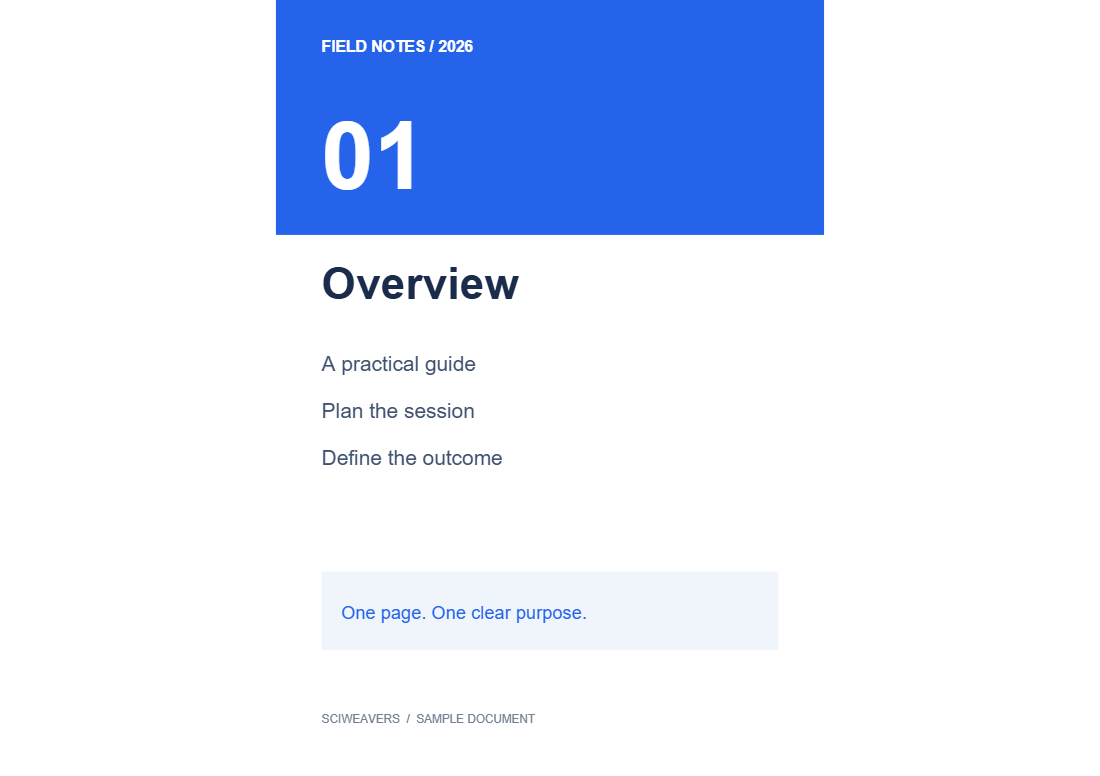

Resize PDF places each source page on a sheet of the selected size. This example fits two portrait pages onto separate A5 landscape sheets.
Open your PDF
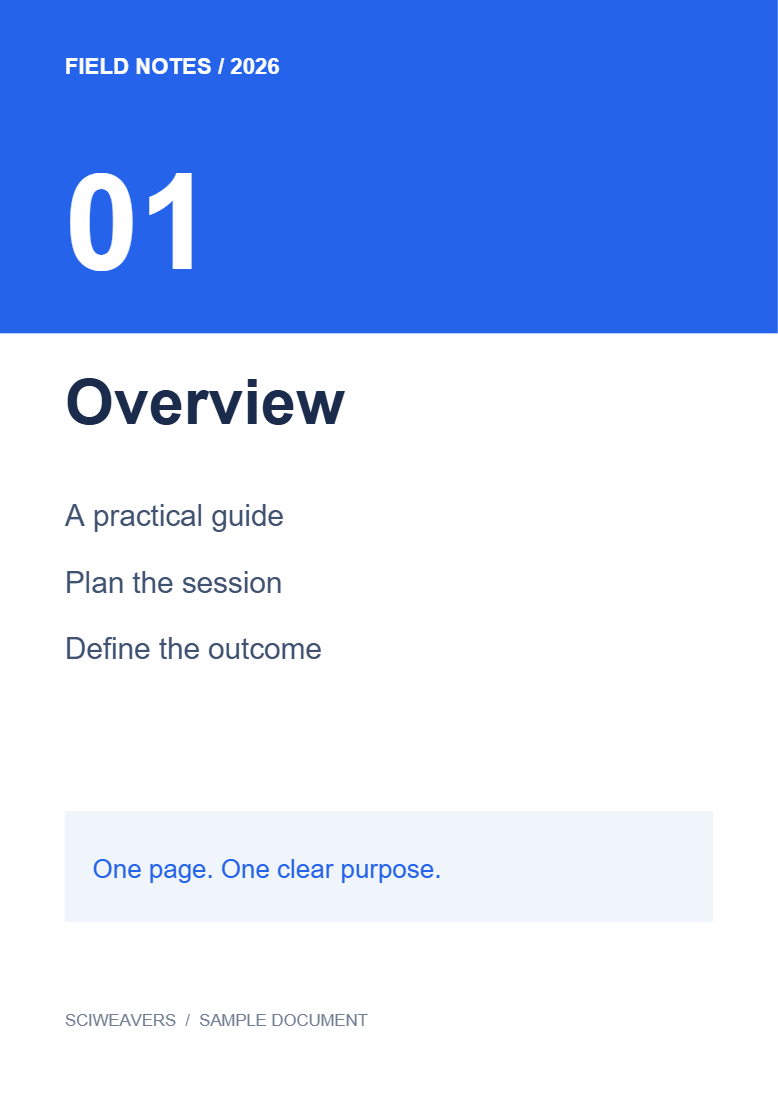
Choose the PDF and review the preview. The operation applies to the document, keeping one input page per output page. Our source contains two portrait pages.
Choose the new sheet size
Under Paper size, choose A5. Select Landscape under Orientation. The other main choices include A4, Letter and A3; expand the additional sizes for more formats.
The mm and in controls change how dimensions are displayed. Paper default uses the selected paper format’s built-in orientation; it does not preserve each source page’s orientation.
Review how the content fits
The original page is scaled proportionally to fit within the new sheet and centered. A different aspect ratio leaves spare space on two sides. It does not stretch letters to fill the sheet.
In the example, tall portrait content becomes smaller inside a wide A5 sheet. If your aim is to remove surrounding whitespace, use Crop PDF before choosing the final paper size.
Export and check the page size
Choose Start, download the PDF and inspect its page properties. Our output contains two pages, each approximately 210 × 148 mm. The first page retains the source text.
Common questions
Can I resize without changing proportions?
Yes. The tool fits and centers the page content proportionally. Blank space may remain when the source and target shapes differ.
How is this different from changing print settings?
The new sheet dimensions are saved into the PDF itself, so other viewers receive the resized document. Printer settings can still scale it again; choose the intended print size.
Try it with your document
Review the result, then save the version you need.