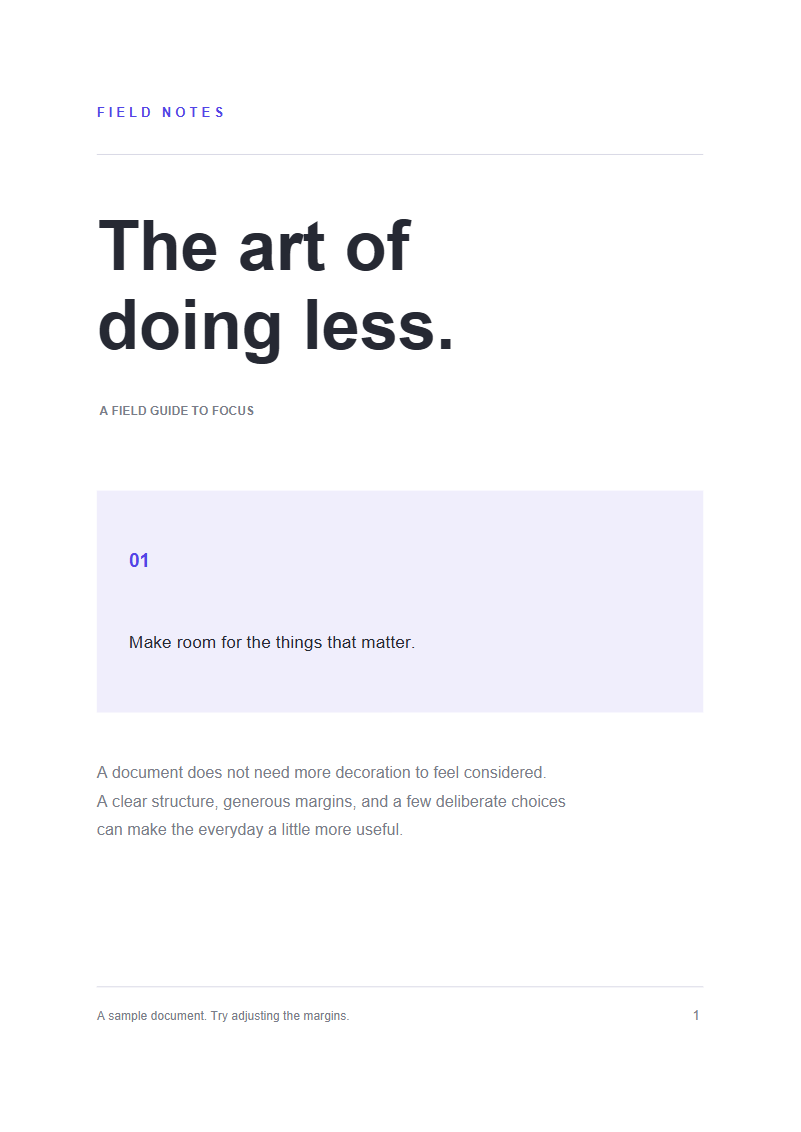
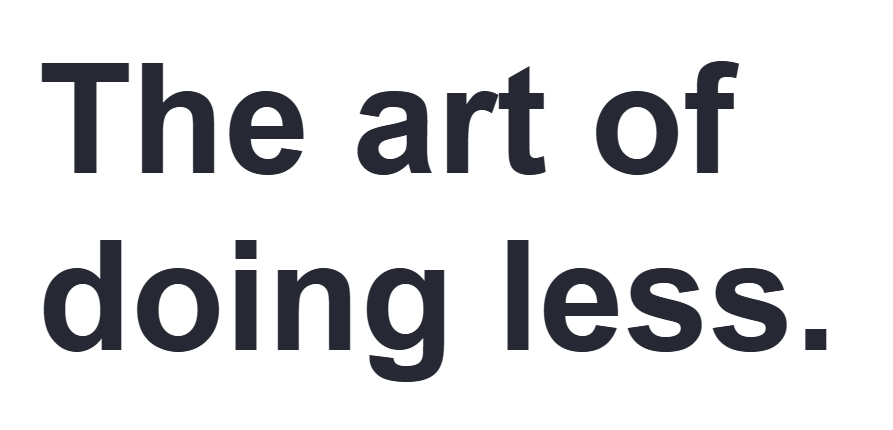

Cropping lets you keep a specific part of a PDF page. In this walkthrough, we’ll isolate the headline on page 1 of the three-page sample. Pages 2 and 3 will keep their original size.
Upload your PDF
Open Crop PDF and select Upload Files, or drag your PDF into the upload area. To follow this example, choose Use Sample PDF.
Your PDF opens in the editor. Choose the pages before changing the crop.
Choose which pages to crop
Set the page scope before you adjust the crop. For our example, select page 1 and clear Apply to all pages. This keeps the other two pages unchanged.
Set the area you want to keep
Under Starting point, choose Custom. Frame the headline “The art of doing less.” with the blue crop rectangle. Everything inside it stays visible; the gray area outside it is hidden by the crop.
To reproduce the before/after example, enter these values in the percentage margin fields:
- Top
- 17%
- Bottom
- 66%
- Left
- 10%
- Right
- 40%
Adjust it visually
Drag an edge or corner handle to resize the crop. Drag inside the blue outline to move the selection.
Enter precise margins
Type percentages into Top, Bottom, Left, and Right to adjust individual edges.
These percentages suit this sample. For your own PDF, frame the section you need and leave a little space around its text. For a light trim on every edge, you can instead use Trim edges · 7.5%.
Review, then download
Check that the whole headline fits inside the blue outline on page 1. Use the arrows or thumbnails to confirm that pages 2 and 3 still show their full page area. Then select Start and, on the result screen, Download.
sample.pdfsample-cropped.pdf
The saved copy adds -cropped to the filename. Your original stays unchanged. Need another adjustment? Use the back arrow on the result screen to return to the editor.
Common questions
Can I crop just one page of a PDF?
Yes. Select the page, clear Apply to all pages, and then adjust its crop. Pages you haven’t adjusted keep their original visible area.
Does cropping reduce the PDF file size?
Do not rely on cropping to compress a PDF. This tool changes the visible page boundary; text and images can remain in the file, including content outside that boundary.
Can I crop a PDF without making the text blurry?
Yes. Crop PDF changes the page’s crop boundary without converting the page into an image. Existing text and images keep their original quality.
Give your PDF a cleaner frame.
Start with a sample, or bring your own document.