
A useful article does not always make a useful printout. Open Clean Web Page to PDF to make a public web page print-friendly. Pick and choose what to keep, remove unwanted sections, and save a clean PDF for reading or printing. The tool rebuilds the content; it does not copy the website's original design.
Capture a public web page
Paste the page URL and select Clean page. The tool captures readable content on an i2PDF server, then opens it in the editor. Use Try a sample document to follow the example without choosing a website.
Check the capture before editing. Some images or sections may be omitted, especially on complex pages. A notice explains when content was limited. Pages that require a login, browser verification, or interactive steps may not work.
Pick and choose what to print
Select a paragraph, heading, image, or other block to reveal its floating controls. Choose Remove to delete that block, or Edit to change its content. Text editing happens in place; save the edit to return to selecting blocks.
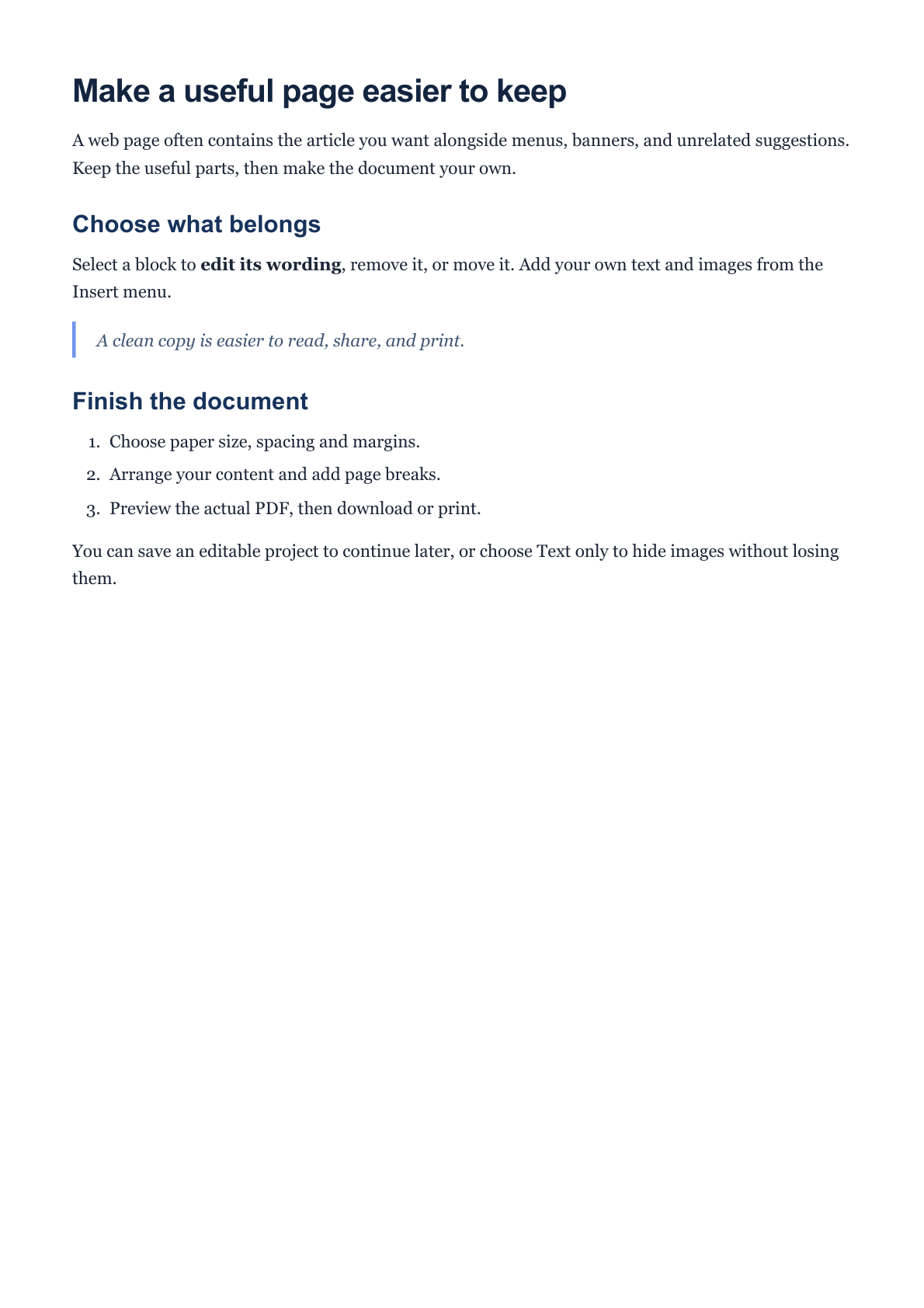
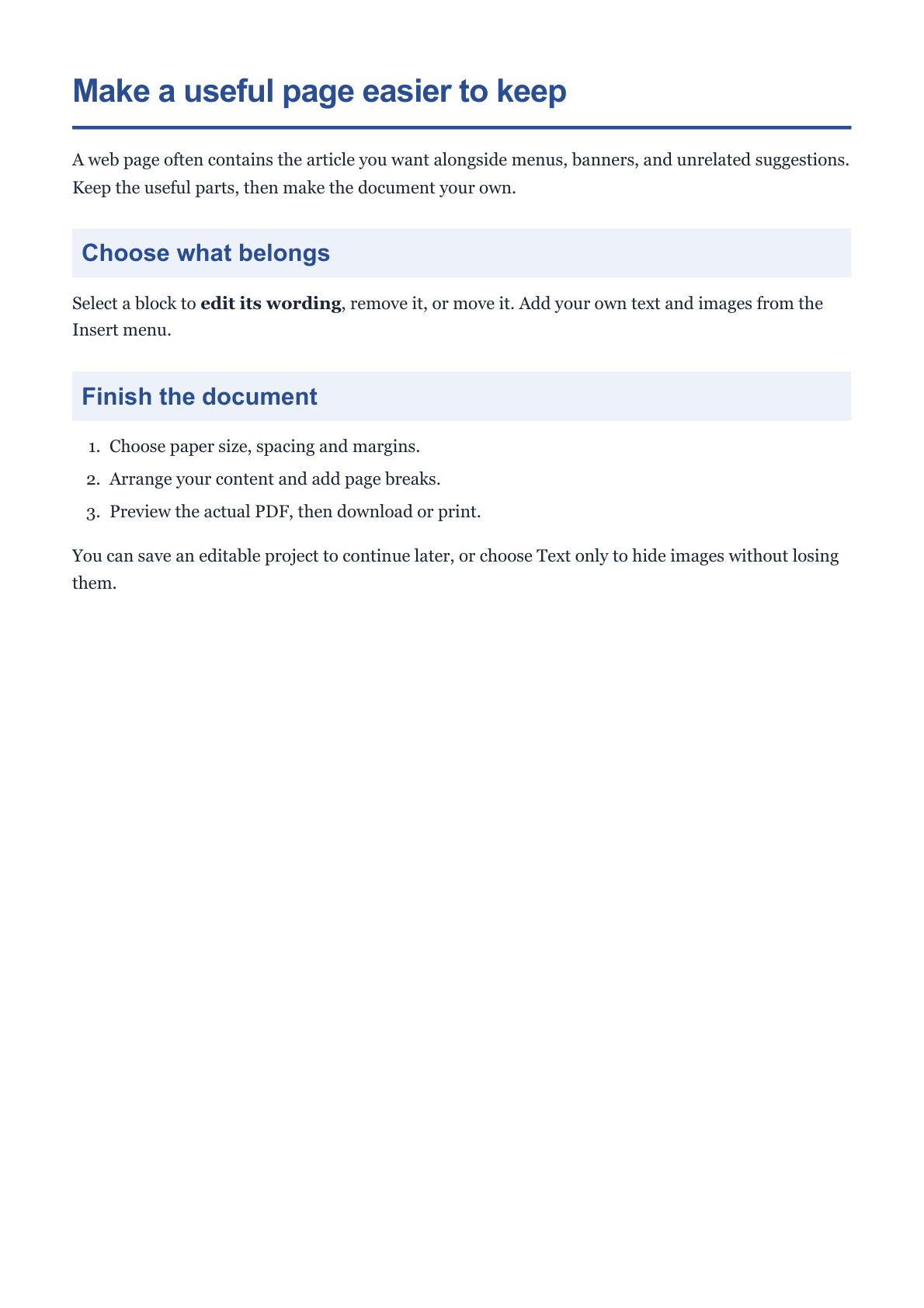
For the example, select the sample's quote, “A clean copy is easier to read, share, and print.” Remove it. The remaining content moves up automatically. The before and after images above are real PDF downloads from this workflow.
Use Select area to draw a rectangle around several blocks, or Shift-click blocks on desktop. Keep only removes the unselected content, so check your selection first. Undo restores a change. Review lets you compare with the original capture and recover individual blocks.
Need to add context? The Insert menu adds paragraphs, headings, lists, quotes, tables, images, or page breaks. New content takes its place in the document flow.
Create a clean print layout
Open Print settings on a phone, or use the settings panel on desktop. The first option is Text only or Text & images. Hiding images keeps them in the editable project, so you can turn them back on.
Under Document style, choose Article, Recipe, Handout, or Research. Our example uses Handout, which adds blue headings and tinted section bands. It keeps the default A4 portrait paper, normal margins, and 15px text size.
Adjust paper size, orientation, font, margins, line spacing, and paragraph spacing as needed. Use a single column for straightforward reading, or two columns for a denser page. Select a block and use Break before when a section should begin on a new page.
Focus expands the workspace. Continuous view is useful for editing; Pages view estimates page breaks. Use Preview PDF in Print settings to inspect the actual generated pages before downloading.
Create and download the PDF
Select Create PDF, wait for processing, and choose Download. Both PDFs in this example contain one page. The final copy no longer contains the removed quote, while the retained headings use the Handout style.
Use More → Save project if you want to continue editing later, then reopen that project with Open project. The separate Export menu also offers Word, HTML, Markdown, and PNG pages in a ZIP. Layout and image handling can differ between formats.
Common questions
Does it keep the original website's CSS?
No. The editor receives extracted content and rebuilds it with document styles. Navigation, layouts, scripts, animations, and interactive widgets are not reproduced as an editable website.
Can I insert or change images?
Yes. Insert accepts JPEG and PNG files. Select an image to resize it, choose alignment or wrapping, crop it, or replace it. Save commits the edit; Cancel leaves the previous image intact.
What happens to the captured page and my edits?
The public URL is captured on i2PDF servers. You edit extracted content in your browser, and the edited document is sent to the server to create downloads. The editor can keep a local browser draft; manage or delete it under More → Draft recovery.
What are the main document limits?
A document can contain up to 5,000 words and 12 images, with a maximum of 40 PDF pages. Long or complex captures can be shortened. Check the notice and the preview before downloading.
Can I edit a PDF I already have?
This tool starts with a web page or an editable project. For an existing PDF, use Edit PDF.
Make a page worth keeping
Capture a public page, remove distractions, and save a document that is easier to read or print.