Reading
Keep the useful article
Remove sections you do not need and save a readable copy for offline use.
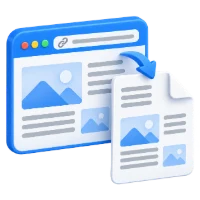
Pick and choose what to keep from a web page. Remove clutter and create a clean, print-friendly PDF.
Drag across whole blocks to select them, then choose Remove selected. Hold Shift to add more; press Escape to clear.
Select a block to edit it. Use Insert to add content, or drag the handle to rearrange it. Preview PDF checks the printed pages.
Download the edited copy. Return to the editor if you want to make another change.
Paste a link to an article or other public page and choose Clean page.
Remove clutter, edit and format text, or insert images and tables. Rearrange sections and adjust the print layout.
Preview the actual PDF, then download or print it. Save an editable project to continue later.
Keep useful text and images, remove unwanted sections, and edit the content before saving. Choose a clean print layout for comfortable reading, then preview and download your PDF.
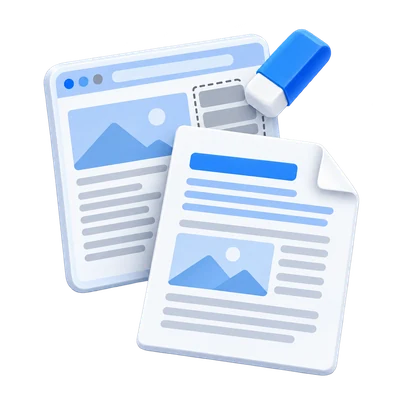
Remove sections you do not need and save a readable copy for offline use.
Insert notes, headings, or images and arrange the content before printing.
Choose document styles, paper sizes, and spacing that suit your readers.
Start with a web link or explore the built-in sample.
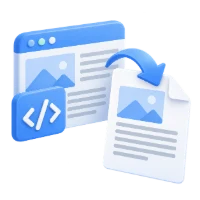
Paste a public HTTP or HTTPS URL and select Clean page. The server extracts readable content and bounded images into an editable document.
The source website design and scripts are not copied into the editor. Login, verification, or interactive pages may not work; check for omitted content.
Pick and choose the sections to keep, edit their content, or add your own notes.
Select a block to open its controls. Remove it, edit text in place, move it, or keep only the selected content. Draw an area or Shift-click on desktop to select several blocks.
Insert text, headings, lists, tables, images or page breaks. Image controls include crop, replacement, alignment and wrapping. Undo and Review help recover content.
Choose a document style, adjust the spacing, and preview a neat PDF for reading and printing.
Select Text only or Text & images, then choose Article, Recipe, Handout or Research. Adjust A4 or US Letter paper, orientation, margins, font size and line spacing.
Pages view estimates breaks; Preview PDF shows the generated pages. Create PDF opens the download step. Export offers other formats, and Save project preserves editable content.
Documents are limited to 5,000 words, 12 images and 40 PDF pages. Check the final preview before downloading.
Enter one public HTTP or HTTPS URL. Private addresses, inaccessible pages and requests exceeding processing limits are rejected.
Processing uses our servers. Source files, temporary files and results are deleted from our servers within 30 minutes after processing finishes. We do not share document contents with third parties or use them to train AI models.
A few answers before you get started.
Processed on i2PDF serversStart with a public article or document URL. Login pages, browser verification, and complex interactive sites may fail or lose content. Captures can omit sections or images; review the result before exporting.
No. The tool rebuilds extracted content with its own document styles. Use URL to PDF when keeping the original website layout is more important than editing individual sections.
Yes. Select individual blocks, Shift-click multiple blocks on desktop, or draw a selection area. Remove the selection, keep only it, edit text in place, or insert text, lists, tables and JPEG/PNG images.
Create PDF produces the main download. Export also offers Word, HTML, Markdown, and PNG pages in a ZIP. Save project keeps an editable copy for reopening later. Layout and image handling vary by format.
The tool allows up to 5,000 words, 12 images, and 40 PDF pages. Longer or more complex captures can be shortened. Check capture notices and the generated PDF preview.
A server captures the public URL. Your browser edits extracted content, not the source website scripts. The edited document is sent to i2PDF servers to generate downloads. Manage the optional browser draft under More → Draft recovery.