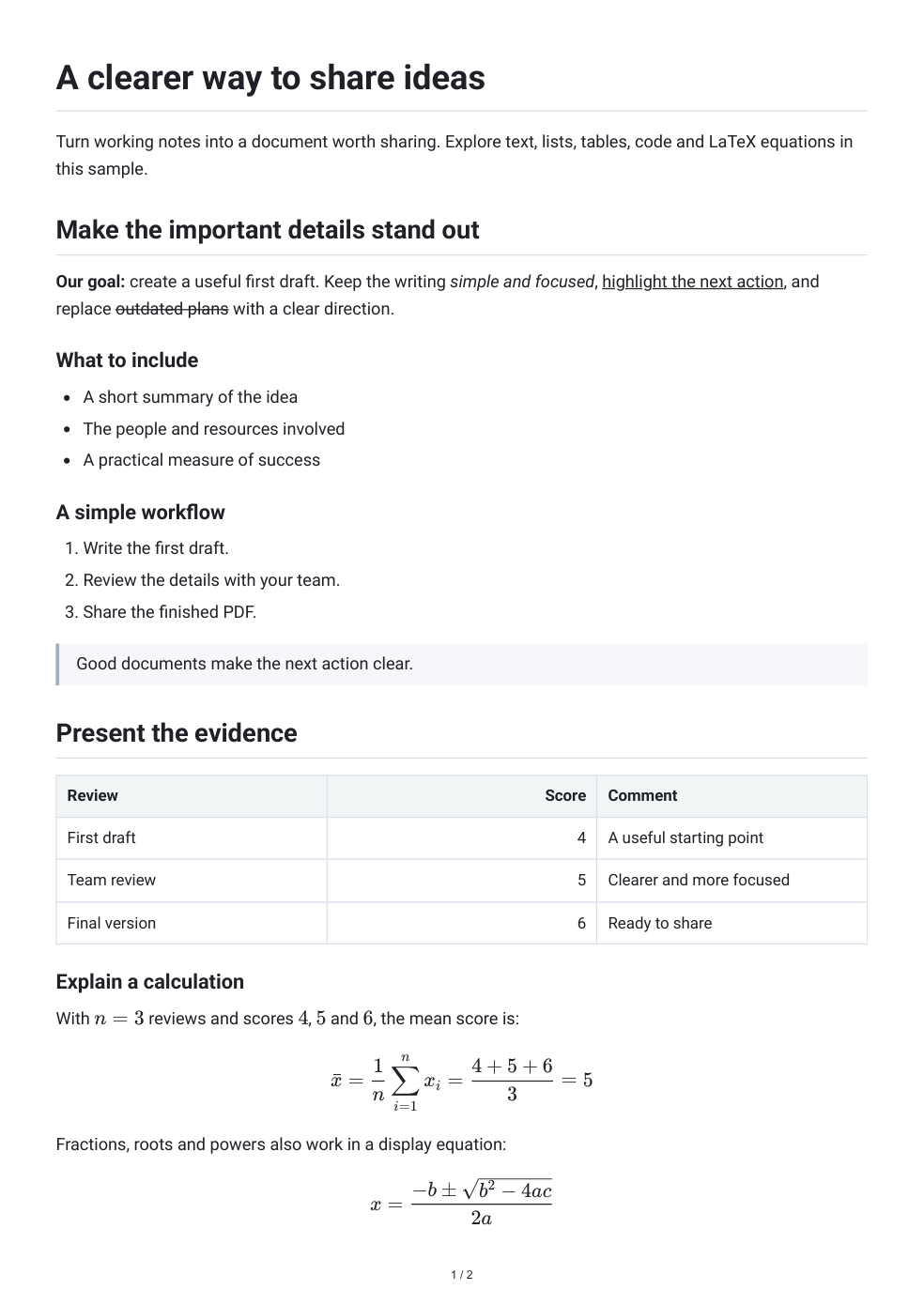

Open Markdown to PDF and add your Markdown source. Use the preview to check the rendered structure, then set the typography and page layout.
Open the Markdown source
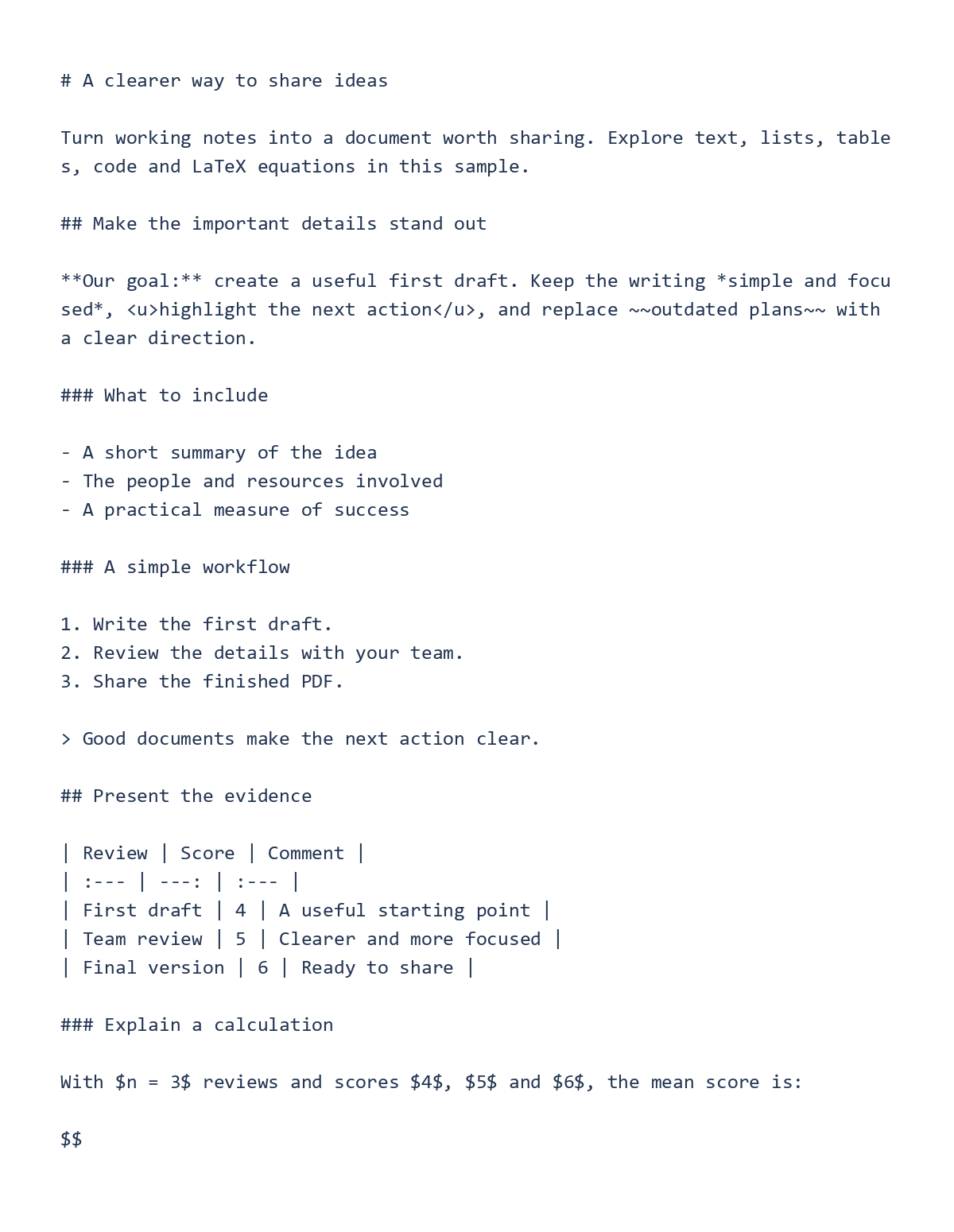
Upload or paste Markdown and inspect the source and preview. Confirm that heading markers, list indentation and fenced code blocks create the structure you intended.
Keep the source file so you can revise the document later. Use preview to catch an unclosed code fence or a list that has nested unexpectedly.
Choose the style and page setup
Select a document style, then adjust the font, size, line spacing and text direction as needed. The initial setup uses A4 portrait, half-inch margins, 11-point text and page numbers.
Review tables, long links, code and any images. A style preset changes typography; it cannot repair a missing source image or malformed Markdown.
Export and compare the saved PDF
Choose the export action and open the downloaded PDF. Check the heading hierarchy, list numbering, page breaks and last paragraph. Test links that readers need to follow.
If a wide table or code block is cramped, revise the content or page layout and compare a new export. Keep the Markdown source alongside the PDF.
Common questions
Can I change the font without editing Markdown?
Yes. Use the document font and style controls, then review wrapping and pagination.
Why does the PDF have different line breaks from my editor?
The PDF has a fixed paper width, margins and typography. The source editor’s line wrapping is a separate display.
Try it with your document
Review the result, then save the version you need.