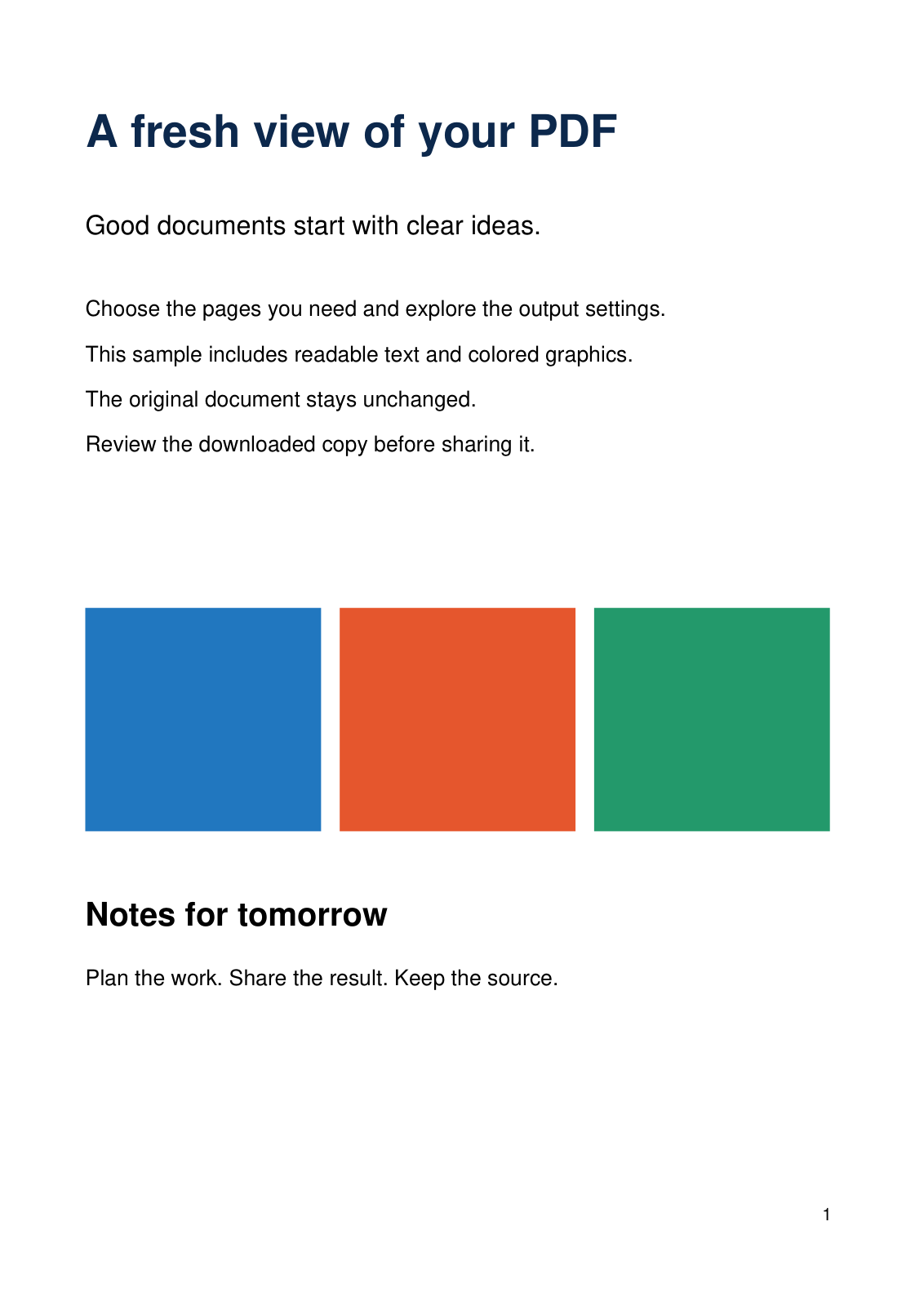
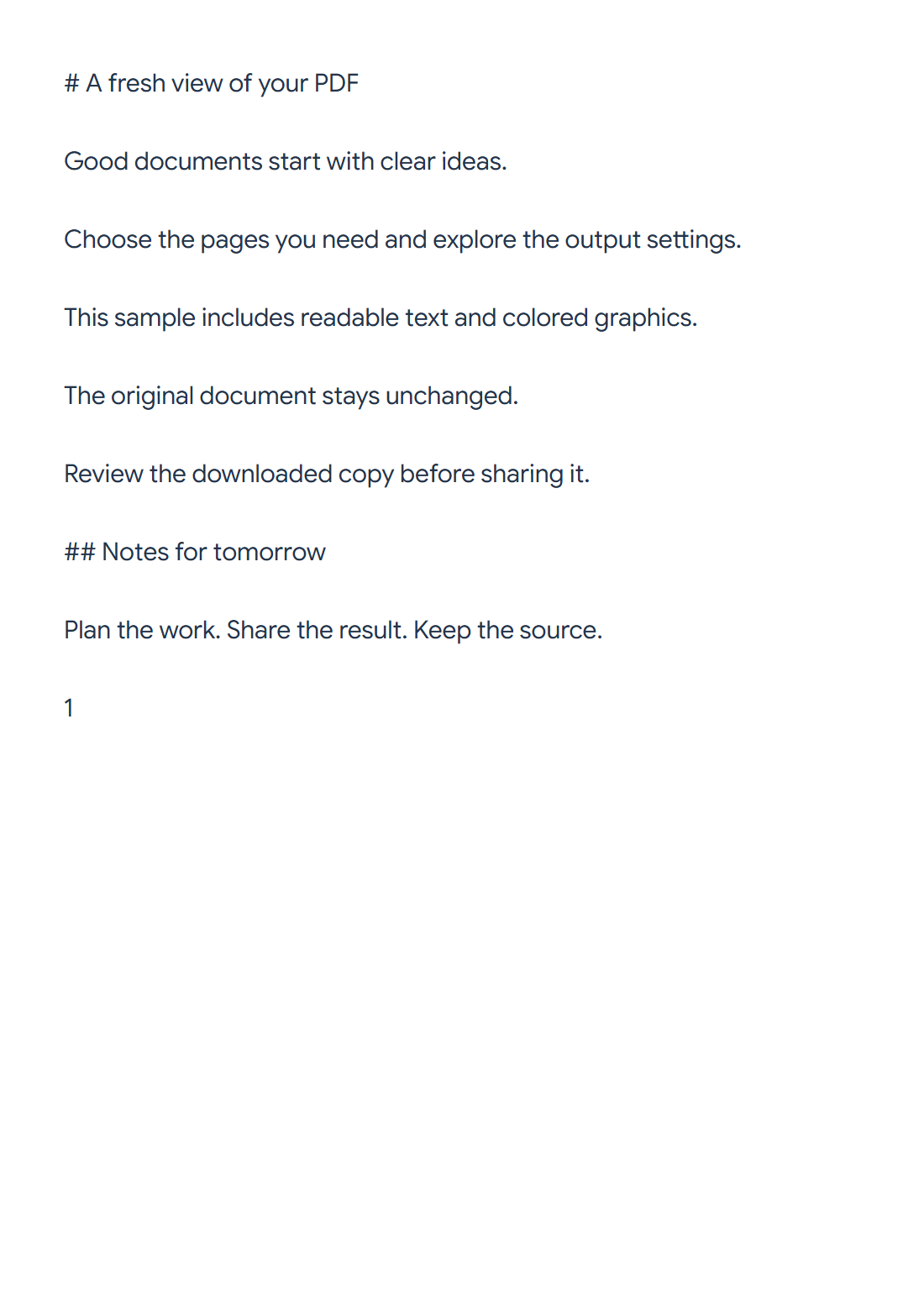

Use PDF to Markdown to extract text and likely headings, then review the editable source. Our two-page sample exports a 700-byte Markdown document.
Choose the source pages
Load the PDF and leave Pages to process empty for both sample pages, or enter a range. Scanned images need OCR before this text-based conversion.
Convert and review the Markdown
Choose Start. Results show editable Markdown and a rendered Preview. On a narrow screen, switch between their tabs.
The sample’s main title becomes a level-one heading, and Notes for tomorrow becomes a level-two heading. Detection uses text size, so a large decorative label may need correction.
Edit the structure and download
Correct heading levels, spacing, lists and reading order in the source. Preview updates as you edit. Formatting controls help add emphasis, lists and explicit links.
Copy or download .md when the source and preview agree. These actions use the edited source; the original PDF is unchanged.
Common questions
Why did a heading get the wrong level?
The extractor uses text size rather than understanding the complete document outline. Adjust the # markers and check Preview.
Does Preview fetch linked images?
The current preview displays image references as text without loading remote images. Review them in the application where you later publish the Markdown.
Try it with your document
Review the result, then save the version you need.