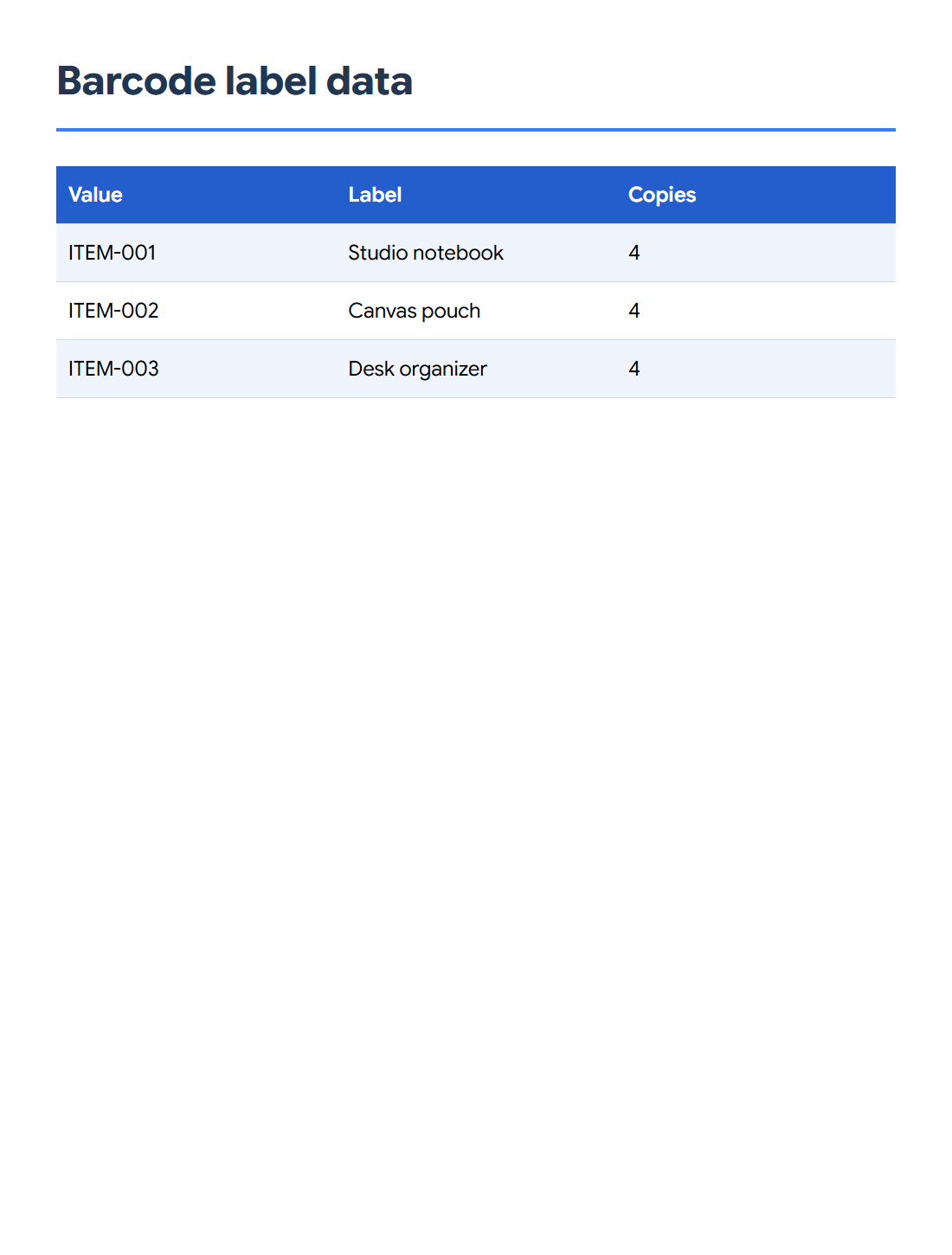
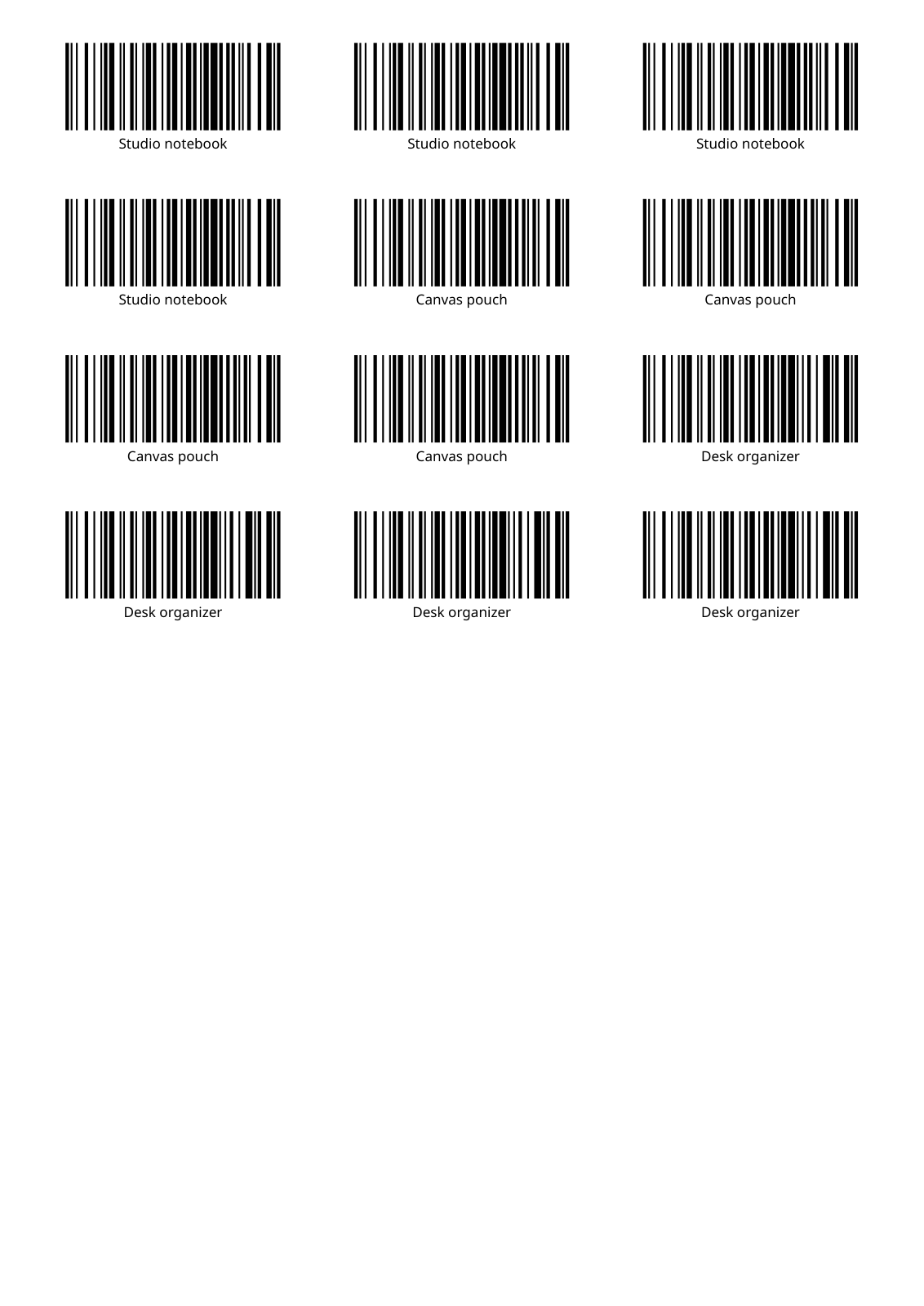

Use Barcode Labels to PDF to build a sheet from your codes, captions and copy counts. Our CSV has three products with four copies each, producing 12 Code 128 labels on one A4 page.
Enter or import your label records
Enter the barcode values in the editor or import a CSV with Value, Label and Copies headers. Plain text can also supply one code per line. A caption describes the label; the value is what the barcode encodes.
For this example, use ITEM-001 / Studio notebook, ITEM-002 / Canvas pouch and ITEM-003 / Desk organizer. Set Copies to 4 on each record.
Choose the barcode and sheet layout
Keep Code 128 for these item codes. Choose a different type only when its allowed characters and required format match your data; EAN-13, for example, needs a valid 13-digit code.
Set A4 paper, 3 columns, 8 rows, an 8 mm margin and a 3 mm gap to reproduce the example. Keep captions enabled at 9 points and borders off. The sheet holds 24 positions, so the 12 labels leave the lower half unused.
Generate and check the PDF
Choose Start, open the PDF and count the copies. Confirm that captions belong to the right values and that no bars or surrounding clear spaces are clipped.
Print a test sheet at actual size, usually 100%, before using label stock. Check alignment against the stock and scan a printed label with the intended reader. Change the grid and margins to match your own sheets.
Common questions
Can I use QR codes instead of linear barcodes?
Yes. Choose the QR option and provide the values to encode. Review the resulting square codes and test them at the intended printed size.
Does the caption change the encoded value?
No. The value supplies the barcode data. The caption is separate text for people reading the label; keep the two consistent.
Try it with your document
Review the result, then save the version you need.