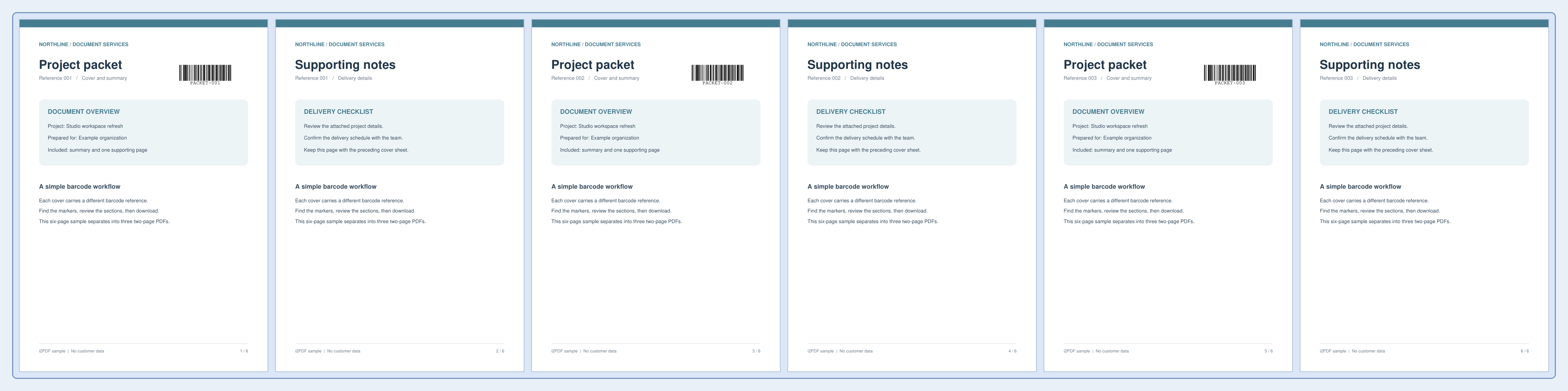
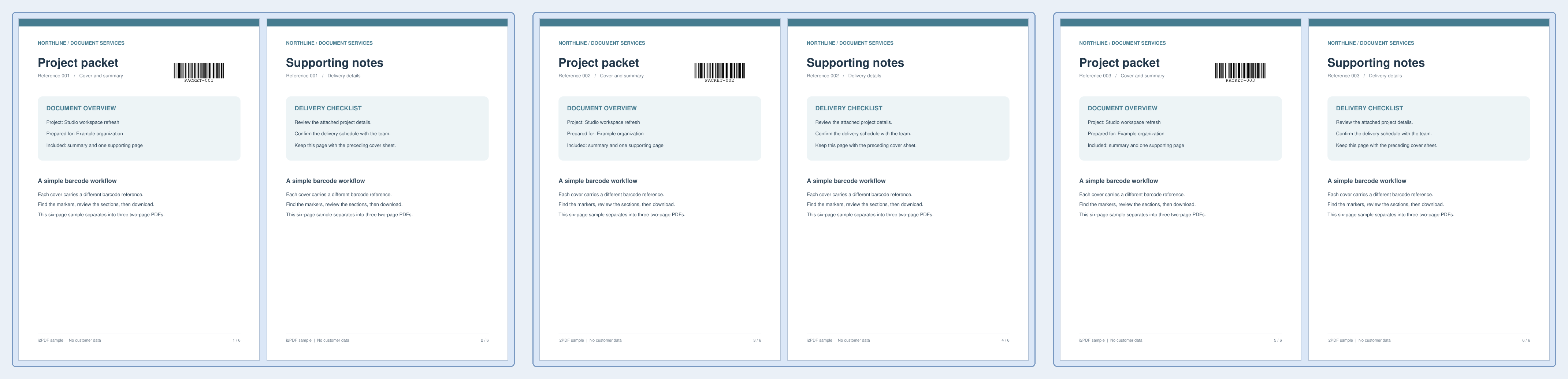

Open Split PDF by Barcode. Our six-page packet uses coded cover pages at 1, 3 and 5. The matching cover page starts each of three two-page output PDFs.
Load a suitable document
Load the batch and check that its separator codes are readable. The example pairs each coded cover with one supporting-notes page.
Set the rule and review matches
Keep Barcode type at all supported types, Match value at any detected value and Look in at the whole page. Choose Before so the coded cover stays at the beginning of its packet.
Find the split points and review the detected values and page ranges. For documents that contain unrelated codes, restrict the region or choose Value contains or Value equals and enter the intended separator value.
Download and verify the sections
Choose Start and download the ZIP. Extract it before opening the PDF files. The downloaded ZIP contains pages 1–2, 3–4 and 5–6 as three PDFs. The separator covers remain in their own packets; splitting is not automatic removal of barcode pages.
Check the beginning and end of each part so an unexpected match does not separate pages that belong together.
Common questions
Does a new file begin only when the barcode value changes?
The tool splits at pages with matching detected codes. It does not automatically group all pages with the same value into one file. Use the value filter and inspect the proposed page ranges.
Can I choose split points manually instead?
Yes. Use Split PDF for explicit page boundaries, or adjust the matching rule here until the proposed ranges match your document.
Try it with your document
Review the result, then save the version you need.