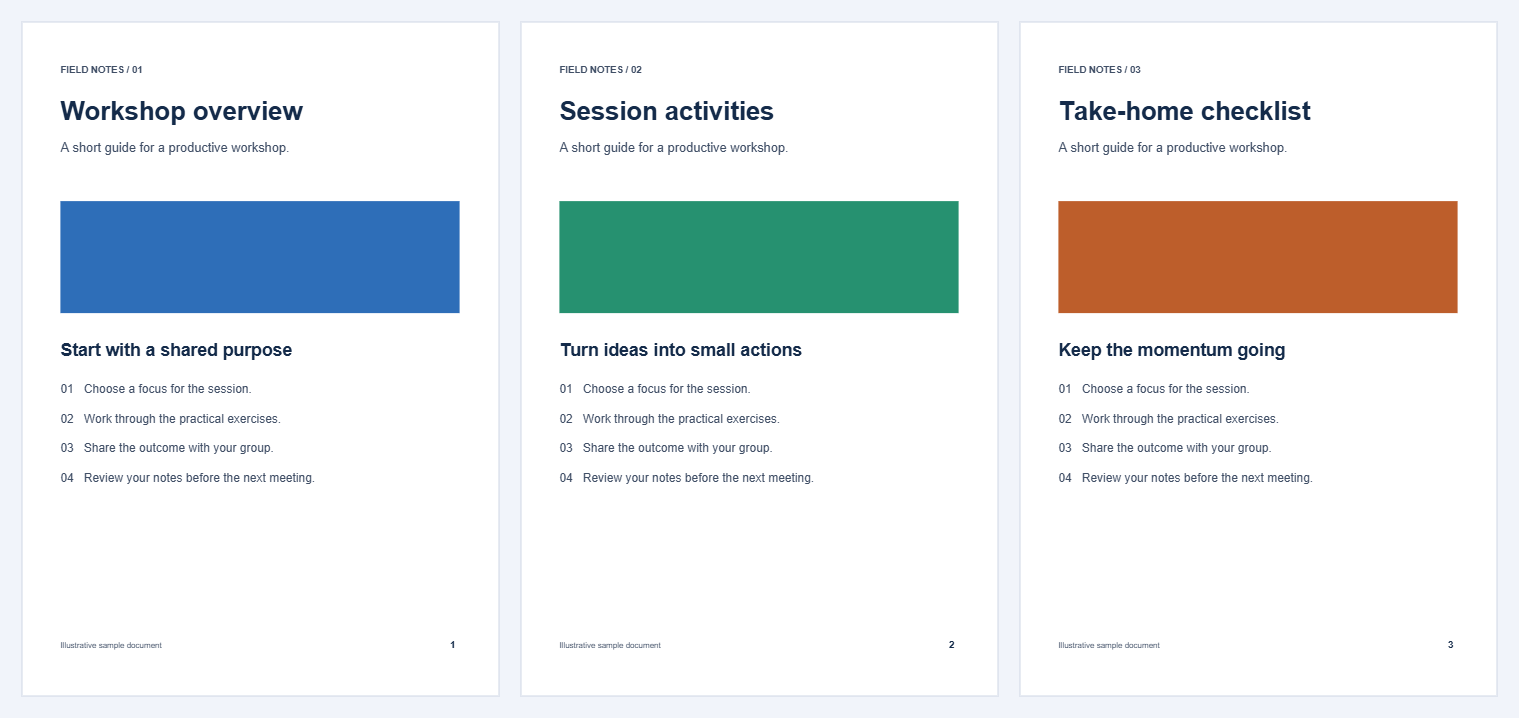
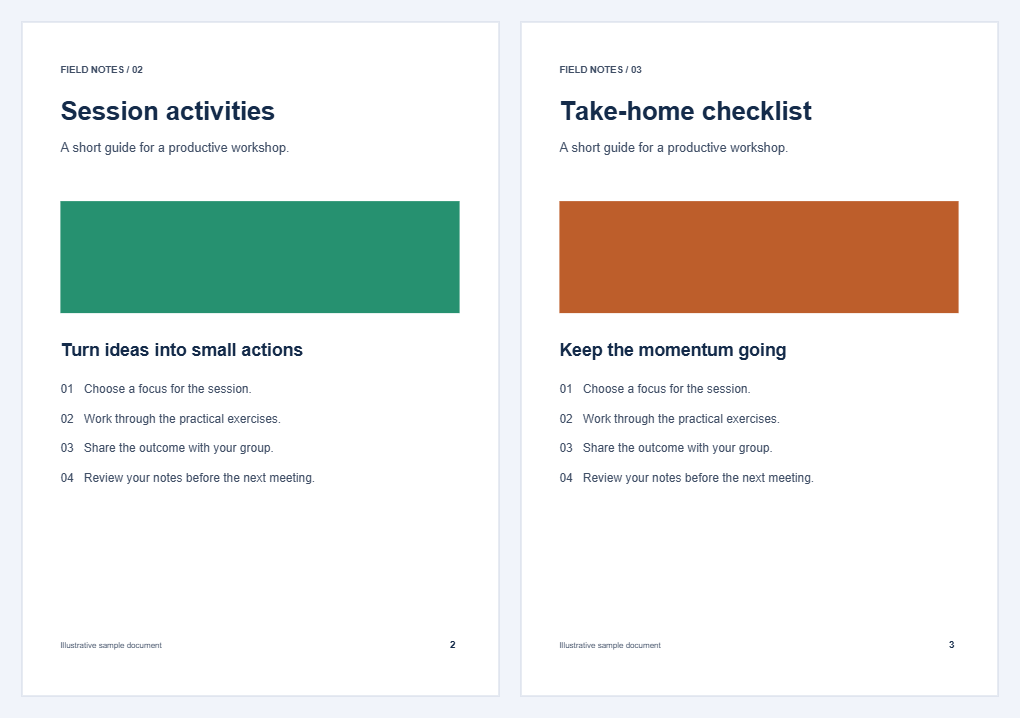

A long document is not always the best thing to send. Extract Pages from PDF creates a new PDF from the pages you select. In our three-page workshop example, we keep the activities and checklist on pages 2 and 3 and leave out the overview.
Open the PDF and identify the pages to keep
Open Extract Pages from PDF and choose your document. The page cards begin unselected, ready for you to choose the content of the new file.
Use the preview to identify the pages you need. The numbers in the controls are PDF positions starting at 1. A cover page or front matter can make these differ from printed page numbers.
Select thumbnails or enter a page range
Click a page card to include it; click again to exclude it. For our three-page example, enter 2-3 in Page numbers or ranges and select Apply.
You can combine individual numbers and ranges, such as 2, 4-6 in a document with at least six pages. The range selects the pages to keep, so double-check the selected count and highlighted cards.
A small selection
Click the individual cards when you only need one page or a few pages that are easy to recognize.
A larger selection
Use a range for a chapter, or the Odd and Even shortcuts for alternating page positions. Invert reverses the selection; Clear removes the selection.
Review the selection and its order
The output follows the order of the page cards. Entering page numbers selects pages; it does not rearrange those cards to match the order you typed.
To change the order, drag the cards into place. On a touch screen, press and hold before dragging. With a keyboard, focus a page card and use Alt + Left Arrow or Alt + Right Arrow to move it.
For this example, keep the natural order: original page 2 first, then original page 3. Confirm that two pages are selected before exporting.
The visible page numbers printed inside your document are part of its content. Extraction does not rewrite them: the first page of this output still shows the original printed number 2.
Extract and download the new PDF
Select Start, then download the completed PDF. Our example produced workshop-extracted.pdf with two pages, in the order activities then checklist.
Open the download and check its first and last pages. The source file remains unchanged, so you can return to it to create another selection later.
Common questions
Does extraction delete pages from my original?
No. It saves a separate document containing the selected pages and leaves the original file unchanged.
Can I save each selected page as a separate file?
This workflow creates one PDF containing your selection. Use Split PDF when you want to divide a document into separate files.
What if I know which pages to discard instead?
Use Remove Pages from PDF. There you select the pages to remove; here you select the pages to keep.
Send the useful part
Choose the pages, check their order, and save a separate PDF.