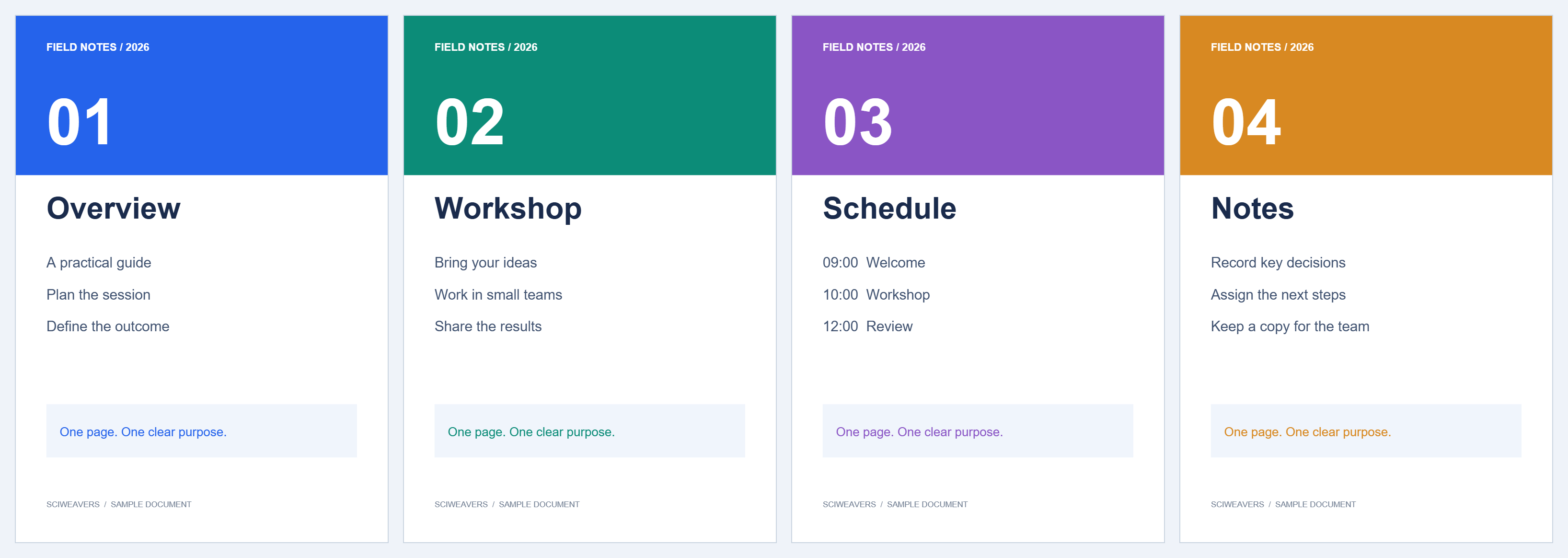
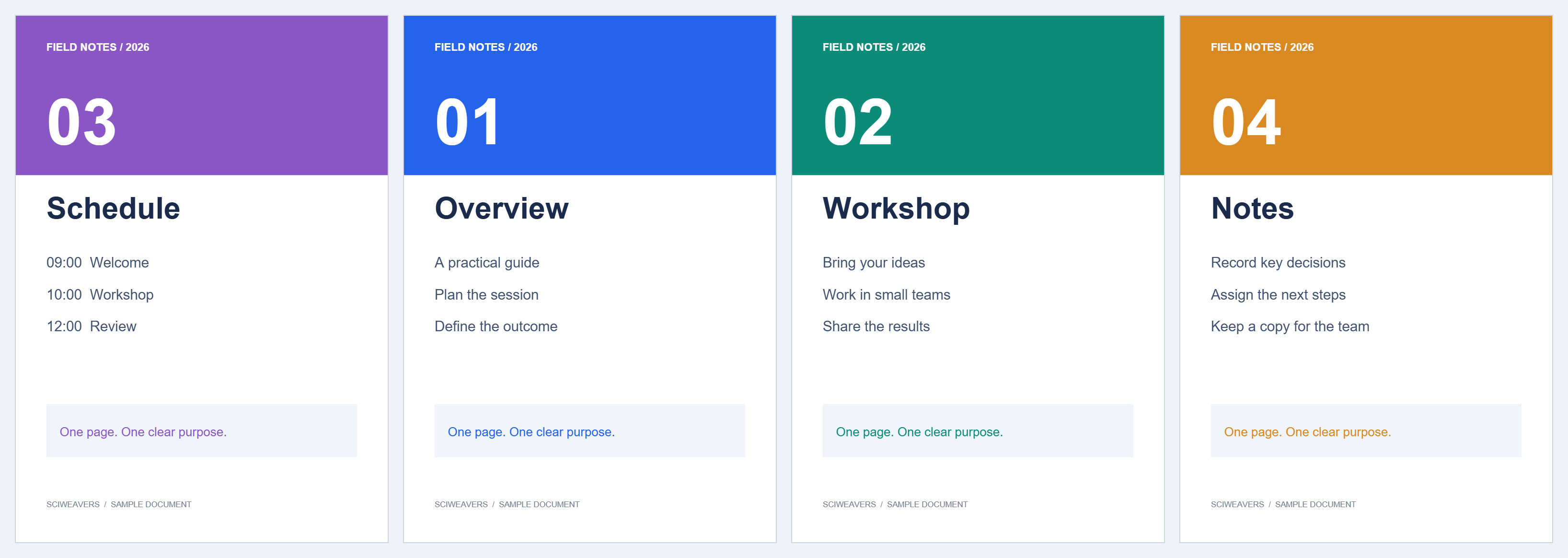

Use Organize PDF to arrange the actual page sequence. Our example moves the Schedule page from position three to the beginning, producing 3, 1, 2, 4.
Add the PDF files
Choose a PDF. Use Add PDFs if pages from another document belong in the result. Source badges help identify the original file and page.
Select and move a page
Click the third page tile to select it, then choose To beginning. Its new position is one; the other pages shift after it. You can also drag tiles into order, or focus a page and use Alt plus an arrow key.
Selection identifies pages for the next action. It is not an export filter: every page remaining in the workspace is included in the saved PDF.
Make any remaining changes
Use the selection actions to rotate, duplicate or delete chosen pages. Move to lets you enter a destination position for a selected group. Check the visible sequence after each change; Undo can recover a mistaken edit.
Our example changes only the order. Review the source page labels when similar-looking pages make the sequence hard to distinguish.
Name and save the result
Enter a clear Output filename, choose Start and download the PDF. Verify that Schedule comes first, followed by Overview, Workshop and Notes. The output contains four pages.
Common questions
Can I select several pages at once?
Yes. Use page selections, a range, or the all/odd/even selection controls, then apply the action to that group.
Will unselected pages disappear?
No. Only pages explicitly removed are excluded. All pages still shown in the workspace are exported.
Try it with your document
Review the result, then save the version you need.