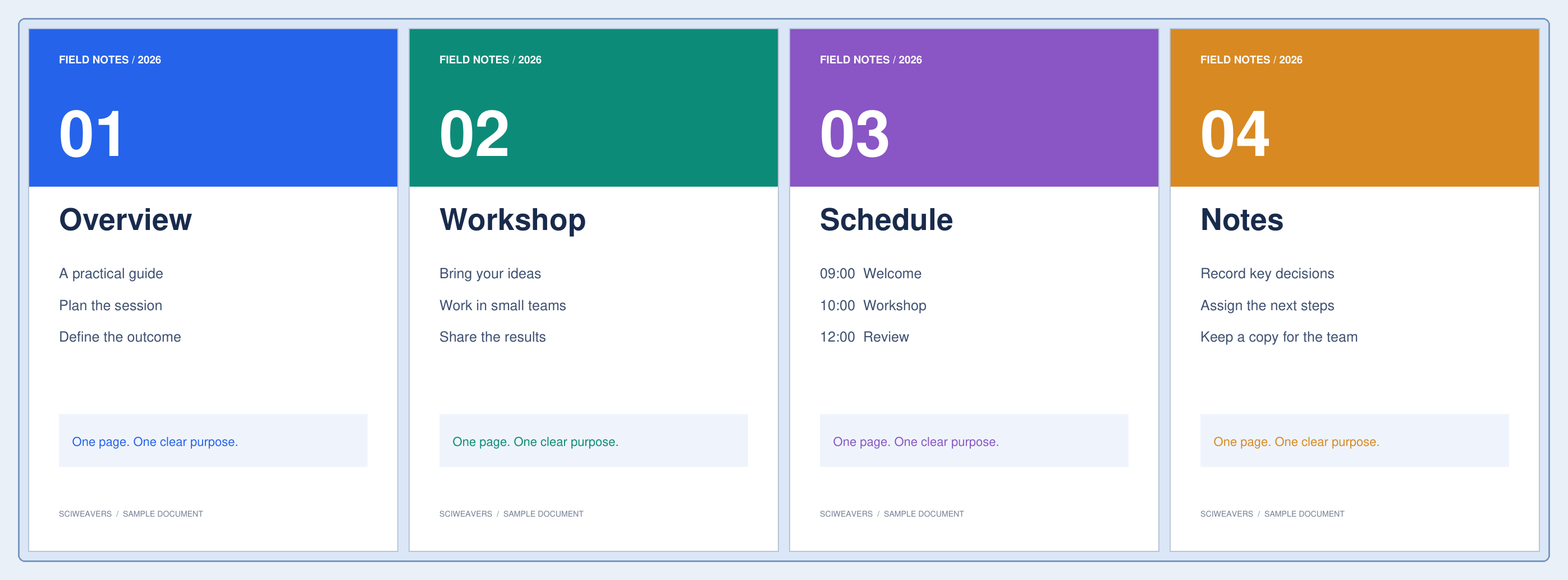
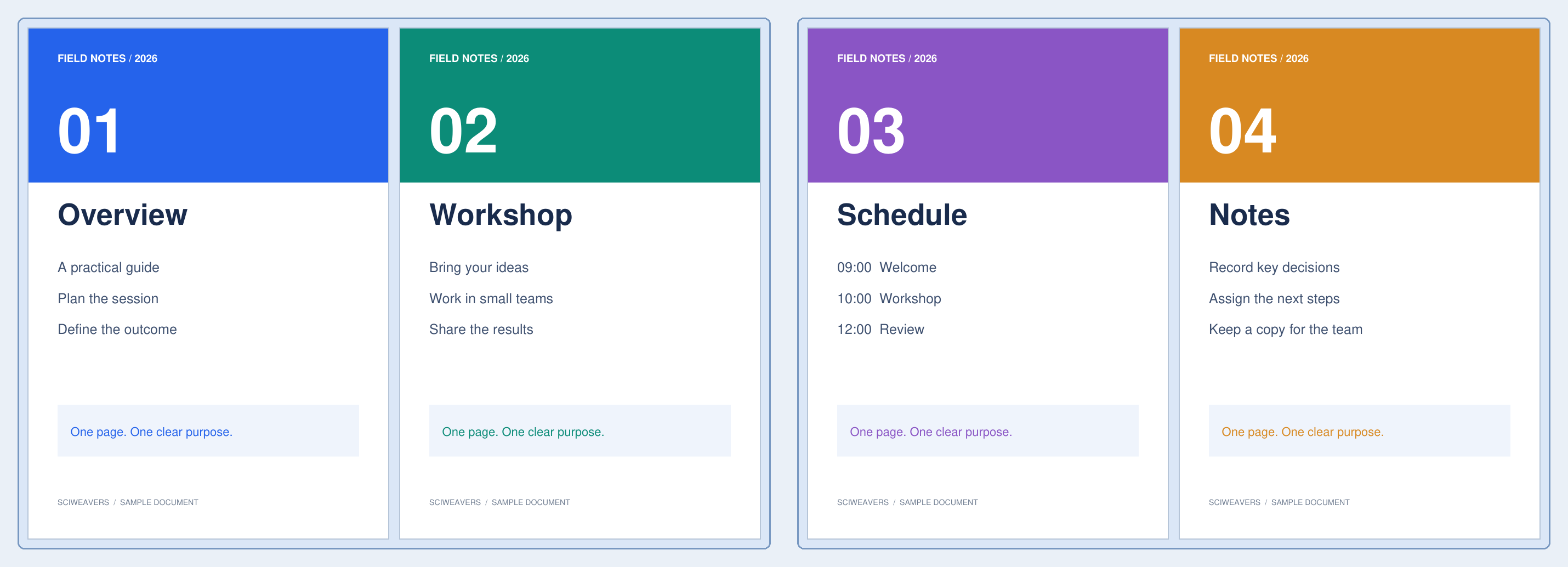

Open Split PDF and choose a page grouping. Our four-page Field Notes document becomes two PDFs with two pages each.
Load the PDF and review its pages
Choose the PDF and look through its page tiles. The example begins with Overview, Workshop, Schedule and Notes, in that order.
Choose a PDF up to 500 MB and 1000 pages.
Apply a page count or custom split
Set Pages per PDF to 2 and choose Apply, or use the 2-page preset. The displayed number alone is not a confirmed split; check the groups in Your output files.
For uneven sections, enter the page numbers after which a new file should begin under Custom splits, then choose Apply. For example, a cut at 2 separates pages 1–2 from pages 3–4.
Review the groups and download
Confirm the two groups before choosing Start. Download the ZIP, extract it and open both PDFs. In the example, the first contains Overview and Workshop; the second contains Schedule and Notes.
Check the pages that begin and end each file. Splitting into files is different from cutting one physical page into two halves; use Split PDF Pages in Half for the latter.
Common questions
Why did I download one PDF inside the ZIP?
No split boundary may have been applied. Choose the page-count preset or Apply, then confirm that Your output files lists the groups you intended.
Can I keep only a few pages in one PDF?
Use Extract Pages from PDF when you need one selected subset rather than several output files.
Try it with your document
Review the result, then save the version you need.