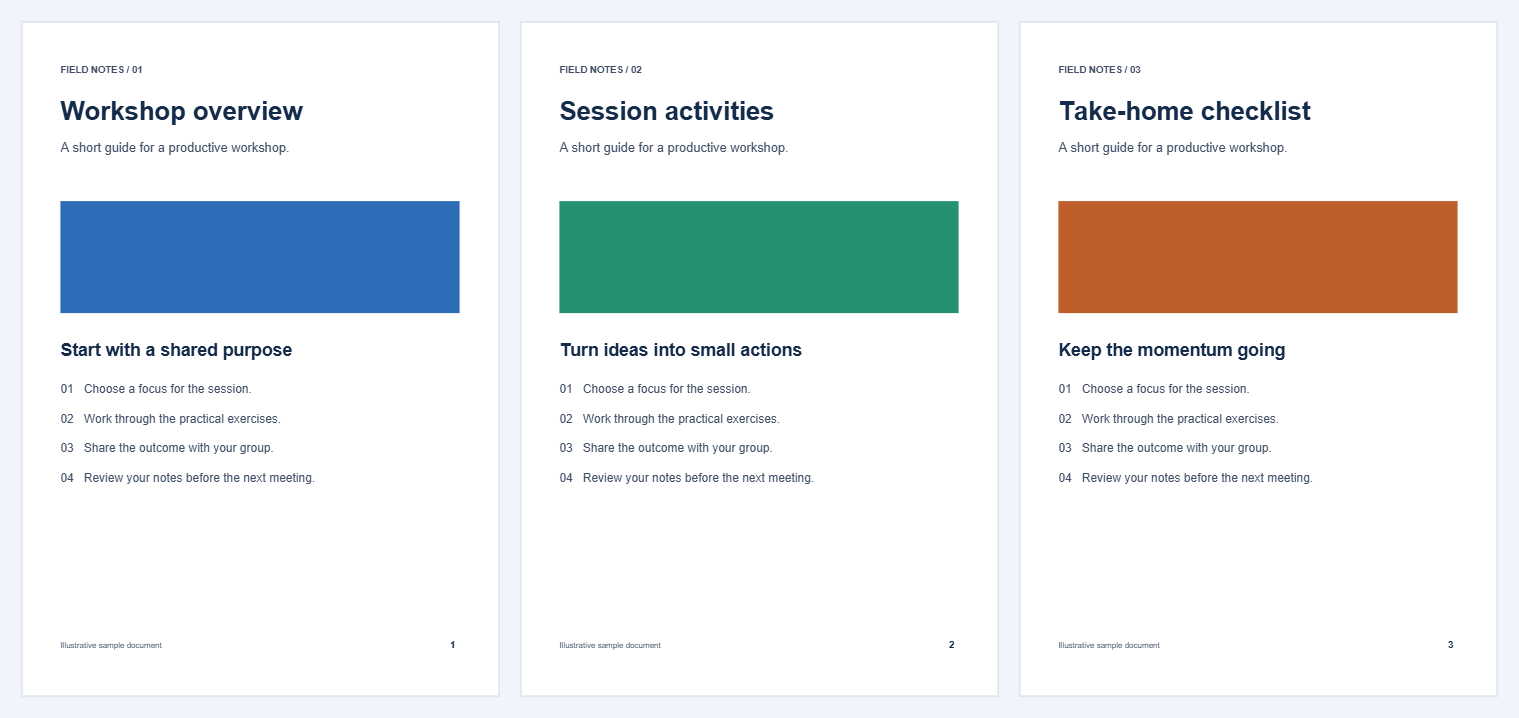
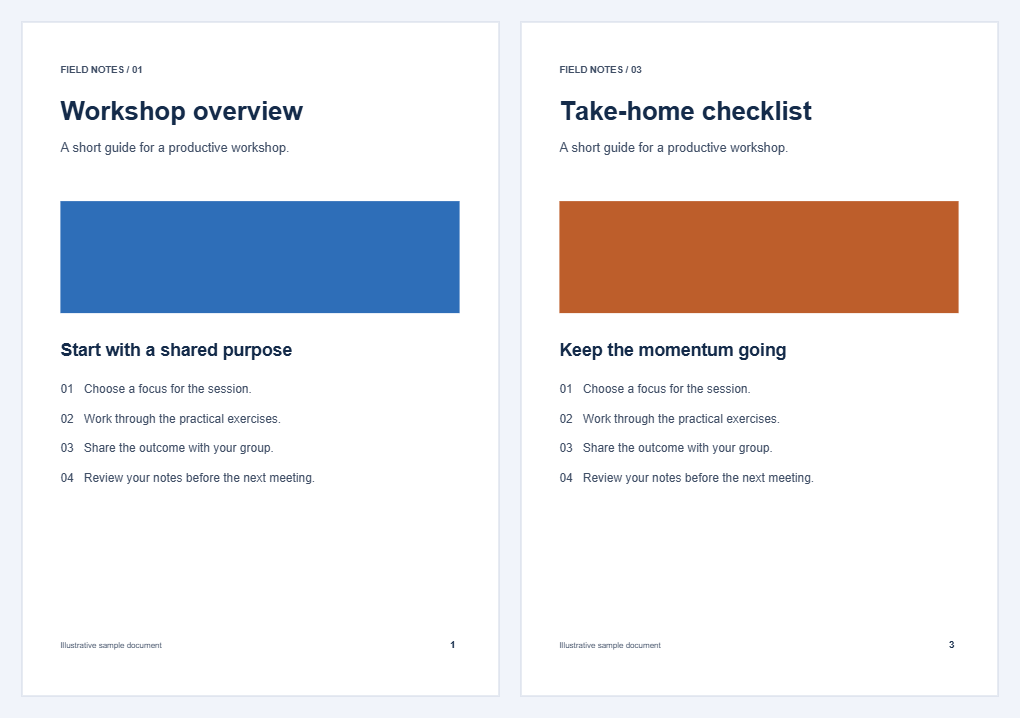

An extra scan or an outdated section can get in the way of a useful document. Remove Pages from PDF saves a copy without the pages you mark. In this example, we remove the activities on page 2 and retain the overview and checklist on pages 1 and 3.
Open the PDF and locate the unwanted pages
Open Remove Pages from PDF and choose your file. Inspect the page cards and preview before selecting anything.
Use the page's position within the PDF, counting from 1. Printed page labels may differ: a cover or contents page can shift the numbering used by the tool.
Mark the pages to remove
Click a page card to mark it for removal, or enter numbers in Pages to remove. In our three-page workshop document, enter 2 to remove the activities page.
For a longer document, you can combine pages and ascending ranges, such as 2, 5-7. Those numbers identify the pages to discard. The other pages are the ones that will remain in the download.
This selection means remove. If you would rather choose the pages to keep, use Extract Pages from PDF instead.
Review the pages that will remain
Check the marked cards against the numbers you entered. Click a marked card again if you selected it by mistake. You must choose at least one page to remove and leave at least one page in the document.
For the example, only page 2 is marked. The output should therefore contain page 1 followed by page 3. Remaining pages keep their source order.
Check the boundaries
When removing a chapter or a run of scans, inspect the first and last page of the range to avoid losing an adjacent page.
Check the references
A contents page or sentence may refer to a page you remove. Page removal does not rewrite that text or renumber the numbers printed in the document.
Save and inspect the shorter PDF
Select Start and download the result. Our example produced workshop-remove.pdf with two pages: the overview first and the checklist second.
Open the download, confirm the new page count, and inspect the pages on either side of each removal. The original PDF stays unchanged, so keep it if you may need the removed material again.
Common questions
Can I undo a removal?
Before processing, unmark the page or change the range. After downloading, return to your original PDF and create a new copy with the corrected selection.
Can I remove blank pages with this tool?
Yes. Inspect the thumbnails and mark the blank pages yourself. For automatic detection, use Remove Blank Pages from PDF and review its proposed removals.
Will the remaining printed page numbers change?
No. The page content stays as it was. In our example, the second page of the output still carries its original printed number 3.
Keep the document focused
Mark the unwanted pages and check the copy before sharing.