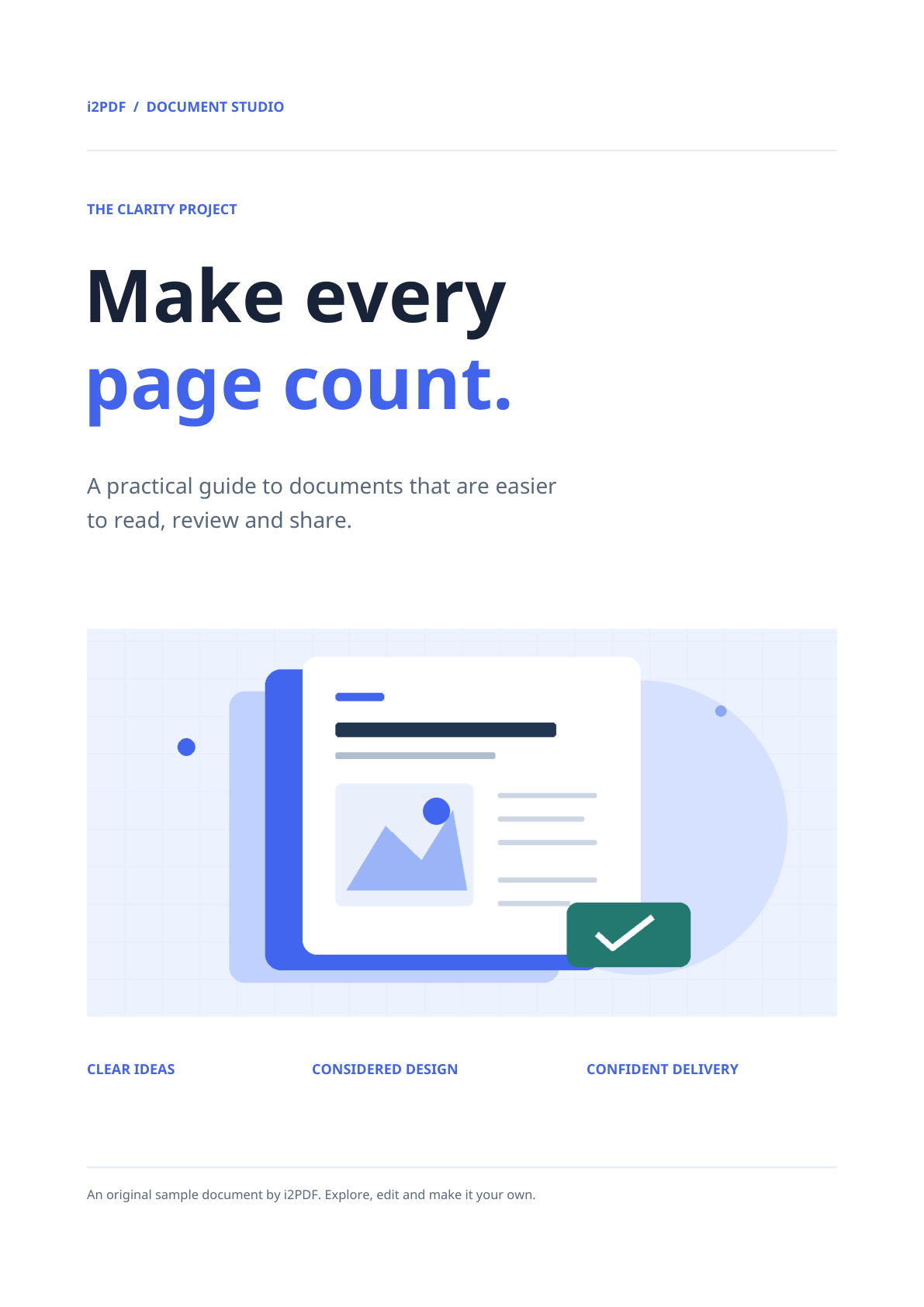
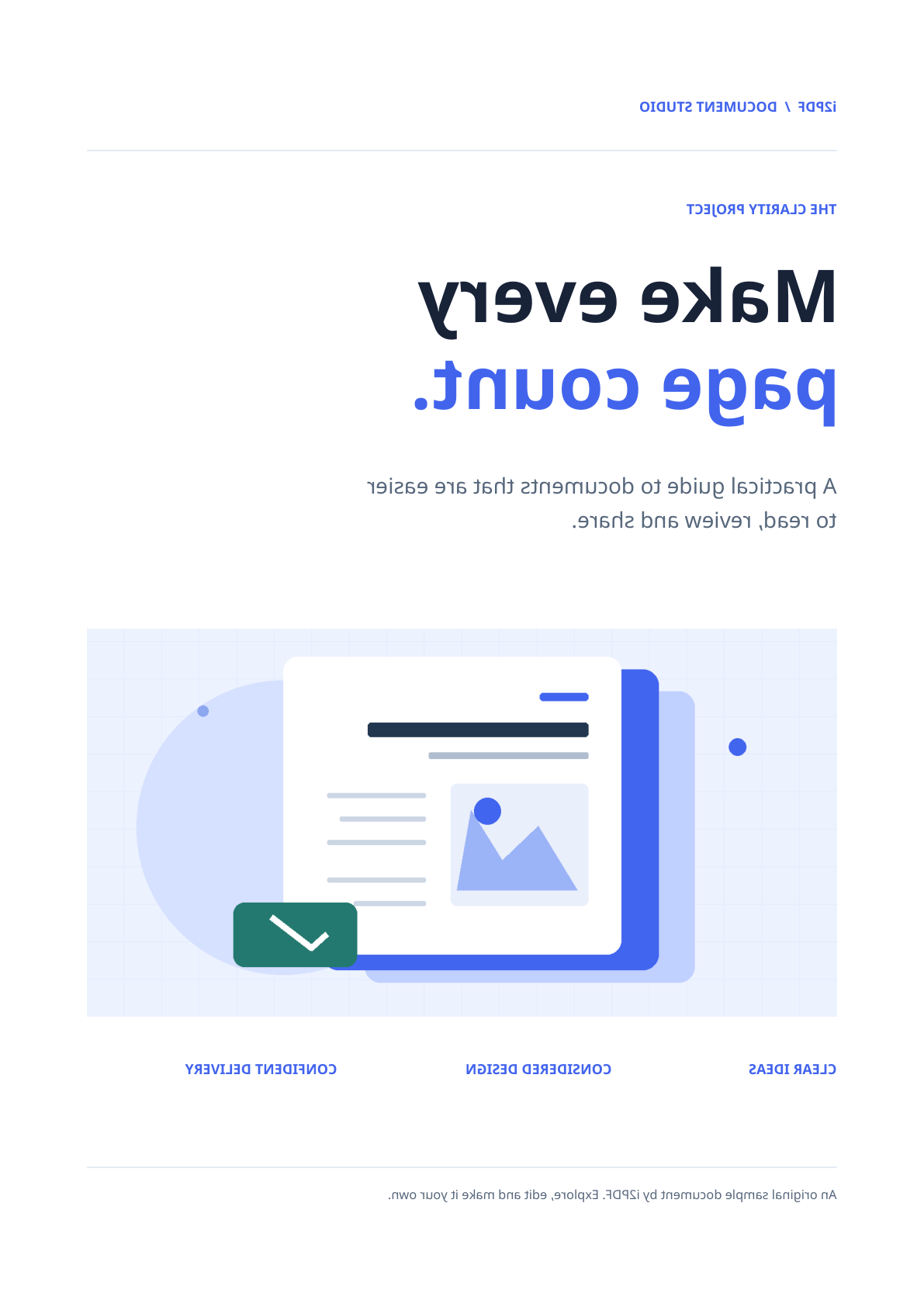

Open Flip PDF to mirror every page in one direction. Choose Horizontal to swap left and right for a heat transfer, or Vertical to swap top and bottom. The comparison above shows the actual downloaded result of a horizontal flip.
Open a PDF
Choose your document or use Try sample. The viewer opens a page; use the page controls to inspect the others. The source file stays on your device while this tool processes it in the browser.
Choose a mirror direction
In Mirror direction, select Horizontal to reflect left to right. Text reads backward in the preview. This is usually the direction needed when a printed design is transferred face down onto fabric.
Select Vertical to reflect top to bottom. The selected direction applies to every page. For our sample, keep Horizontal and confirm the title moves from the left toward the right edge.
Download and check the result
Choose Start, then Download. Open the saved PDF and check the reflection, page edges and page count. The example stays 4 pages long, and its ordinary text remains PDF text rather than a page screenshot.
Common questions
Is a horizontal flip the same as a 180-degree turn?
No. A horizontal flip swaps left and right while keeping the top at the top. A 180-degree rotation turns the page but does not make text read backward.
Does flipping reduce print quality?
The tool embeds the source PDF drawing commands instead of rasterizing each page. Embedded images keep their source resolution; a blurry scan will still be blurry after flipping.
Mirror your own document
Preview both directions and save the copy that fits your printing or correction task.