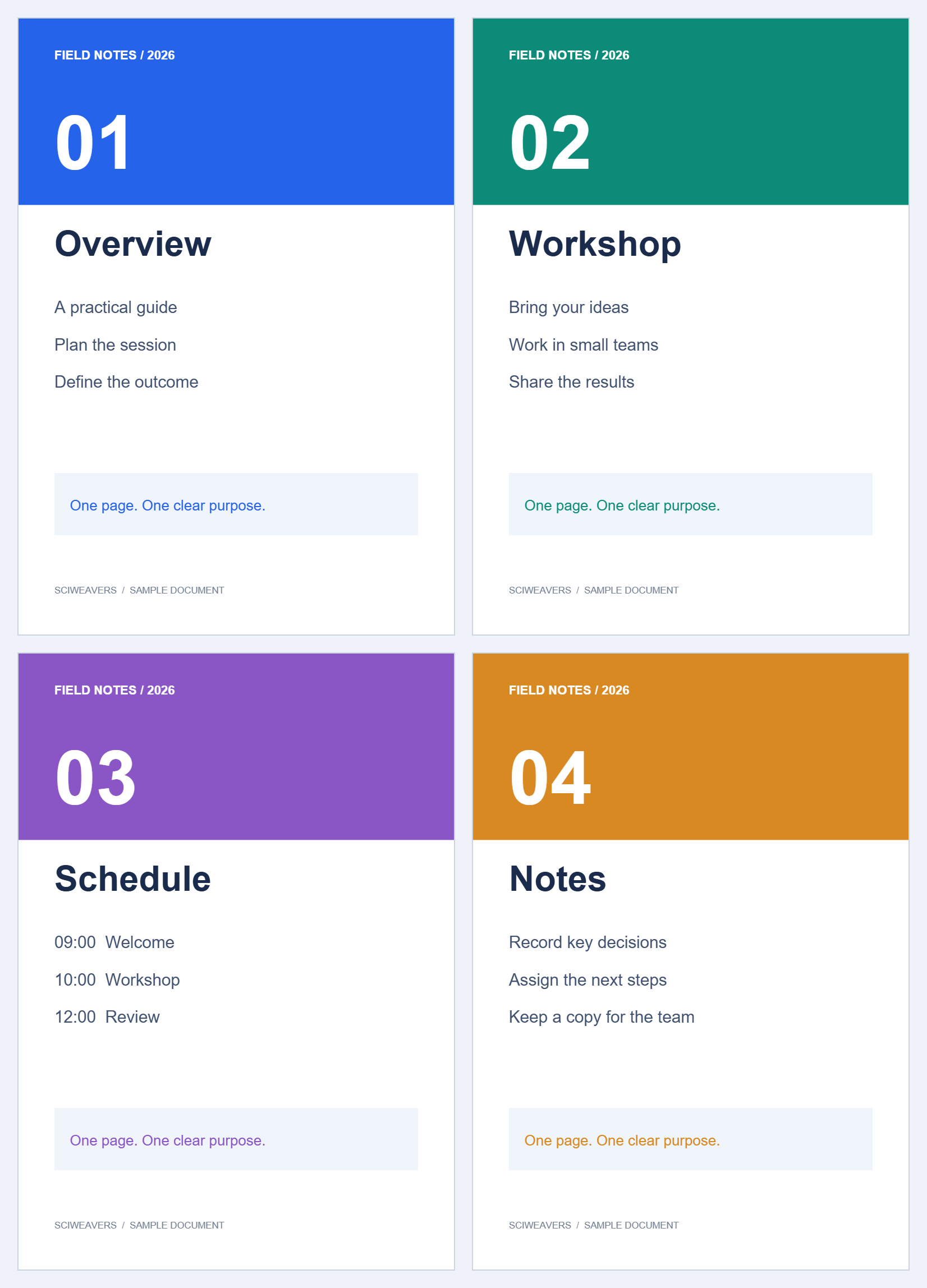
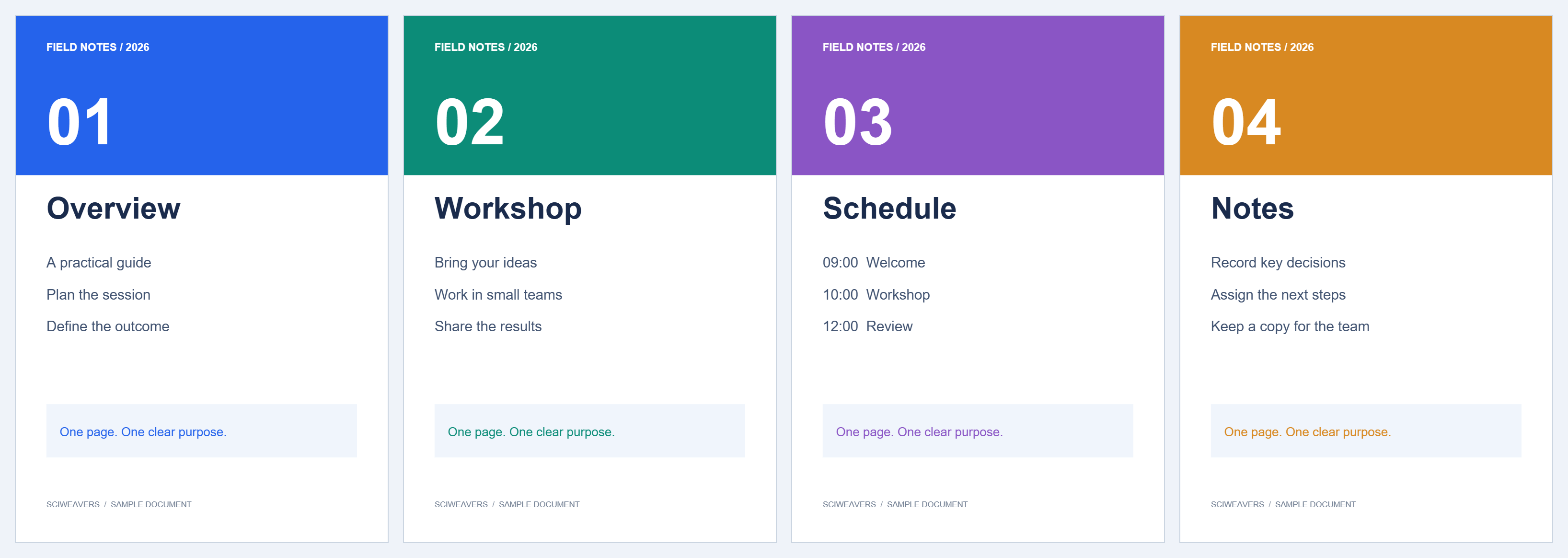

Open Merge PDF, add the source files and place them in reading order. The example joins two two-page files into one four-page document.
Add your PDFs
Choose the source PDFs together or add more with Add PDFs. Each file gets its own card and source badge. The example uses part-one.pdf and part-two.pdf.
Put the files in order
Drag file cards into the desired order. Keep One after another to finish the first file before starting the next: A1, A2, B1, B2.
Choose Alternate pages only when you want one page from each file in turn, such as separately scanned fronts and backs. Extra pages continue after the shorter file ends.
Choose the pages to include
Leave Pages to include empty for both files to reproduce our example. Enter a range such as 1-3, 5 when a file contains pages you do not need. Check the output-order strip after changing ranges or file order.
A file card’s rotation control applies to the included pages from that file. For individual page edits, use Organize PDF.
Save the combined document
Set the Output filename, choose Start and download. Review the transition between source files as well as the first and last page. Our output contains four pages, with Workshop followed by Schedule.
Common questions
Do I need to include every page from every file?
No. Each file has its own Pages to include field. Leave it blank for all pages or enter the required page range.
Can I change the order after adding files?
Yes. Drag the file cards, use the filename sorting controls, or reverse the file order. Review the output sequence before saving.
Try it with your document
Review the result, then save the version you need.