Researchers
Navigate a long report
Add chapter links to an assembled PDF.
Create a clickable contents page. Edit the example, add chapter links and choose a design.
Download your result or go back to make changes.
Use an existing document with or without bookmarks.
Rename the example linked to original page 1, add more lines and choose a design.
Watch the contents update, test its links and download your PDF.
Start with a ready-to-edit contents page and an Introduction line linked to original page 1. Add chapter lines, choose destination pages and switch between three designs while the PDF preview updates.
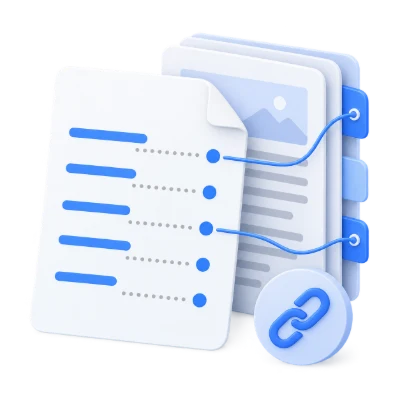
Add chapter links to an assembled PDF.
Give each lesson a clear destination.
Place a readable index before the source pages.
Your PDF opens on its new contents page, with an Introduction line linked to original page 1.
Rename the example in its entry card, or choose its page badge to change the destination. Select Add line in Settings to add a section and type its title.
Selecting a line or choosing a target keeps the contents page visible. Blank titles display a draft placeholder; give every line a title before downloading. Deleting all lines leaves an empty contents page ready for another line. Up to 300 lines are supported.
Pick a destination from thumbnails and keep watching the contents update.
The page picker shows twelve original pages at a time. Choose a thumbnail, browse more pages or type a page number. Destination choices use positions in the original file, starting at 1. The final contents numbers and internal links automatically include any newly added pages.
Use Chapter, Section, Subsection or Detail for four hierarchy levels. Move lines up or down to reorder them. Under More options, Import PDF bookmarks can replace the untouched example with existing internal bookmarks; if you have already edited your lines, it adds bookmarks without removing those edits, up to the 300-line limit.
Modern, Classic and Editorial designs use the same chapter titles and destinations.
Modern uses blue headings and fine row rules. Classic uses serif type with dotted leaders where there is room. Editorial uses a muted green accent and shaded chapter rows. Arabic and Latin text are supported in all three designs, using fonts embedded in the PDF.
Changes update the actual PDF preview. A4 contents pages are placed at the beginning; long titles wrap and longer lists continue across additional pages. Click a line on the page to test its internal link, then choose Back to contents. The Source PDF view remains available if you want to inspect the original pages.
The thumbnail sidebar shows the new contents pages first, followed by your original PDF pages. Click a thumbnail to view it; the highlighted thumbnail marks the current preview. Page badges show the final document order.
Create a visible, printable contents section, with matching bookmarks enabled by default.
Contents pages are part of the PDF itself. Sidebar bookmarks appear in a compatible reader’s navigation panel and do not add pages. This tool always adds contents pages; turn off matching bookmarks to retain the existing sidebar outline, or leave it on to replace that outline with your entry hierarchy.
For navigation without adding visible pages, use Create PDF Bookmarks. Download a separate copy before closing or reloading the page; this tool does not save a resumable project. Changes invalidate pre-existing digital signatures.
Open one PDF up to 100 MB and 750 pages. Additional output, memory and processing limits can apply to complex documents.
Processing takes place on your device without uploading the document. Download your result before closing the page; keep the original separately.
Know what to expect before you start.
On your deviceThe editor opens with a contents page and an Introduction line linked to original page 1. Rename it, choose its destination and use Add another line. Changes appear in the PDF preview. Automatic heading detection is not included; More options lets you import existing internal bookmarks. Use the thumbnail sidebar to see the new contents pages alongside the rest of the document.
It adds visible A4 contents pages at the beginning of the PDF. Matching sidebar bookmarks are enabled by default and can be turned off. Use Create PDF Bookmarks if you only want navigation in the reader sidebar without adding pages.
Yes. Every contents row links internally to its chosen destination. Click a line in the contents page to test it, then use Back to contents. The downloaded PDF includes the same links.
Choose original PDF page positions starting at 1, using thumbnails or the page-number input. The tool automatically adjusts the exported links and displayed numbers for the inserted contents pages. It does not change numbers printed on the original pages.
Yes. Arabic and Latin titles are exported as text. Choose Chapter, Section, Subsection or Detail for four hierarchy levels, and reorder entries with the up and down buttons. Long titles wrap and long lists continue onto additional contents pages.
Document processing runs in your browser. Download the finished PDF before closing the page. You can use Back from the download screen to revise entries while the workspace remains open.
Yes. Choose Modern for blue headings and fine rules, Classic for serif typography and dotted leaders, or Editorial for muted green accents and shaded chapter rows. All three support Arabic and Latin titles. Switching designs preserves your lines, their order and page destinations.