Researchers
Navigate reference material
Give long reports clear chapter destinations.
Create, rename and organise chapter bookmarks with precise page destinations.
Create, rename and organise chapter bookmarks with precise page destinations.
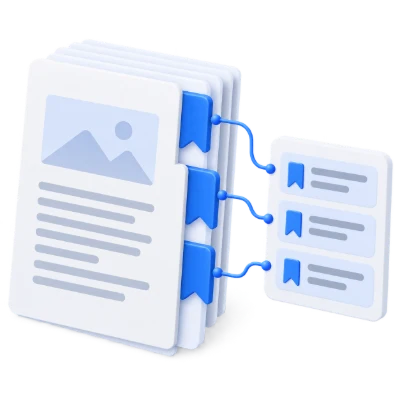
Bookmarks appear in your PDF reader’s sidebar. No extra pages are added.
Your page layout is unchanged. Use the PDF reader’s bookmarks sidebar to navigate.
Existing page bookmarks load automatically, or start with the Introduction example.
Use the thumbnail sidebar, add a bookmark, and choose a parent if it belongs inside a chapter.
Download the PDF, then open its bookmarks sidebar to jump between sections.
Create or edit PDF sidebar bookmarks in a visual workspace. Browse page thumbnails, name chapters, choose destinations and organize nested bookmarks without adding pages.
Give long reports clear chapter destinations.
Add sections without changing document pagination.
Use Arabic or Latin titles in the reader sidebar.
Existing page bookmarks load automatically. A new document starts with an Introduction bookmark pointing to page 1.
Open a PDF and review its bookmark cards beside the page preview. Click a card to open its destination in the viewer. Edit the title directly, or use Add bookmark to create an entry for the page currently shown. The Introduction example is editable and can be deleted.
Up to 300 bookmarks are supported. PDFs with more than 300 existing outline entries are rejected rather than partially imported. Unsupported destinations, such as web actions, are skipped with a notice. Saving replaces the outline with the reviewed list.
Use the left thumbnail sidebar and Bookmark this page, or choose a destination from the page picker.
Browse the PDF using its thumbnail sidebar or page controls, then choose Bookmark this page. For an existing bookmark, click its page chip or Destination button to open a grid of page thumbnails. You can also enter a page number or choose Use current page.
Page numbers refer to positions in the PDF, starting at 1, regardless of printed page labels. The selected destination opens in the main viewer so you can check it. No document-wide text analysis is needed.
Choose a named parent with Nest under. Move bookmarks up or down with their children.
Keep Top level for a main chapter, or choose another bookmark by name to place an entry inside it. Up to four levels are supported. The parent menu omits choices that would create a cycle or exceed the depth limit.
The arrow buttons move an entire bookmark branch among its siblings. Deleting a parent keeps its children and moves them up one level. Arabic and Latin titles are saved as Unicode text in the PDF outline.
The PDF keeps its page count, page artwork and existing content. Bookmarks appear in the reader sidebar.
Start saves the bookmark list into a separate PDF. It does not add a printed table of contents, rasterize the pages or place visible labels over the document. Open the downloaded PDF’s bookmarks sidebar to use the navigation.
Use Add Table of Contents to PDF when you need a visible, linked contents page. A PDF with sidebar bookmarks can also be used in Split PDF by Bookmarks. Saving an empty list removes the existing outline.
Undo and Redo cover titles, destinations, nesting, reordering and deletion.
Use the controls above the bookmark list to undo or redo recent changes, including deleting a bookmark. Up to 50 editing steps are kept while the document is open. Back from the download screen returns to your edited list.
The refresh control restores the document’s original supported bookmarks, or the Introduction example when it had no outline. Start over closes the document. Editing history is not retained after closing or reloading the page.
Open one PDF up to 100 MB and 750 pages. Additional output, memory and processing limits can apply to complex documents.
Processing takes place on your device without uploading the document. Download your result before closing the page; keep the original separately.
Know what to expect before you start.
On your deviceOpen the PDF, select a page in the thumbnail sidebar and choose Bookmark this page. Give it a title in the bookmark card. If the PDF has no outline, an editable Introduction example points to page 1.
Yes. Supported internal page bookmarks load automatically. Rename them, change destinations, reorder, nest or delete them. A notice identifies unsupported destinations that were skipped; saving uses the list shown.
Select the bookmark and choose its parent by name in Nest under. Up to four levels are supported. Moving a parent moves its children too; deleting a parent keeps the children one level higher.
Yes. Undo and Redo above the list restore recent edits, including titles, destinations, nesting and deletion. History stays available while the document is open.
No. The output keeps the same pages and adds navigation to the PDF reader’s bookmarks sidebar. Use Add Table of Contents to PDF for visible linked contents pages.
Yes. Arabic and Latin bookmark titles are stored as Unicode. Download the result and open it in Split PDF by Bookmarks if you want separate chapter files.
You can edit up to 300 bookmarks across four levels. A PDF with more than 300 existing outline entries is rejected so the tool does not silently import an incomplete list. Document size and page limits are shown in the upload area.