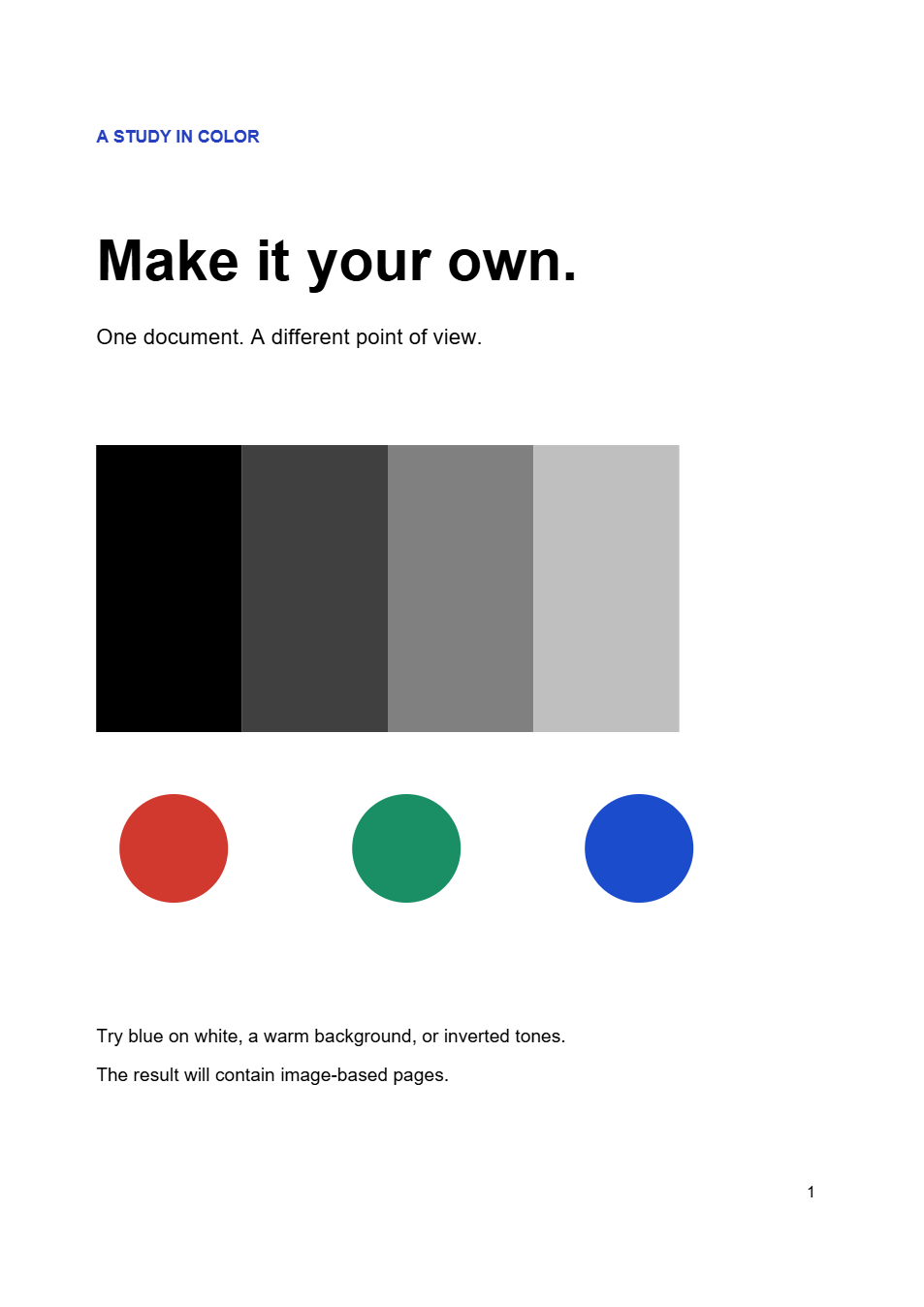
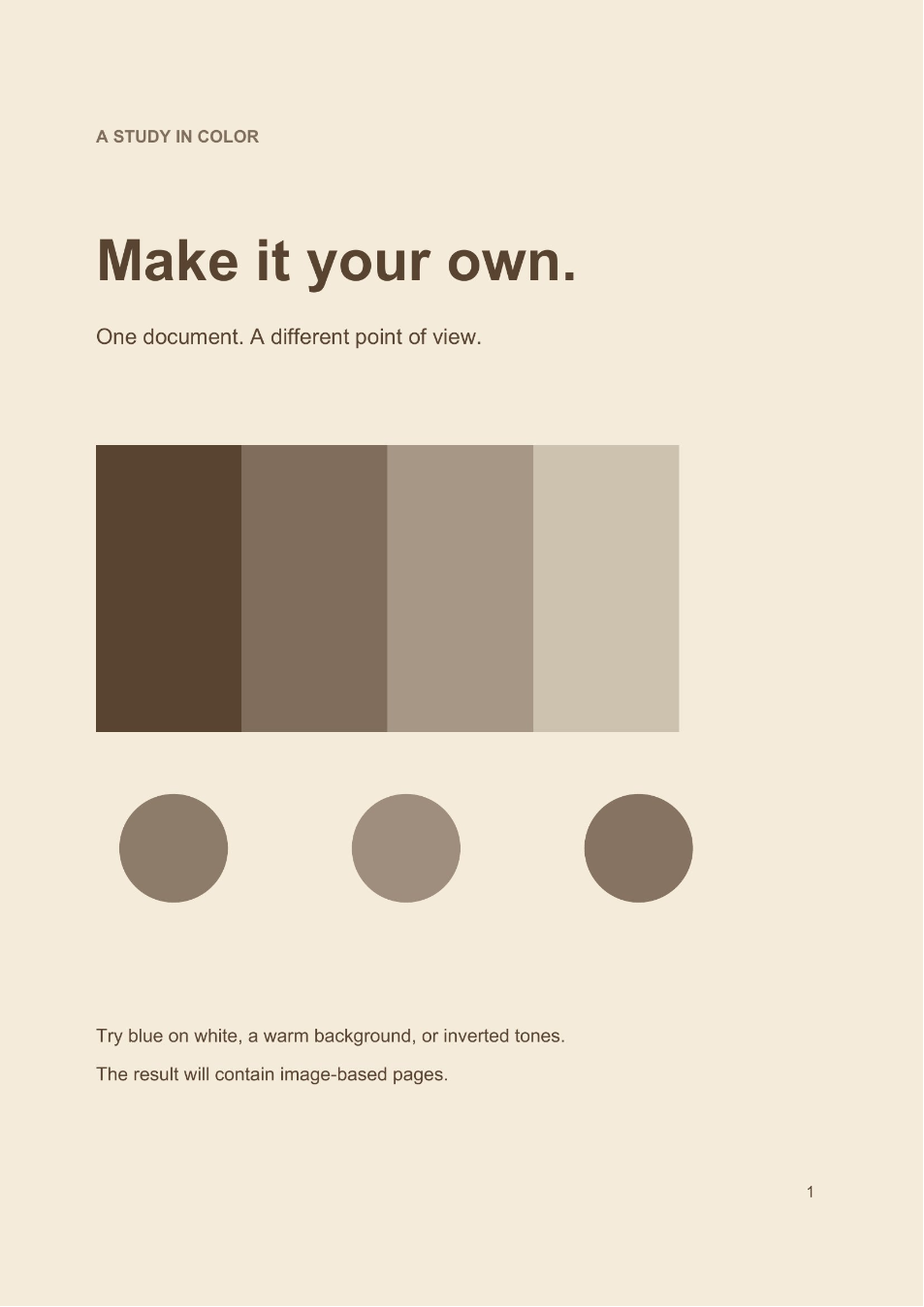

A different palette can give a PDF a consistent reading style. Color PDF maps dark and light areas to your chosen colors across the page. Our example uses the Sepia preset to turn a two-page sample into a brown-and-cream copy.
Open the PDF you want to recolor
Open Color PDF and choose your file. To reproduce this example, select Use Sample PDF.
Look at both the writing and any pictures or charts. The treatment applies to the page's tones, so a colored diagram will change along with the text and background.
Choose a PDF up to 100 MB and 200 pages.
Choose a preset or two custom colors
Under Color palette, choose Sepia for the example. It sets Text & dark areas to #594331 and Paper & light areas to #F5ECDC.
You can choose another preset or enter custom colors using the color controls. These are the endpoints of the recoloring: middle tones are mapped between them.
Text & dark areas
Controls the color used for the darkest source areas. It affects dark pictures and shapes as well as lettering.
Paper & light areas
Controls the lightest source areas, including white page backgrounds. Choose a clearly different tone so the text remains easy to read.
Compare the palette across your pages
Use Original and Preview to compare the current page, then navigate through the document. Check small text, pale lines and chart legends, rather than judging the heading alone.
Leave Reverse source tones off for this Sepia example. Turning it on reverses how light and dark source tones map to the chosen palette.
Color PDF processes the whole document with the selected palette. If you need only a few pages recolored, create that subset first with Extract Pages from PDF.
Colors may carry meaning in a chart. Check whether categories still remain distinguishable after recoloring, and keep the original when exact colors matter.
Download and check the finished copy
Select Start to process the file, then download the PDF. Our example produced sample-colored.pdf, retaining two pages at their original dimensions.
Open the new file in your usual PDF reader and compare its text and graphics with the source. Keep the original if you may want a different palette later.
Common questions
Can I recolor only one sentence?
This tool maps tones across the page, so it cannot target one sentence independently of other areas with similar tones.
Will a photograph keep its original colors?
No. Photos and colored graphics take on the new palette too. Review the output carefully when photographs or color-coded information are important.
Which tool should I use for dark pages?
PDF Dark Mode provides reading palettes with light text and dark backgrounds. Invert PDF Colors instead reverses the source colors without choosing a custom palette.
Find a palette that fits your PDF
Choose two clear tones and inspect the whole page.