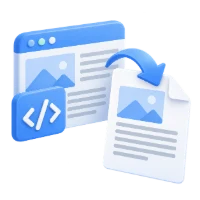

Use PDF to HTML to convert selected pages into an HTML representation. Review the result in a browser, especially fonts, images and positioned text.
Open the PDF and choose pages
Add the PDF and inspect the pages to include. Leave the page range blank for the whole document or enter the required page numbers and ranges.
Keep the source PDF for comparing the exported layout. Complex fonts, layered graphics and closely spaced labels need particular attention.
Choose image embedding and format
Keep Embed images in HTML enabled for the initial example. With external images selected instead, the tool packages the HTML and companion files in a ZIP.
Choose PNG or JPG for the generated background images. PNG is a useful starting choice for crisp graphics; check the actual result and file size before selecting another format.
Export and open the result
Choose the conversion action and download the result. Open the HTML in a browser; if you receive a ZIP, extract it and retain its folder structure.
Compare every selected page with the PDF. Check text placement, fonts, images and any required companion resources before putting the generated files on a website.
Common questions
Why do I receive a ZIP instead of HTML?
When images are external, the HTML needs its companion files. The ZIP keeps those generated resources together.
Will this rebuild my original website from a PDF?
It creates an HTML representation of PDF pages. It does not recover the original site templates, application logic or responsive design.
Try it with your document
Review the result, then save the version you need.