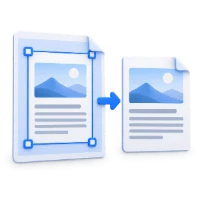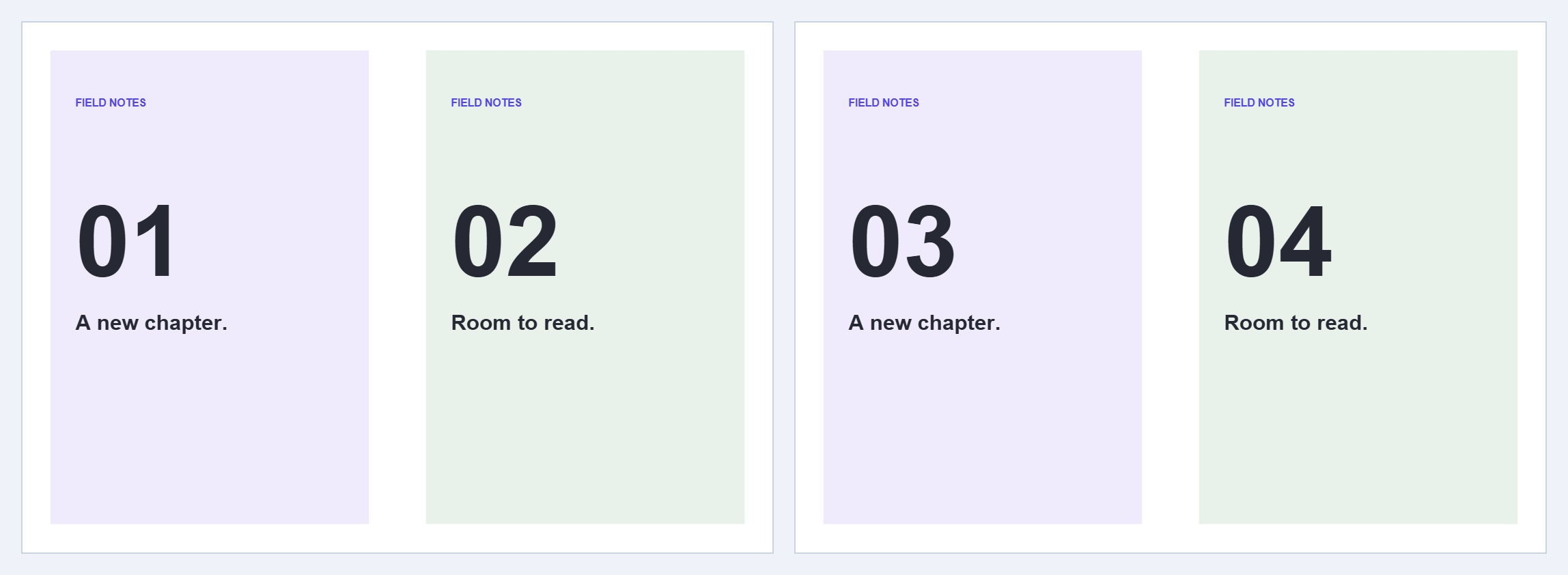
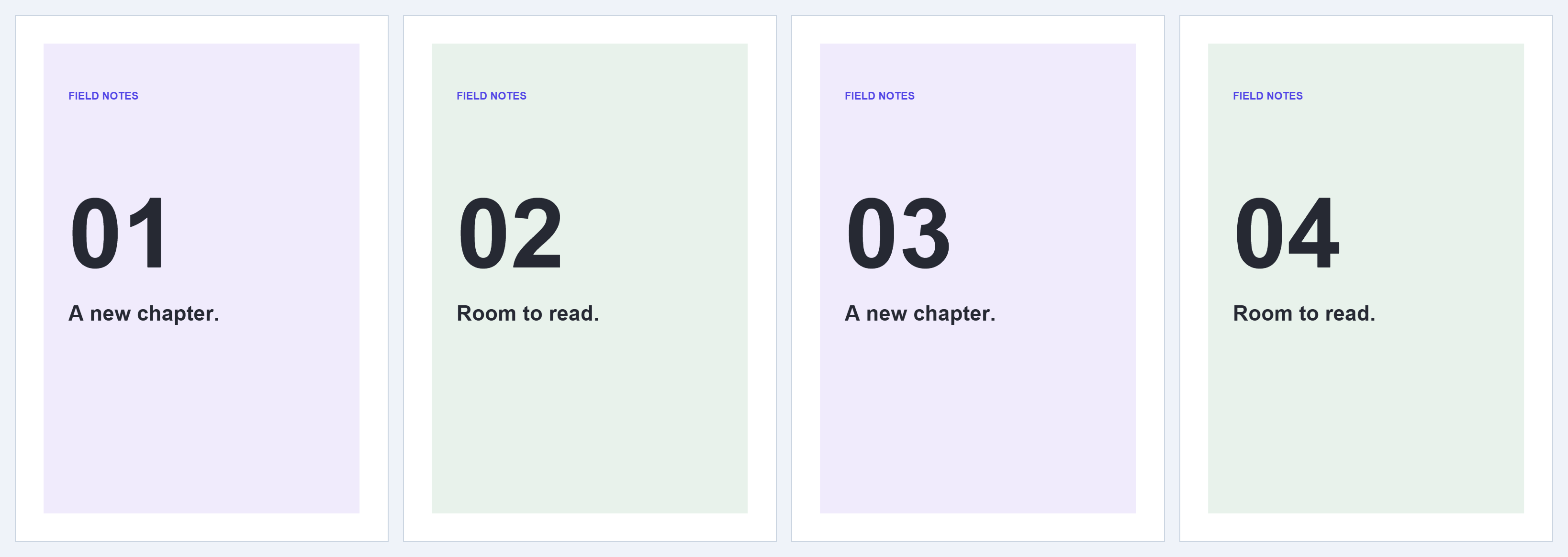

Use Split PDF Pages in Half when each PDF page contains two pages side by side or stacked vertically. The sample has two spreads; a centered vertical split produces one PDF with four pages.
Open a spread or two-up scan
Choose your PDF or try the sample. Check whether the dividing line should separate left and right pages or top and bottom pages.
Set the direction and divider
Choose Vertical · left and right. Keep Divider position at 50% for equal halves. Drag the divider or enter a percentage when the gutter is off-center; the permitted range is 2% to 98%.
Keep the all-pages option enabled for a consistent layout. If the gutter moves between pages, turn it off, preview each affected page and adjust its divider separately.
Choose which half comes first
The example uses Left first and no output rotation. For a right-to-left book, choose Right first if that matches its reading order. With a horizontal split, the choices become top first or bottom first.
The two halves of source page one are followed by the two halves of source page two. The tool does not gather every left half into one group.
Save and inspect all halves
Choose Start and download the result. It is a single PDF. Check the gutter edges for clipped letters, the reading order, and the page count: two output pages for every source page.
Common questions
Can I split top and bottom instead?
Yes. Choose Horizontal · top and bottom, set the divider and pick the first half in the output.
Does the tool recognize text in a scanned book?
No. This operation separates page areas. Use PDF OCR afterward if you need a searchable text layer.
Try it with your document
Review the result, then save the version you need.