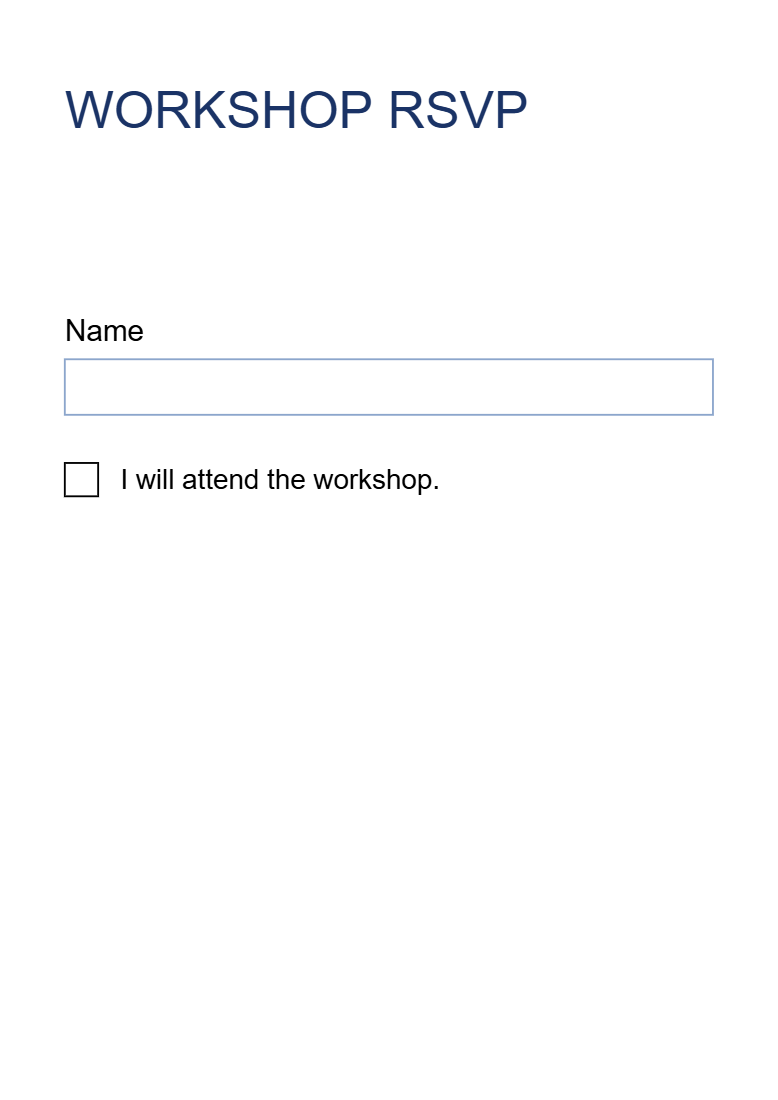
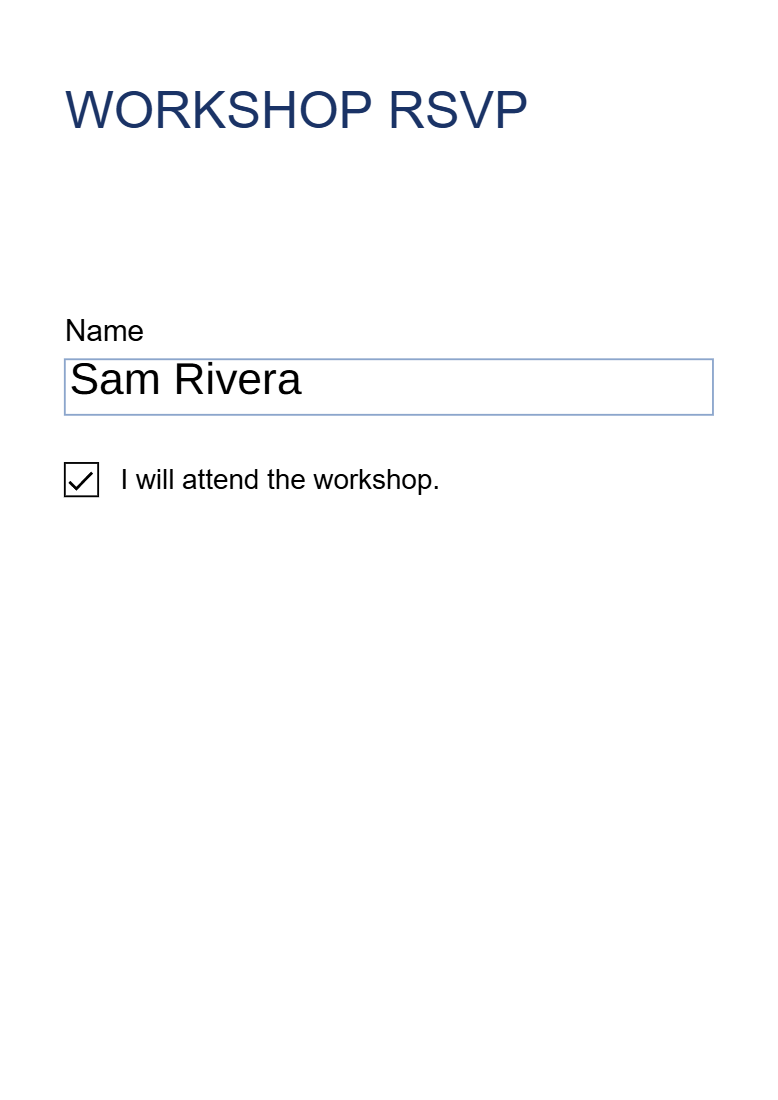

Open PDF Forms to fill supported existing fields or create a form of your own. Our example enters a participant’s name and checks an attendance box in a workshop RSVP.
Open an existing form or start a new one
For an existing form, choose the filling mode and add your PDF. The example begins with a blank name field and an attendance checkbox. Supported fields are imported so you can fill or edit them.
To create a reusable form, choose the creation mode and a blank, contact, registration or feedback template. You can also add fields over the printed lines of an existing PDF.
Fill the fields and apply the answers
Open Forms and choose Fill form. Enter the name and select the attendance checkbox. Our example uses Sam Rivera.
Choose Apply values to commit the answers. Leaving the filling view without applying discards the draft answers, so check this step before exporting.
Add or adjust fields when authoring a form
The Forms menu includes text, multiline text, checkbox, radio button, dropdown and list fields. Place a field, resize it and review its properties. Give ordinary fields distinct names; radio options in one group share a group name and use different values.
Field names identify data and are not printed labels. Add visible labels as page text. Use a tooltip where helpful, review required and read-only settings, then use Fill form to try the form as a recipient would.
Download and test the saved form
Choose Start and download the PDF. Open it in a PDF reader, check the answers and confirm that the intended fields can still be filled.
Our example preserves both interactive fields with their saved values. If you need a static copy after completion, keep the interactive original and use Flatten PDF on a separate copy.
Common questions
Why can’t I type into a field marked read-only?
The editor respects its read-only setting. If you are authoring the form and intend it to be editable, clear Read only in the field’s settings before changing its value.
Can I add a signature after filling the form?
Yes. Use Sign PDF to place a visible drawn, typed or uploaded signature. Check the recipient’s requirements if a certificate-based signature is needed.
Try it with your document
Review the result, then save the version you need.