Students
Submit completed forms
Turn entered form values into page content before sending a completed application or assignment form.
Make form values and annotations permanent parts of your PDF pages.
Use the page controls to inspect your document.
Save your result or return to adjust the settings.
Upload one PDF from your device.
Review the available settings, then start processing.
Save the result and check it before sharing.
Make form values and annotations permanent parts of your PDF pages. Form values and annotation appearances become permanent page content. Flattening does not securely redact hidden text.
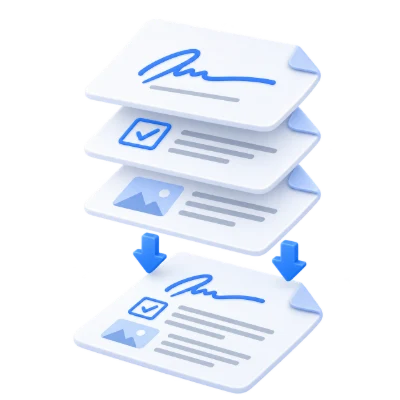
Turn entered form values into page content before sending a completed application or assignment form.
Keep the editable original and distribute a flattened version when recipients no longer need to fill its fields.
Bake annotation appearances into the pages and inspect the result to confirm the intended marks are visible.
Bake visible form values and annotations into PDF page content.
Flattening turns visible appearances into page content and removes interactive fields and annotation objects. Fill and review the original form first, because the flattened copy is no longer meant for changing those fields. The operation does not require converting every page into a screenshot.
Static appearance is different from preserving interactive review information.
Popup comment text, hidden fields and reader-specific appearances may not be represented as you expect. Check visible marks and form values in the result. Flattening does not certify a signature, enforce a password or remove information hidden underneath a shape. Keep the editable original when later form changes are needed.
Use the accepted format and keep required resources with the document.
The filename extension must match the actual file type. Renaming an unrelated file does not convert it. Keep any required resources available within the document, and use an unencrypted file you are authorized to process. Processing can fail on damaged, unsupported or unusually complex content even when its byte size is within the upload limit.
Preview the result before downloading and sharing it.
Select Start when the settings are ready. On the result screen, Preview opens the generated PDF and Download saves a separate copy. Back returns to the current workspace; Start over clears it for a new file. Review small text, page edges and page order in the finished copy. A new PDF does not preserve the validity of an existing digital signature.
Open one PDF up to 100 MB and 750 source pages. Protected files need an unlocked copy unless this tool explicitly offers password entry. Large or complex pages can require more memory or reach processing limits even when the file is within these limits.
Processing uses our servers. Source files, temporary files and results are deleted from our servers within 30 minutes after processing finishes. We do not share document contents with third parties or use them to train AI models.
Know what to expect before you start.
Temporary server processingNo. Flattening removes the interactive behavior of form fields and annotations by turning their appearances into page content. A PDF editor may still change that content.
Flattening turns visible appearances into page content and removes interactive fields and annotation objects. Fill and review the original form first, because the flattened copy is no longer meant for changing those fields. The operation does not require converting every page into a screenshot.
Popup comment text, hidden fields and reader-specific appearances may not be represented as you expect. Check visible marks and form values in the result. Flattening does not certify a signature, enforce a password or remove information hidden underneath a shape. Keep the editable original when later form changes are needed.
Open one PDF up to 100 MB and 750 source pages. Protected files need an unlocked copy unless this tool explicitly offers password entry. Large or complex pages can require more memory or reach processing limits even when the file is within these limits.
This tool uses our servers for processing. Your original file is not overwritten; the result is a separate download. Preview and review the result where available, and download the copy you need before starting over.