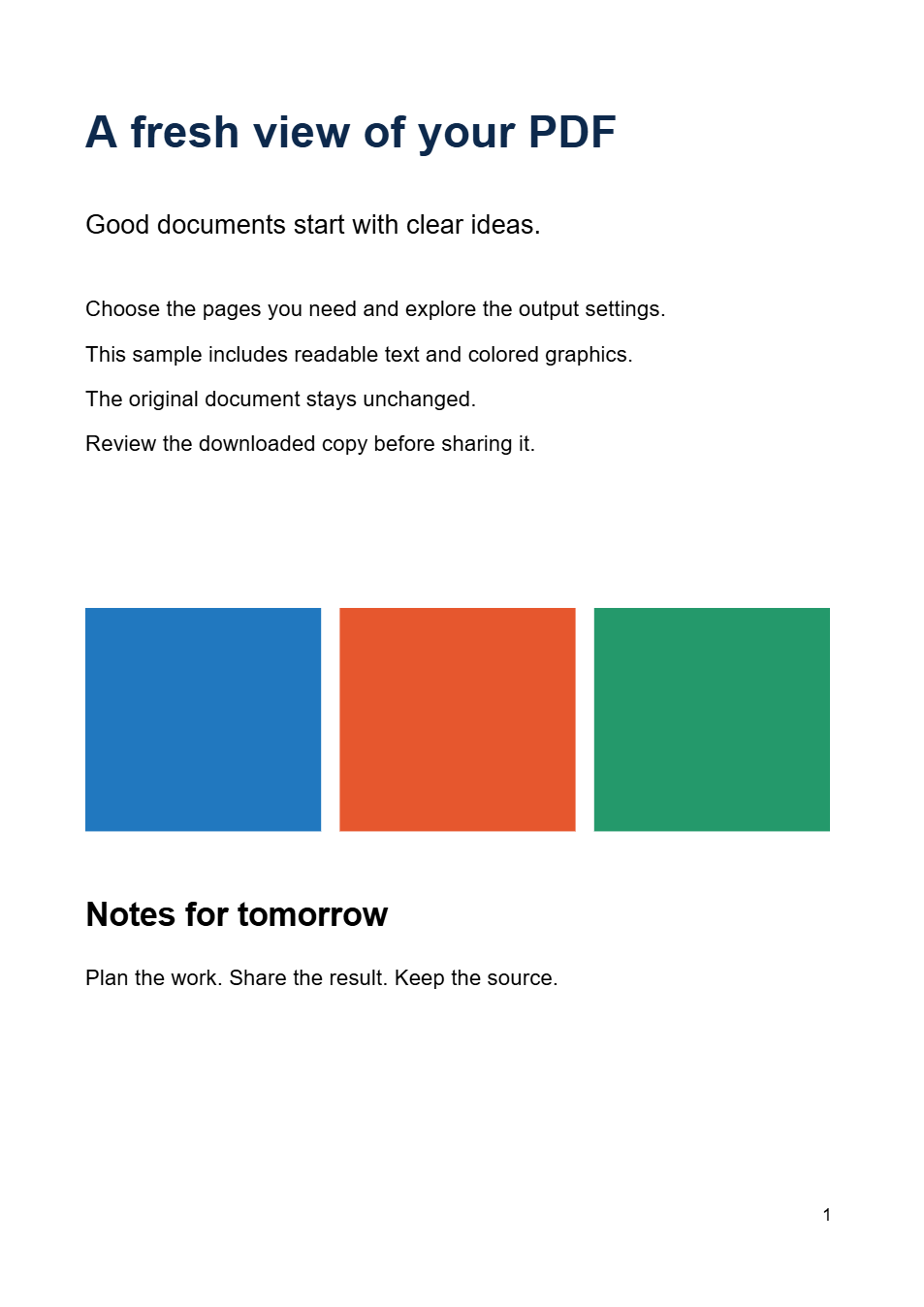
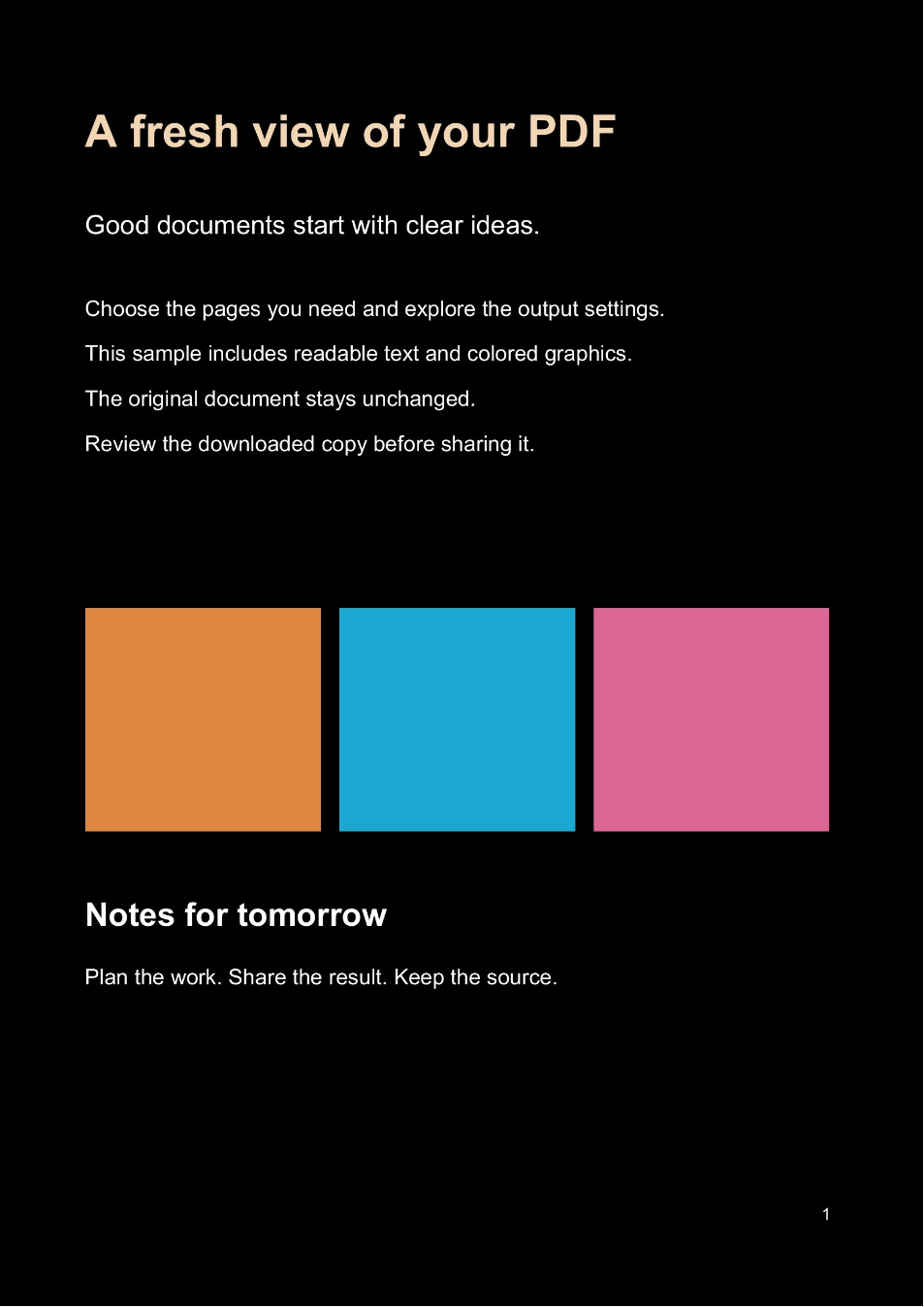

Color inversion gives each source color its opposite: white becomes black, black becomes white, and other colors change too. Invert PDF Colors saves that transformation into a new file. The example below processes both pages of the sample document.
Open the file and preview the inversion
Open Invert PDF Colors and choose a PDF, or use Use Sample PDF to try the same example.
The preview shows the inverted page automatically. There is no palette to choose or contrast strength to tune: this tool reverses the source colors.
Choose a PDF up to 50 MB and 200 pages.
Compare text, images and background
Switch between Original and Preview to inspect the current page. Move through the document and check text, photographs, highlights and diagrams.
Dark writing on white paper becomes light writing on a dark background. Photographs take on a negative-like appearance, and a chart's colors also reverse. Make sure that result is useful for your particular document.
If you want a controlled light-text palette rather than the source colors' opposites, try PDF Dark Mode. It offers several dark reading palettes.
Choose which pages enter the download
Leave Pages to process blank to export all pages. That is the setting used for our two-page example.
To export a subset, enter page numbers or ranges, such as 1, 3-5 in a document with at least five pages. The numbers refer to positions in the PDF, which may differ from page numbers printed on the document.
The range selects the pages included in the new file. Unselected pages are left out of the download; they are not included unchanged.
Whole-document copy
Keep the field empty when you want an inverted version containing every source page.
Selected-page copy
Use a range when you only need part of a longer document. Check the resulting page count before sharing it.
Process and save the inverted PDF
Select Start, wait for processing and download the result. The example produced sample-inverted.pdf with two pages at their original dimensions.
Open the download in another PDF reader to confirm that the colors are part of the saved file. Keep the original for printing or whenever its normal colors are needed.
Common questions
Does inversion leave photos unchanged?
No. It reverses the colors of images and graphics along with the text and background. Inspect illustrated pages before using the result.
Can I pick an exact background color?
Use Color PDF for a custom pair of dark and light colors, or PDF Dark Mode for a ready-made dark palette. Inversion uses the source colors' opposites.
Will inverting twice restore the original file?
A second inversion reverses the visible colors again, but it cannot restore the original text objects or other features lost in the first image-based export. Keep the source PDF.
Preview the flip, then save a copy
Check the pictures as carefully as the words.