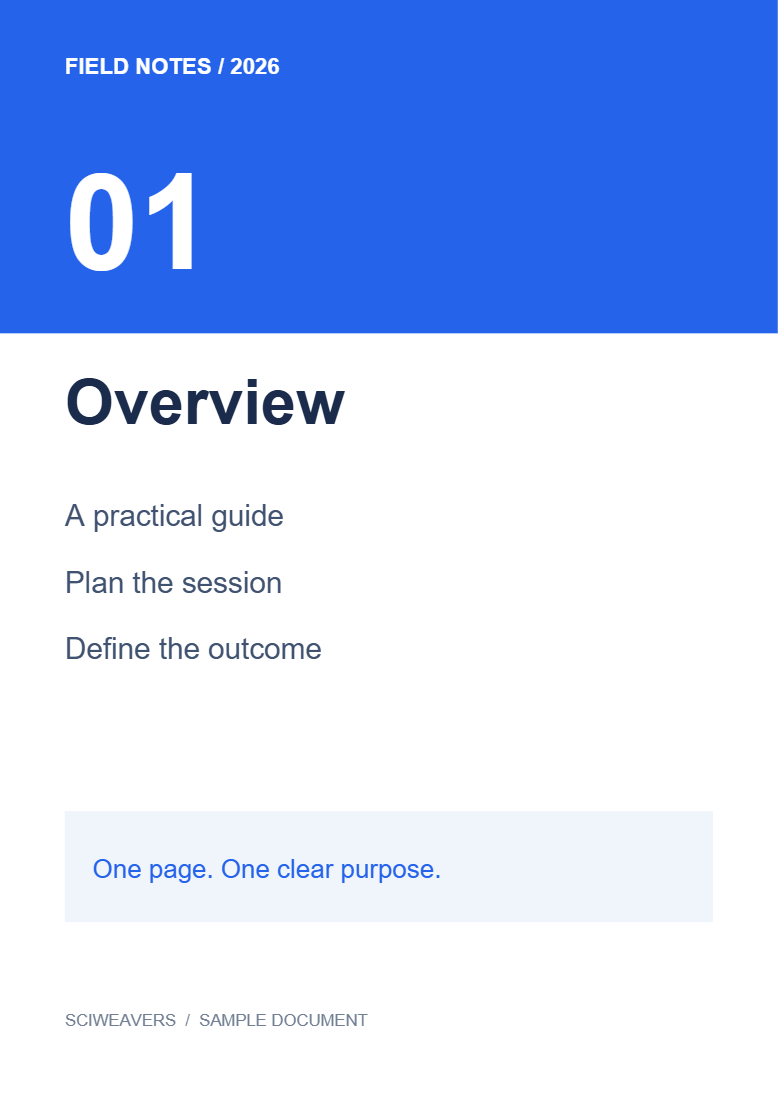
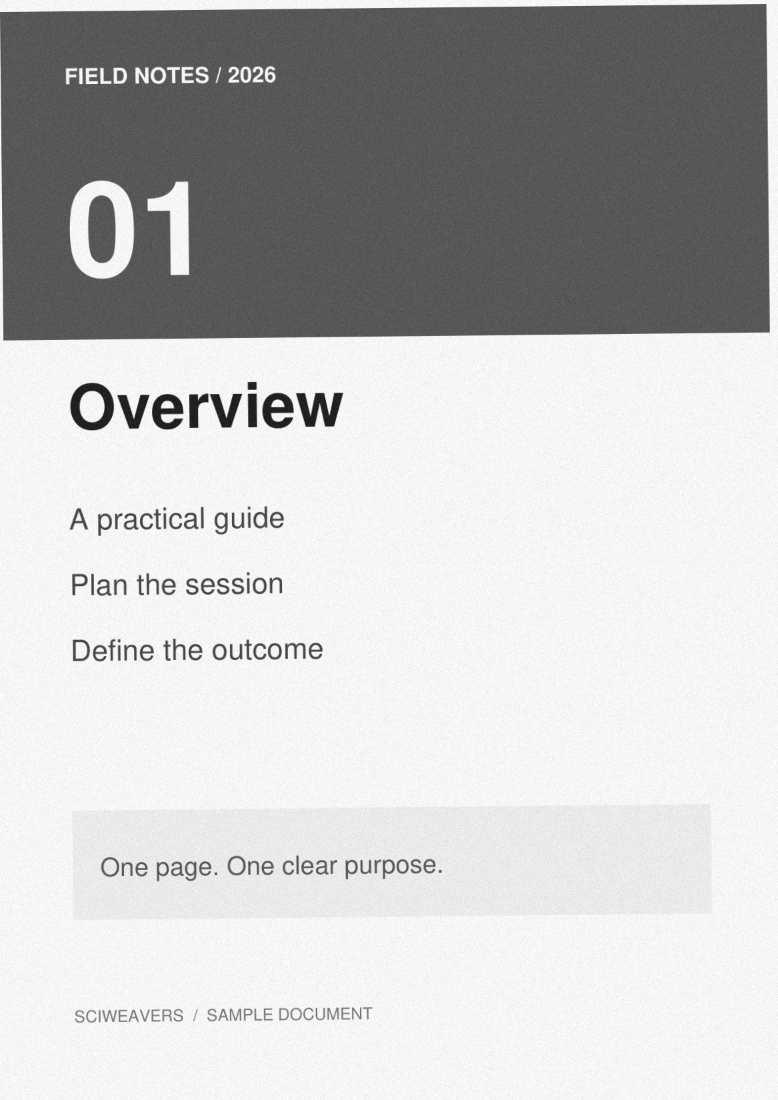

PDF to Scan renders PDF pages into images inside a new PDF. Our example uses the Photocopy look on a two-page digital document.
Load the digital PDF
Choose your PDF. Check the original text and artwork so you can compare them with the simulated scan. The example has two pages.
Choose a PDF up to 50 MB and 200 pages.
Choose and refine the scan look
Select Photocopy. In the current tool this sets grayscale, 50% paper noise and −0.6° page tilt. Keep 200 DPI under Output settings for this example.
Use Clean for a straightforward image-based copy, or Light for a gentler effect. Compare the original and preview; reduce noise or tilt if it makes small text harder to read.
Set the pages and export
Leave Pages to process empty for both pages. Choose Start and download, then check fine text and the edges affected by rotation.
The saved example contains two pages with no extracted text layer. The image appearance is the output; it does not establish that a physical scanner was used.
Common questions
Can I make a clean image-only copy?
Yes. Choose Clean and keep noise and tilt at zero. The PDF still contains rendered page images.
Can I search the resulting scan?
The scan export itself has no selectable text layer. Use PDF OCR afterward if searchability is required, and review the recognized text.
Try it with your document
Review the result, then save the version you need.