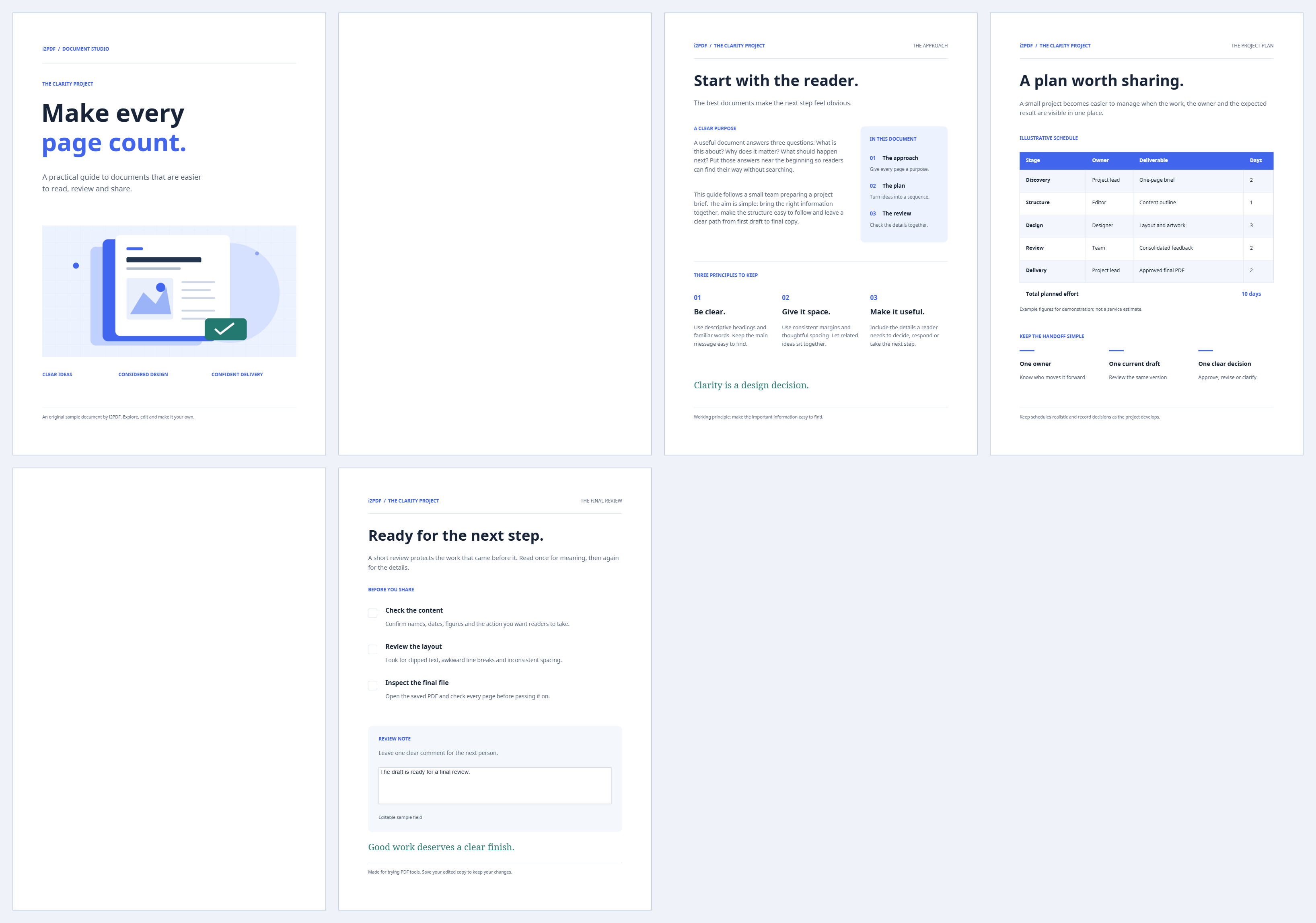
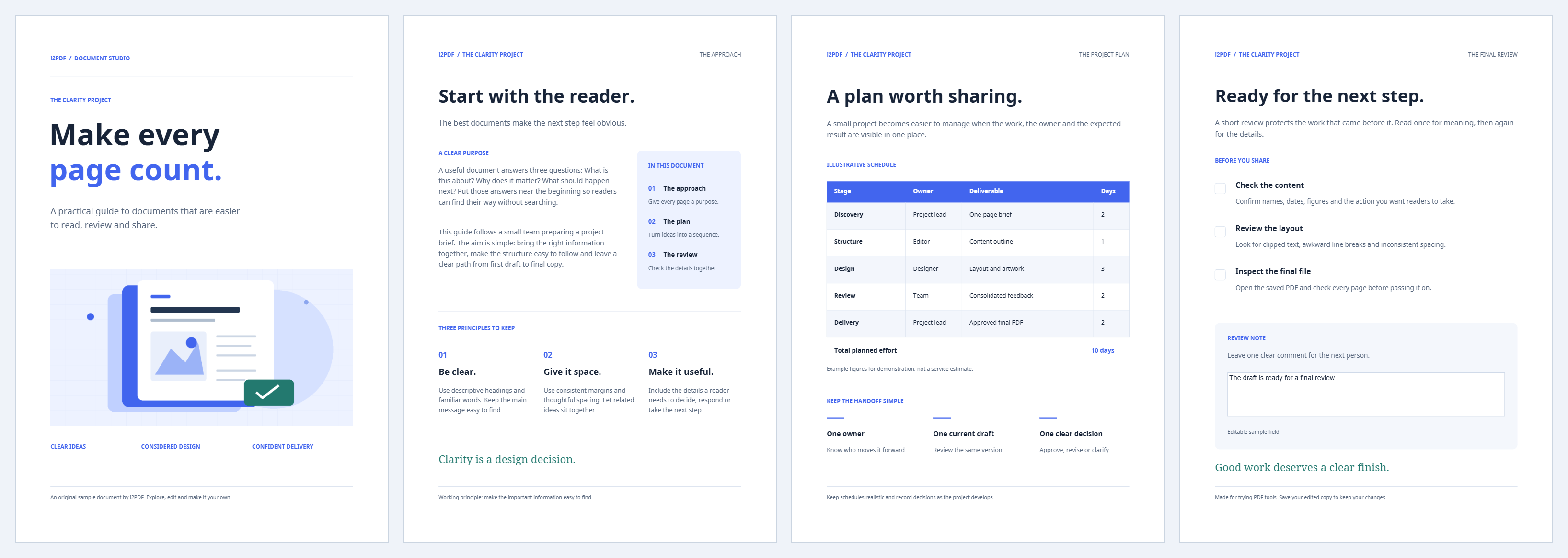

Open Remove Blank Pages from PDF and check the detected pages before saving. In the sample, pages two and five are blank; removing them reduces six pages to four.
Load and scan for blank pages
Choose the PDF or try the sample. Keep Strict — completely blank under Allow small scan specks, then choose Find blank pages.
Review the proposed removals
Select the flagged thumbnails and check their previews. Use Keep for a blank divider that belongs in the document, or Remove for a page you want omitted. The example removes source pages two and five.
If tiny scanner marks stop otherwise blank pages from being detected, try the light-noise or scan-noise option and analyze again. Higher tolerance requires closer review of faint content.
Save the cleaned document
Choose Start and download. If you have not analyzed yet, export runs detection, but reviewing first makes the selection easier to check.
Our output has four pages, in the same order as source pages 1, 3, 4 and 6. Check the transitions where blanks were removed before replacing the source copy.
Common questions
Will text or form fields be treated as blank?
The detector checks rendered appearance, extracted text and form widgets. It avoids classifying pages containing text or form widgets as blank.
What if every page is blank?
The tool retains at least one page so the saved PDF is not empty. If no pages need removal, it can return the original document.
Try it with your document
Review the result, then save the version you need.