
Use Remove PDF Metadata to inspect hidden document properties and export a cleaned copy. Our two-page sample loses its author, title and other metadata while keeping its pages.
Inspect the document properties
Choose your PDF. Read the properties view, including title, author, subject, keywords and dates. The tool also reports XMP metadata references and file identifiers. Switch to the PDF view to confirm the document.
Create a copy without metadata
Choose Remove metadata. The tool removes the document information dictionary, XMP metadata references and file identifiers, then checks the saved result. This is a whole-document operation.
Verify the downloaded file
Download the cleaned PDF and open its document properties in a viewer. In our example, Title, Author, Subject, Keywords, Creator, Producer and date properties are absent, and both pages remain.
Check the page itself separately: a name printed in a header is visible content, so clearing the Author property will not remove that name.
Common questions
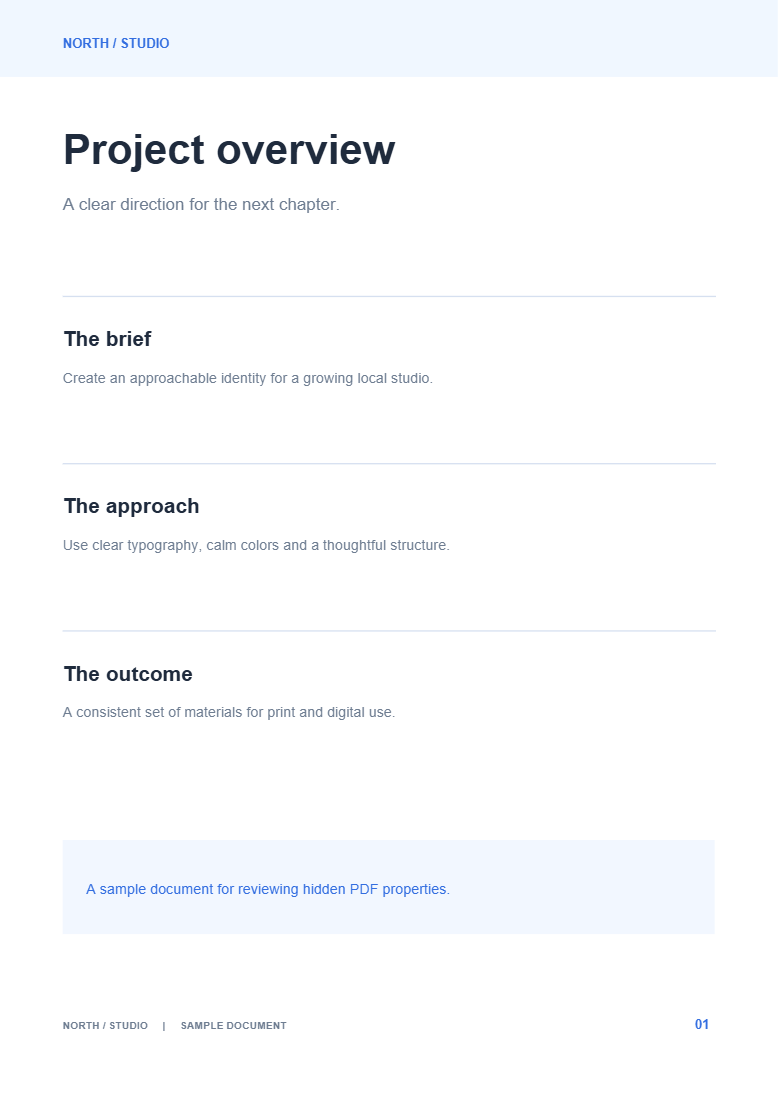
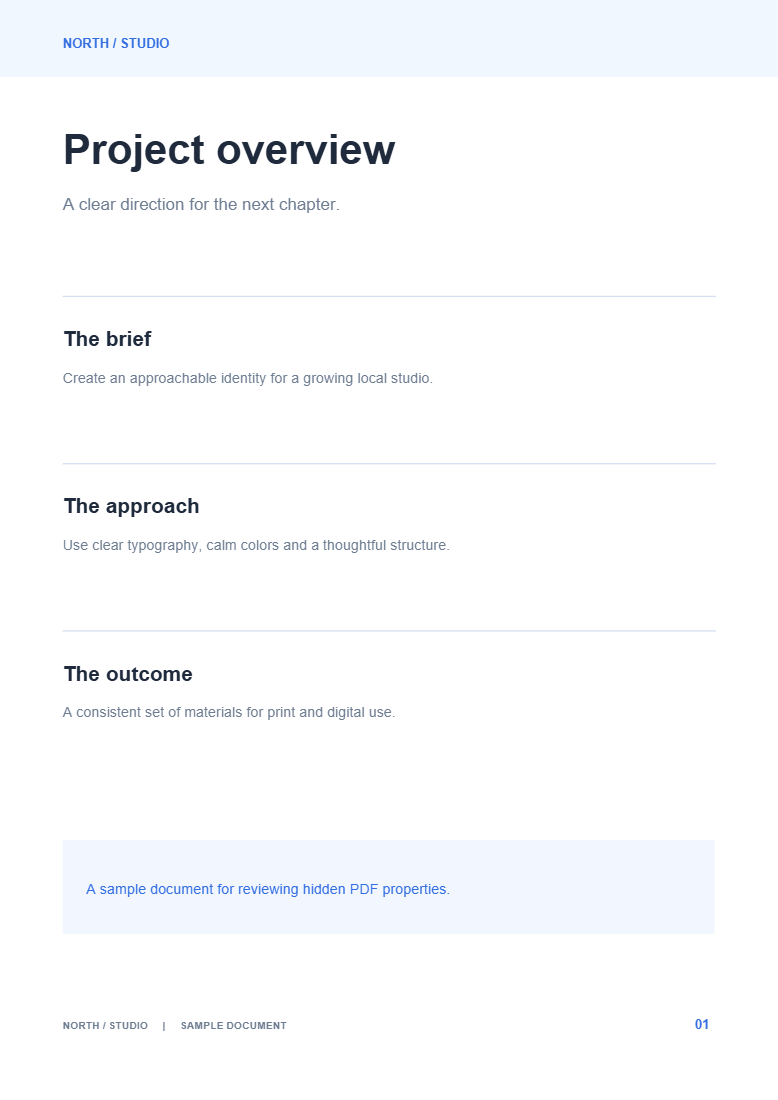
Why do the before and after pages look the same?
Metadata describes the file without necessarily appearing on its pages. The comparison reports the actual property change instead of inventing a visual change.
Can I replace the author instead of removing everything?
Yes. Use Edit PDF Metadata to set specific properties.
Try it with your document
Review the result, then save the version you need.