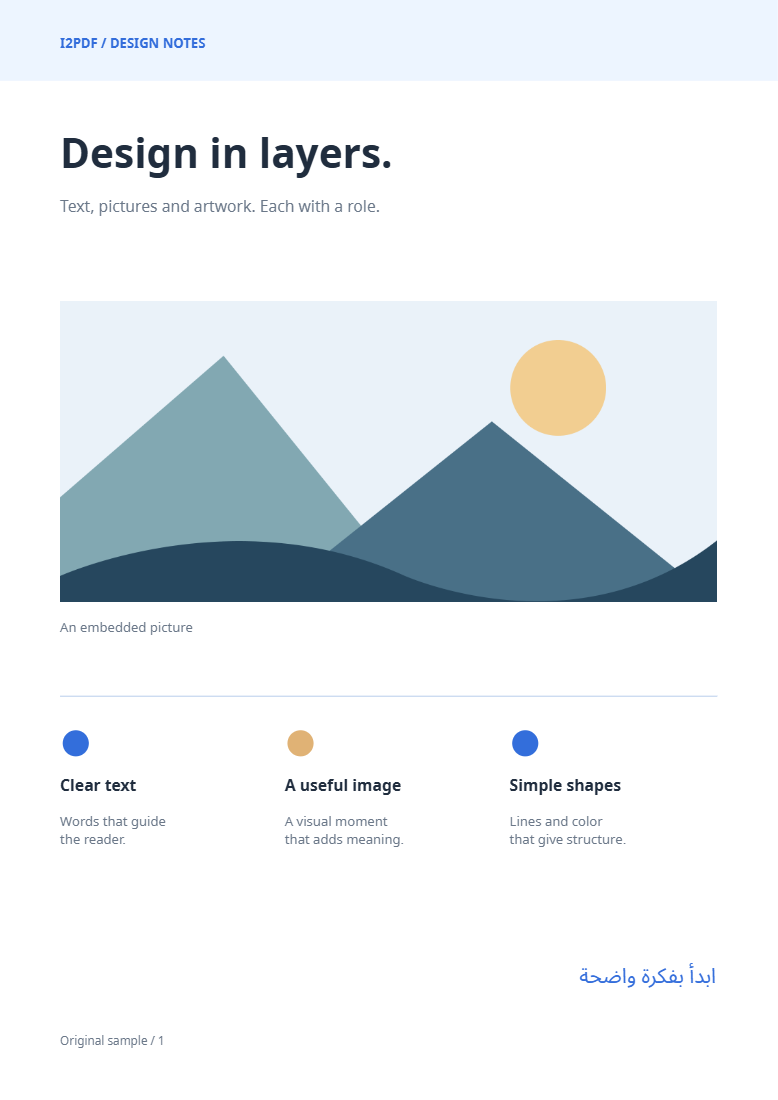
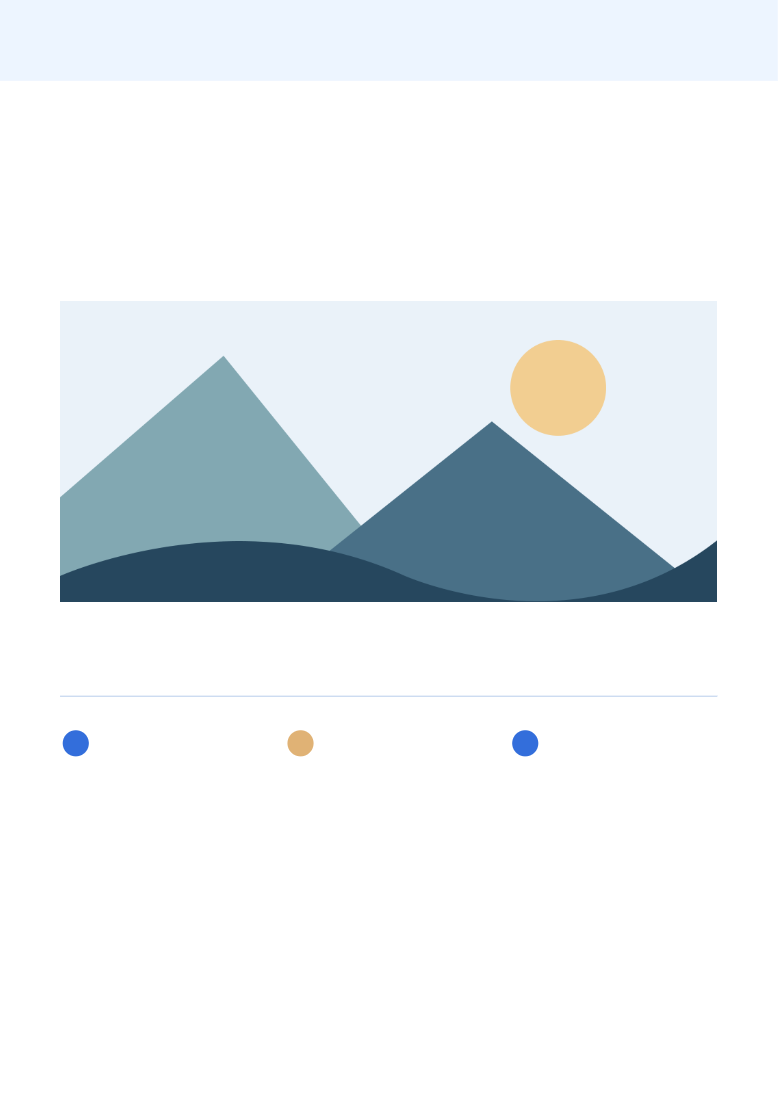

Remove PDF Content removes entire content types from supported PDF pages. Our example removes selectable text from two design pages while keeping their pictures and vector artwork.
Load and inspect the content types
Choose a PDF or try the sample. Review the indicators for Text, Images and Graphics. A scanned page may contain only one large image, even when it visibly shows words.
Select what to remove
Keep Text selected and leave Images and Graphics off to reproduce the example. The tool removes all supported elements of a selected type from the affected pages.
Use the scope option to process all pages or just the current page. Our example keeps Apply to all pages enabled. Compare original and result previews before saving.
Export and inspect the saved pages
Choose Remove content and download. Both sample pages remain, but their selectable text is gone. Review the retained pictures and shapes at a useful zoom.
If you need to erase a specific name or area rather than a whole content type, use Redact PDF.
Common questions
Can it remove words inside a scanned image?
Not as text elements. They are pixels in the image. Use a suitable area-based redaction workflow when specific visible information must be removed.
Will selecting Images also remove vector drawings?
No. Images and Graphics are separate options. Review the preview to choose the content types your document actually uses.
Try it with your document
Review the result, then save the version you need.