Designers & document creators
Reuse a page design
Remove separate text objects while keeping the background artwork of a template or letterhead.
Keep what matters. Remove text, images or shapes with a live preview.
Thumbnails show original pages. Comments, links and form fields are separate and are kept.
Download your PDF with the selected content types removed from supported pages.
Choose a PDF with separate text, images or vector artwork.
Select content types and compare Original with Result.
Process the current page or all supported pages and download the PDF.
Remove PDF Content lets you clear selected types of base page content while retaining the other elements. Use it to remove text from a template, strip pictures from a document or simplify supported vector artwork. Choose the current page or apply the same choices to all supported pages.
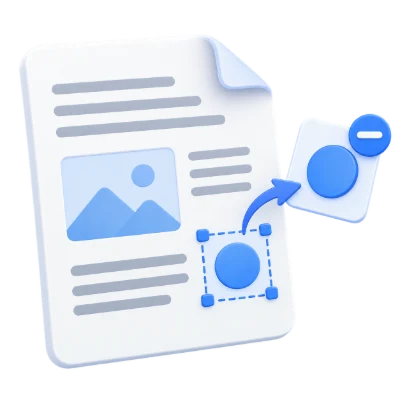
Remove separate text objects while keeping the background artwork of a template or letterhead.
Remove embedded pictures from supported pages to focus on the remaining text before printing.
Clear selected content types from worksheets or layouts, then continue editing the result in Edit PDF.
Choose Text, Images, Shapes & lines, or a combination.
Text is selected initially. It removes PDF text objects, including invisible text layers on otherwise supported pages. Images removes embedded raster pictures, and Shapes & lines removes supported vector paths such as borders, rules and drawings.
The app processes the base content of each selected page. Comments, annotation drawings, links and interactive form fields are separate objects and remain in the PDF. Text converted to outlines belongs to vector artwork, while words inside a photograph belong to an image.
The page preview updates when you change the removal choices.
Result shows what the current page will look like with the selected types removed. Switch to Original to compare. Navigation and the left thumbnail rail let you inspect another page; thumbnails always show the source pages for orientation.
Preview and export use the same removal operation. The preview is drawn on screen, but the downloaded PDF keeps the remaining text and vector artwork as PDF content. Unused spaces are left where objects were removed; paragraphs and pictures are not rearranged.
Apply to all pages starts enabled.
With Apply to all pages enabled, one set of removal choices is used across all supported pages. Turn it off to work on the currently displayed page only. The page counter shows how many pages contain matching content and can be processed.
Pages without matching content remain unchanged. Detected scanned and image-only pages are kept, with a visible count. If the chosen scope includes complex gradients, selecting Shapes & lines is rejected with an error while your previous choices and preview stay intact. The download retains the original page count, order and dimensions.
Image-only pages cannot have their printed words separated from their pictures.
The app inspects PDF drawing objects to identify image-only pages, including scans with invisible OCR text. These pages are marked in the thumbnail rail and kept unchanged. A genuinely empty page or vector drawing is not classified as a scan merely because it contains no selectable text.
Detection is based on the PDF structure and image coverage, so it cannot identify every scan or flattened design. Visible words inside retained images will remain. Complex gradients are not supported for Shapes & lines. The app refuses that choice rather than silently restoring the page. In current-page mode, moving to a gradient page turns off Shapes & lines with a message and keeps your text and image choices. If the selected content still remains after removal, the operation fails instead of offering an incomplete result.
Review the result and download a new PDF.
File inspection, preview and removal run locally in a browser worker. The app accepts an unlocked PDF and does not execute document scripts. Very complex pages, oversized embedded images or operations that take too long can be rejected.
This tool is for content cleanup, not complete anonymization. Metadata, comments and attachments are outside its scope. Modifying a digitally signed PDF invalidates the signature, and PDF/A conformance is not guaranteed after editing. Keep the source and use the result preview before sharing.
Open one PDF up to 100 MB and 750 pages. Additional output, memory and processing limits can apply to complex documents.
Processing takes place on your device without uploading the document. Download your result before closing the page; keep the original separately.
Know what to expect before you start.
On your deviceYes, on supported PDF pages. Select only Text and leave Images and Shapes & lines unselected. Text stored as image pixels or vector outlines is not a text object and will remain.
Yes. Select Images only and check the Result preview. The surviving text keeps its position; the empty areas are not automatically closed up.
A scanned page stores visible words and artwork together as image pixels. The tool cannot separate them by PDF object type. Detected image-only pages are kept, and processing is disabled when no supported matching content remains.
An invisible OCR layer adds searchable text but does not separate the visible words from the scanned image. Such scans are still excluded. You need a source PDF containing separate visible content objects.
No. Every original page remains in order with its dimensions. Blank pages, out-of-scope pages, scanned pages and other skipped pages remain unchanged.
It removes supported paths such as rules, borders and drawings. If the selected pages contain complex gradients, the app refuses Shapes & lines and shows an error while keeping your previous choices and preview. You can still remove text or images. In current-page mode, navigating to a gradient page turns off Shapes & lines and explains the change.
No. Annotations and interactive fields are separate from base page content and are kept. Use Remove Annotations for comments, or PDF Forms to edit form answers.
Yes. Arabic PDF text can be removed as text objects. Retained Arabic text uses its existing PDF fonts and positioning; the tool does not retype or translate it. Words inside scanned images remain image content.
No. The PDF is processed in your browser. Download the result before closing the tab and retain an original copy.