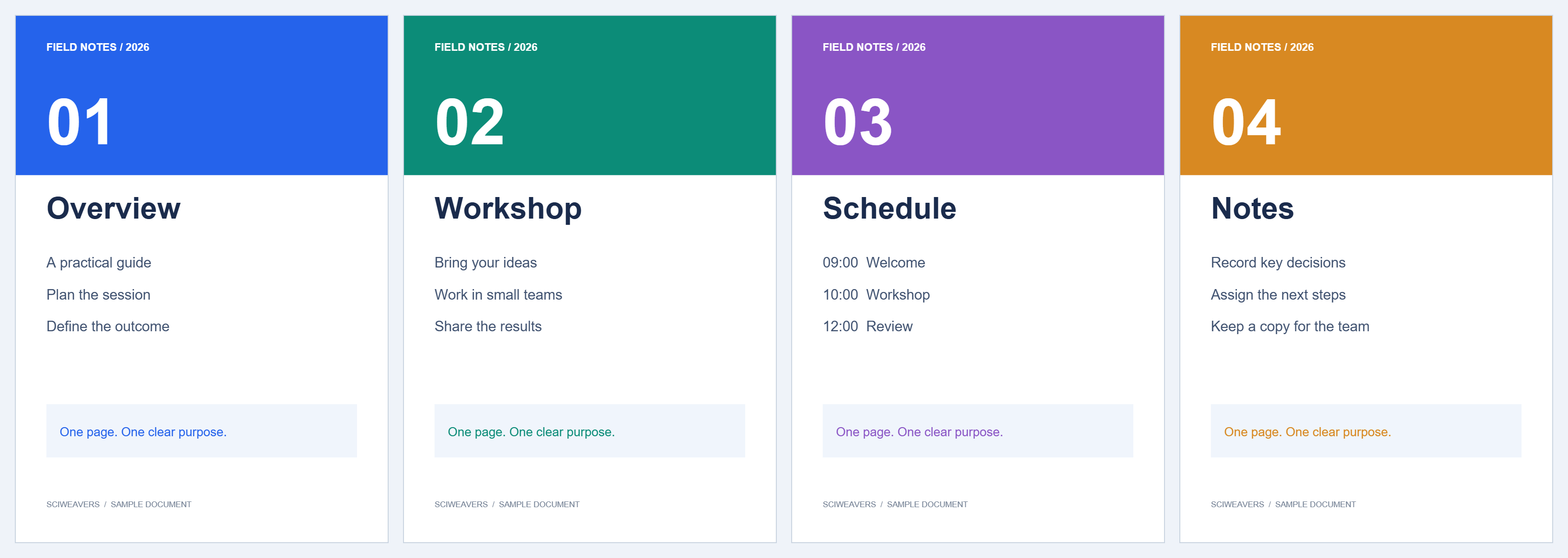
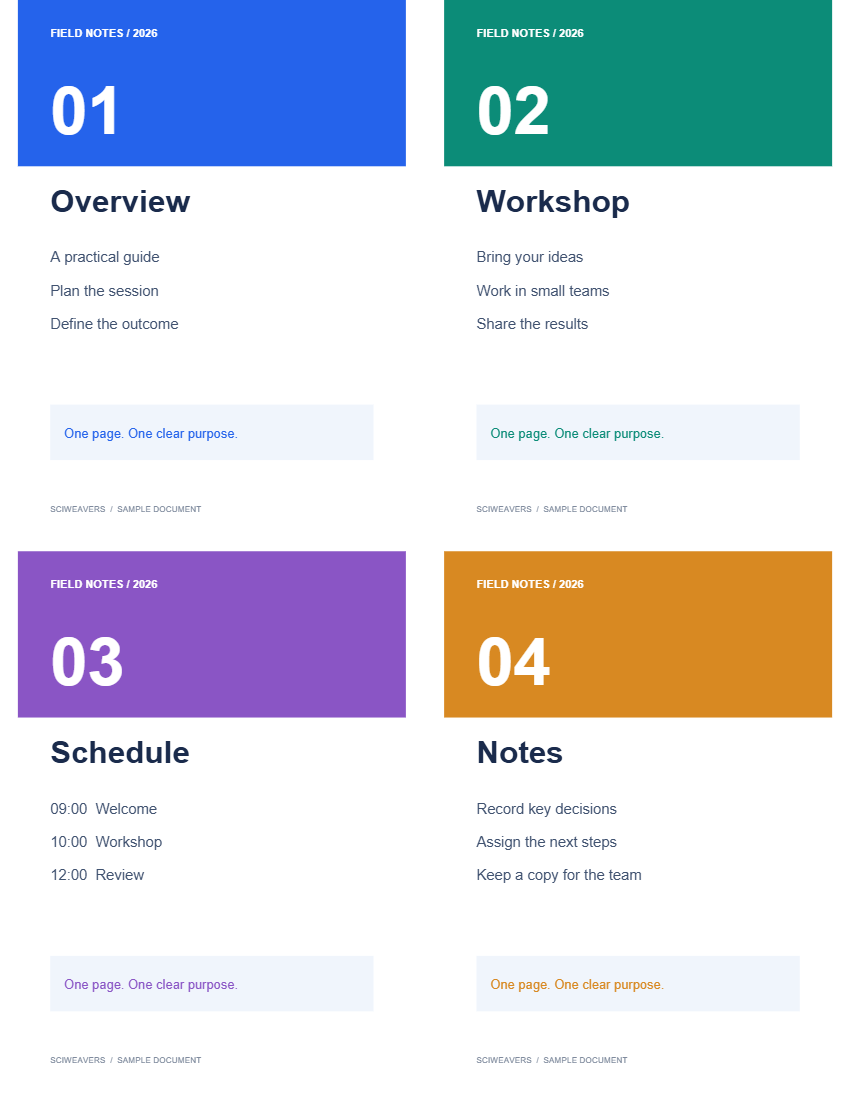

Open N-up PDF to arrange several source pages on each output sheet. The example turns four separate pages into one four-up Letter sheet.
Load the source document
Choose your PDF and review its pages. In this example there are four. The output sheet count depends on the selected number of pages per sheet; a partly filled final sheet is kept.
Choose pages per sheet and paper
Choose 4 under Pages per sheet. Keep Letter and Paper default for our example. The tool initially selects six pages per sheet, so change it explicitly to reproduce the four-up result.
Available layouts contain 2, 4, 6, 8 or 16 pages. More pages per sheet make text smaller. Choose a larger sheet or fewer pages if the handout will be read without zooming.
Set reading order and spacing
Choose Left to right to fill a row before moving down. Top to bottom fills a column first. The example uses the first option and the small 0.025 in gap.
Page contents fit proportionally within their cells. Review the layout preview, especially when the source mixes portrait and landscape pages.
Save the handout
Choose Start and download the result. Our output has one Letter page containing all four source pages and their text.
When printing this already arranged PDF, choose one PDF page per physical sheet. Applying the printer’s multiple-pages setting again will shrink the handout a second time.
Common questions
What happens to leftover pages?
They occupy the available positions on the last output sheet; unused positions remain empty.
Does N-up remove any source pages?
No. The operation lays out the document’s pages on fewer sheets. Check readability before sharing a densely packed layout.
Try it with your document
Review the result, then save the version you need.