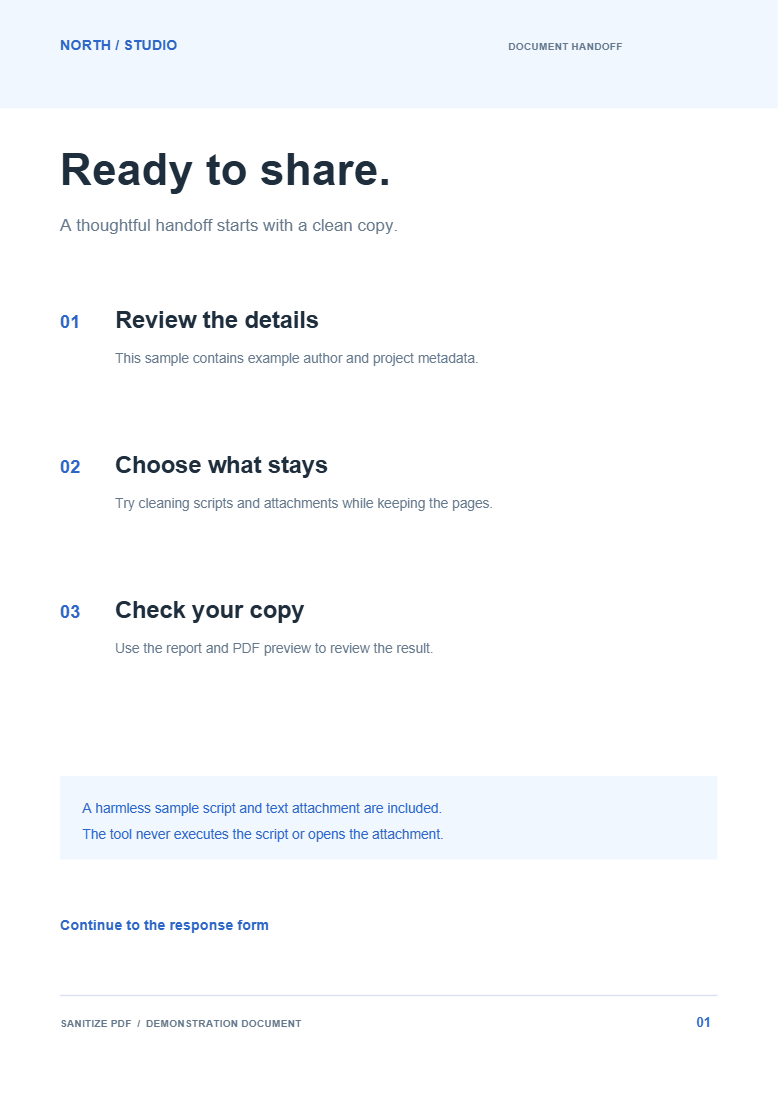
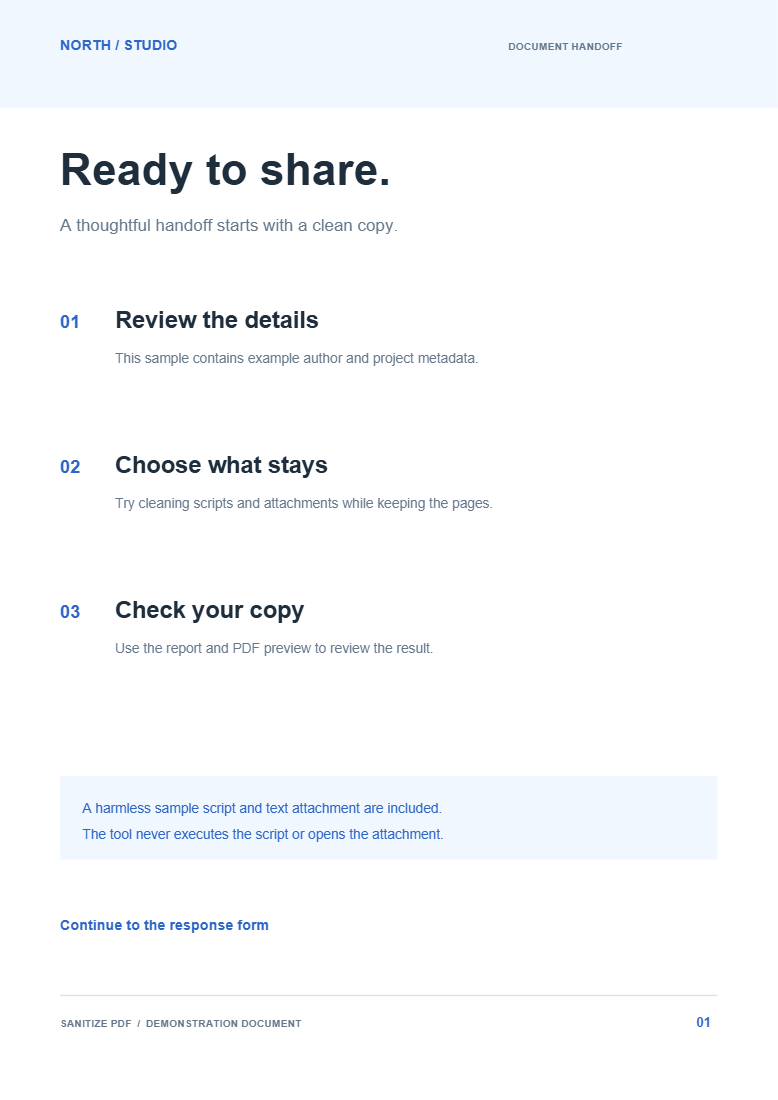

Sanitize PDF inspects content categories and lets you choose what to clean. Our example uses the recommended selection: metadata, scripts and actions, and attachments and media.
Inspect the findings
Open your PDF and review the findings for each category. Expand the available details to see what the tool found. A page that looks simple can still carry document properties, actions or embedded files.
Choose the cleanup scope
The recommended preset selects Metadata, Scripts & actions and Attachments & media. That is the selection used in our example.
Links, comments and form data are separate choices. Decide whether you need to preserve navigation and review notes. Read the form option carefully: clearing answers is different from keeping a filled, flattened copy.
Save and review the cleanup report
Choose Start and download. Review the results by category, then inspect the visible pages and any features you chose to retain.
Our output keeps two pages and the original form answers. Its metadata properties and document actions are absent. This demonstrates the recommended selection, not removal of every category.
Common questions
Does the recommended preset clear form answers?
No. Forms are a separate option. Review them explicitly if a completed form contains information you do not want to share.
Can I remove only metadata?
Yes. Choose the relevant category, or use the focused Remove PDF Metadata tool.
Try it with your document
Review the result, then save the version you need.