Office teams
Tidy merged document bundles
Remove repeated cover sheets and attachments after combining reports into one PDF.
Find repeated pages. Keep the copies you need.
Checked pages will be removed. Uncheck a copy to keep it; at least one copy in each group stays.
Download your PDF or go back to adjust which copies to keep.
Choose a PDF or try the sample with repeated pages.
Click Find duplicates. Keep the first or last copy, then adjust the checked pages.
Click Start to remove the selected copies. The remaining pages keep their order.
Remove Duplicate PDF Pages finds repeated pages within one PDF, groups the matching copies and removes the ones you select. It works with selectable PDFs and identical scanned pages, entirely in your browser.
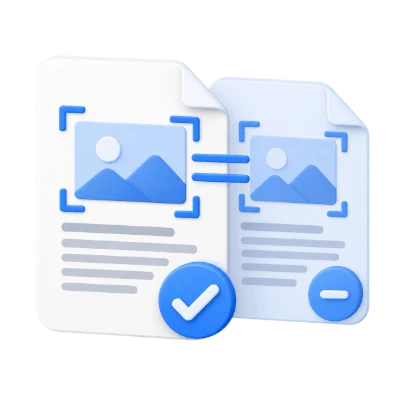
Remove repeated cover sheets and attachments after combining reports into one PDF.
Review repeated pages in lecture notes or assembled articles while keeping useful pages in order.
Find identical scanned pages copied into a file. Rescans with different noise or alignment remain separate.
Matching pages do not have to sit next to each other.
Open one PDF up to 100 MB and 750 pages, then click Find duplicates. The tool compares page size, rotation, rendered appearance and selectable text. Candidate matches receive a second visual check at a higher resolution before they are grouped.
This is a conservative comparison of rendered pages, not a comparison of PDF file bytes and not a guarantee of identical hidden document structure. A changed number, watermark, scan alignment or page dimension can keep two pages separate. Two blank pages can also match. Review the proposed removals before using the result.
See each matching group and use the left thumbnail sidebar to inspect its pages.
Find duplicates groups matching pages without deleting them. The group cards show the page numbers and which copies will be kept or removed. Click a page in a group to preview it and keep that copy instead of the other copies in the same group.
A checked thumbnail means removal; the active preview indicator is separate. Uncheck a suggested removal to keep an additional copy. You cannot mark the final retained copy in a group for deletion. Unique and protected pages have no removal checkbox. For arbitrary page removal, use Remove Pages from PDF.
Choose a default, then override individual groups when needed.
Keep first is selected initially. Keep last retains the final occurrence of each matching page instead. All remaining pages stay in their original relative order; this tool does not rearrange the document.
Keep all pages clears every removal. Use suggested restores the current first-or-last preference. Changing that preference or running Find duplicates again replaces manual choices. Start uses your reviewed choices without another scan unless the document has not been analysed.
Pages with links, comments or form fields are kept automatically.
Two pages can look the same while containing different destinations, comments or field values. Pages with PDF annotations, including links and form widgets, are excluded from automatic matching. Documents containing optional content layers are kept without comparison because hidden layers may differ.
A message shows how many pages were excluded. Password-protected PDFs must be unlocked first. Editing any signed PDF changes the document and can invalidate existing signatures; use the unsigned source when possible.
Retained pages keep their text and vector graphics.
Start removes the selected copies and prepares one PDF. It also runs detection first if you have not used Find duplicates. If nothing is marked, the original PDF is returned without being rewritten.
When pages are removed, the output retains original page objects rather than rasterizing them. Direct internal destinations to a removed copy are redirected to a retained copy. Check bookmarks and navigation in your PDF viewer after editing. The download summary reports removed and retained page counts. File size savings vary; removing duplicate pages is not a redaction or compression service.
No upload, account or recognition language selection is needed.
The comparison runs on your device and your PDF is not uploaded for processing. Arabic and other scripts are compared as rendered content and existing text; the tool does not translate, rewrite or run OCR on the document.
The limit is one PDF up to 100 MB and 750 pages. Thumbnails load as needed and whole-document checking starts only after you click Find duplicates or Start. Complex image-heavy PDFs take longer. The bounded visual comparison can miss differences smaller than its rendering resolution, so review important documents.
Open one PDF up to 100 MB and 750 pages. Additional output, memory and processing limits can apply to complex documents.
Processing takes place on your device without uploading the document. Download your result before closing the page; keep the original separately.
Know what to expect before you start.
On your deviceOpen your PDF, click Find duplicates and review the matching groups. Keep the first or last copy, adjust the thumbnail checkboxes, then click Start and download the result. Start can also run detection directly.
Yes. All eligible pages in the PDF are compared, so matching copies can be anywhere in the document.
Yes. Choose Keep first or Keep last for all groups, or click a page in one group to keep that copy. You can uncheck additional removal candidates to keep more than one copy.
It can match identical scanned pages. Separately rescanned pages with different noise, skew, cropping or brightness usually remain separate. It does not use fuzzy matching or OCR.
Different text, page dimensions, rotation or rendered pixels can prevent a match. Pages containing links, comments or form fields are excluded. Documents with optional layers are also kept without comparison.
Yes. The tool removes pages without rasterizing retained pages. Existing selectable text and vector graphics remain in the output. A scanned image does not become searchable text.
Yes. Existing Arabic text and page appearance are compared without translating or rewriting the content. No language selection is required.
Start finishes normally and offers the original PDF unchanged. Keep all pages produces the same original-file result.
No. Page comparison and PDF output run locally in this browser. The input limit is one PDF up to 100 MB and 750 pages.
It can, but the reduction varies because pages may share fonts, images or other resources. Use Compress PDF when your main goal is a smaller file.
Before downloading, use Keep all pages to clear the choices or Use suggested to restore the first-or-last preference. After processing, Back returns to the review. Your original file is not overwritten.