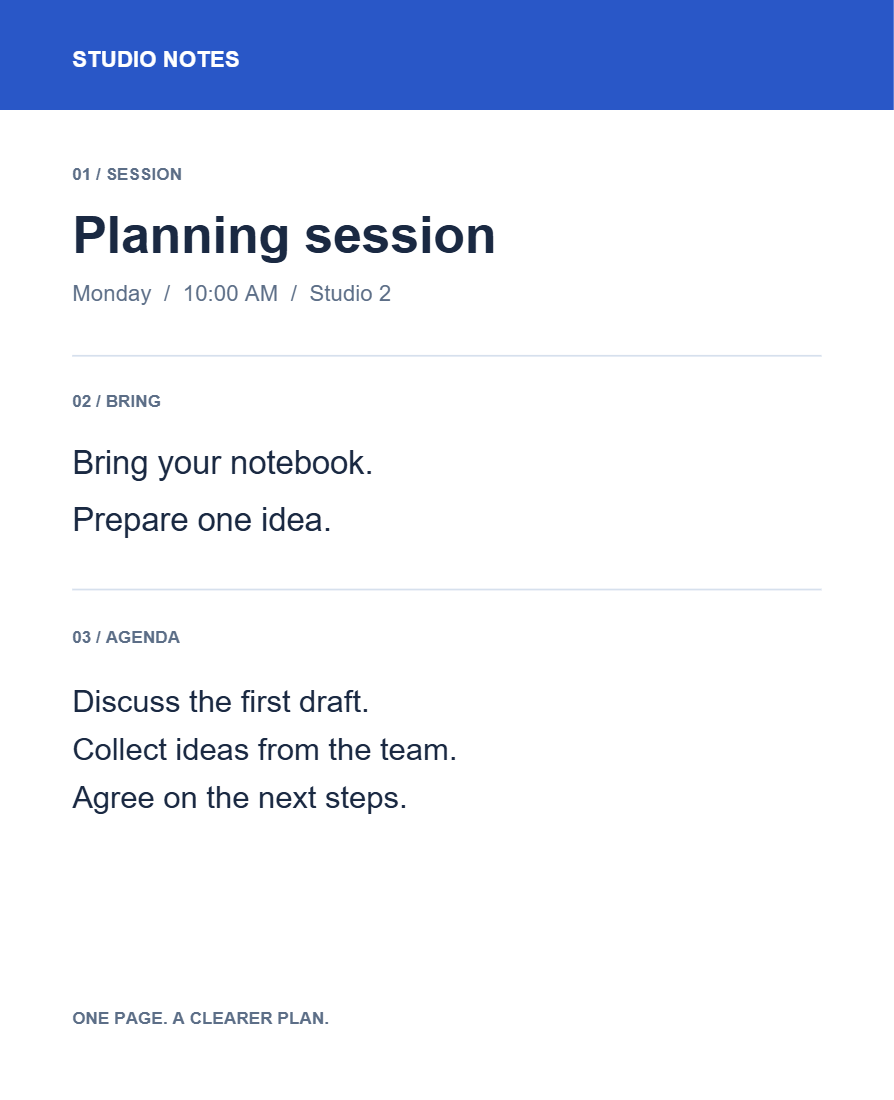
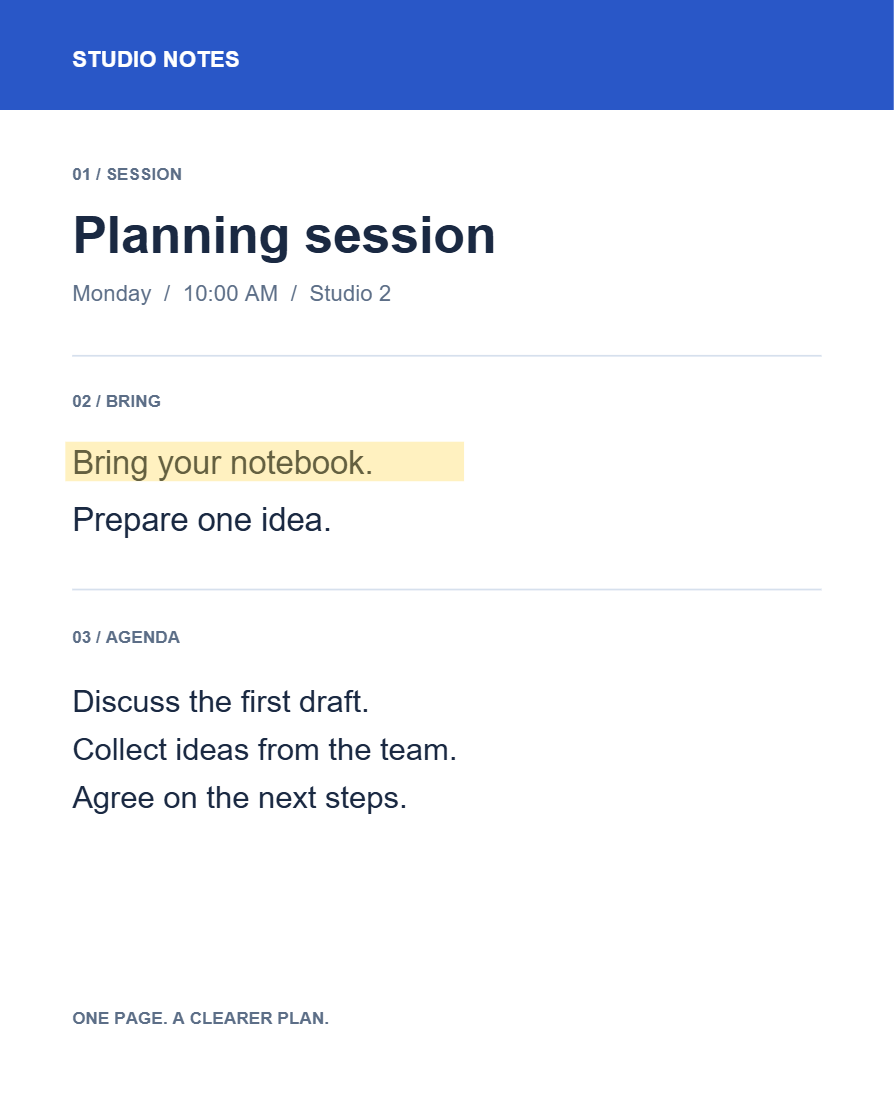

Open Annotate PDF, mark the relevant content and add a short comment. Our example highlights “Bring your notebook” and attaches a reminder for the workshop.
Open the PDF and highlight a line
Add your PDF and navigate to the page you want to review. Open Markers and choose Highlight, then draw over the line. You can also use Add to page and adjust the marker’s position and size.
In the example, the yellow area covers only “Bring your notebook.” Keep neighboring lines clear so the intended passage is obvious.
Attach a useful comment
Select the highlight and open Comment in its floating controls. Type the note, then choose Done. The example uses Bring a notebook for the workshop.
Use a note when feedback needs its own location, or a shape or arrow to point to a diagram. Keep each comment focused on one change so the recipient can respond to it.
Save and check the annotations
Choose Start and download the annotated PDF. Open it in a reader that supports PDF annotations and check both the visible marks and their comments.
Our saved example preserves the original text, adds a native highlight and retains the complete comment. Comment panels and popup behavior vary between PDF readers.
Common questions
Why is the comment not printed as a sentence on the page?
A comment attached to a highlight is annotation data. A reader may show it in a popup or comments panel. For a note that is visibly displayed on the page, choose an appropriate visible note style and check the saved appearance.
Can I make the annotations part of the page?
After reviewing them, Flatten PDF can make supported visible annotation appearances static. Keep the annotated original if you still need the editable review comments.
Try it with your document
Review the result, then save the version you need.