Students
Turn reading material into working notes
Reuse selectable text from Hebrew letters, reports and translation drafts in a Word document you can revise.
Convert Hebrew PDF to an editable Word document.
Use the page controls to inspect your document.
Download your document and continue editing in Word.
Choose a PDF from your device, up to 100 MB and 100 pages.
Review your PDF. Leave Pages blank for the whole document, or enter a range.
Download your DOCX. On desktop, compare up to 50 converted pages with the original PDF.
Convert a Hebrew PDF into a DOCX with editable text, supported tables and images. Review the source, choose all pages or a range, and download your Word document. An optional desktop comparison helps you check the result.
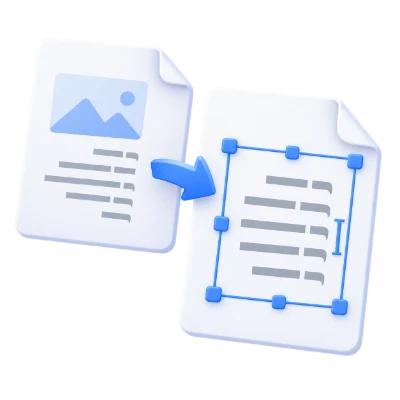
Reuse selectable text from Hebrew letters, reports and translation drafts in a Word document you can revise.
Convert the document to DOCX, then revise its text and supported tables in Word. Check headings, spacing and page breaks before sharing.
Check punctuation, numbers and embedded Latin text in right-to-left paragraphs. Complex layouts can change during conversion.
Keep every page or select the pages you need for one DOCX download.
Upload one PDF and review its source preview. Leave Pages blank to convert the whole document, or enter a range such as 1-3, 5. The selected pages are converted in their original document order. Choose Convert to Word to prepare the DOCX; previewing the Word file is optional.
The source PDF limit is 100 pages and 100 MiB, even when you select a smaller range. Files over either limit are rejected. For a longer document, use Split PDF and convert each part separately. On mobile, open Settings to enter a page range.
Reconstruct supported PDF text and tables as Word content you can revise.
The converter rebuilds paragraphs, text styling and supported table structures from the PDF. Text can be selected and edited, and reconstructed tables can be changed in Word. Illustrations and other graphics may remain images.
PDF stores a fixed page layout rather than the original Word document structure. Columns, fonts, spacing, page breaks and complex tables can change. Review the downloaded DOCX before using it as your working copy.
Use the same workflow for English, Arabic, Persian and Hebrew text.
Use this workflow for Latin, Arabic, Persian, Hebrew and mixed-language documents. No language selection is required. Arabic, Persian and Hebrew text can be reconstructed in right-to-left paragraphs, including passages that also contain Latin text and numbers.
Check punctuation, reading order, character joining and table alignment in the downloaded file. A missing or incorrect PDF text layer can limit recovery even when the original page looks correct.
Download your DOCX, then compare up to 50 converted pages with the source PDF.
On desktop, Preview Word opens a full-screen comparison of the original PDF and the generated DOCX when you convert up to 50 source pages. For larger conversions, the Word download remains available but preview is disabled. Select a smaller page range if you want to preview it. Mobile provides the DOCX download without this comparison view.
Preview preparation starts only when you request it, with a popup showing elapsed time. You can still download the Word file while you wait. The two viewers place page navigation near their shared divider. Sync views links pages, zoom and scrolling; turn it off to navigate separately. Choose Overlay or Difference to highlight visual changes. Back to download returns to your result, and Download Word stays available in the preview.
The preview helps you compare layout, but document appearance may vary in some Word viewers. Fonts, line breaks, page counts and objects can display differently. Open the downloaded DOCX in your intended Word editor for a final check.
Editable conversion needs an existing, usable PDF text layer.
This converter does not perform optical character recognition. For an image-only scan or photographed page, follow the PDF OCR link to recognize its words before making an editable document.
In a PDF containing both selectable text and scanned pages, words stored only in images do not become editable through this conversion. Existing OCR text may also contain recognition errors, so check the result against the source.
Upload one PDF up to 100 MiB and 100 pages. The limits apply to the full source PDF, even when you select fewer pages. For longer documents, use Split PDF and convert each part separately. Unlock password-protected PDFs before uploading. Complex files may still reach processing or memory limits.
The source PDF preview is displayed in your browser. Choosing Convert to Word sends the PDF to our servers for conversion. If you request Preview Word on desktop, the generated DOCX is also processed on the server to render that preview.
Know what to expect before you start.
Server processingYes. Leave Pages blank to convert all pages, or enter a range such as 1-3, 5. Selected pages keep their original order in the DOCX. On mobile, the field is available in Settings. The full source PDF must fit the 100-page and 100 MiB input limits. For longer PDFs, use Split PDF and convert each part separately.
Usable PDF text is reconstructed as editable Word content, and supported tables are rebuilt as Word tables. Graphics may remain images. The result is not guaranteed to reproduce the original authoring file: complex layouts, fonts, columns and page breaks may need adjustment.
No. Download your DOCX as soon as conversion finishes. On desktop, Preview Word is optional for conversions of up to 50 source pages. Larger conversions can still be downloaded; select a smaller page range if you want a preview. Mobile offers download only. The preview includes side-by-side, Overlay and Difference views, but document appearance may vary in some Word viewers.
This tool reads existing PDF text and does not perform OCR. Use the PDF OCR link for image-only scans. In mixed PDFs, text stored only inside images will not become editable through this conversion. Review any existing OCR text for recognition errors.
The PDF-to-Word tools support Latin, Arabic, Persian, Hebrew and mixed-language documents through the same workflow, without a language selection step. Check character joining, punctuation, numbers, reading order and table alignment in the downloaded DOCX.
The source PDF preview is displayed in your browser. Choosing Convert to Word sends the PDF to our servers for conversion. If you request Preview Word on desktop, the generated DOCX is also processed on the server to render that preview.