Schools
Print revision booklets
Turn course notes into folded handouts.
Arrange PDF pages into printable, foldable booklets with a live sheet preview.
Arrange PDF pages into printable, foldable booklets with a live sheet preview.
Download your result or go back to make changes.
Choose the PDF you want to print as a booklet.
Choose paper, margins, direction and folding sections.
Download and test one sheet before printing the full booklet.
Arrange PDF pages into a half-fold booklet with a live front-and-back sheet preview. Choose paper, margins, reading direction, blank-page placement and automatic or manual double-sided printing.
Turn course notes into folded handouts.
Arrange programme pages before duplex printing.
Inspect the order of a short zine or manual.
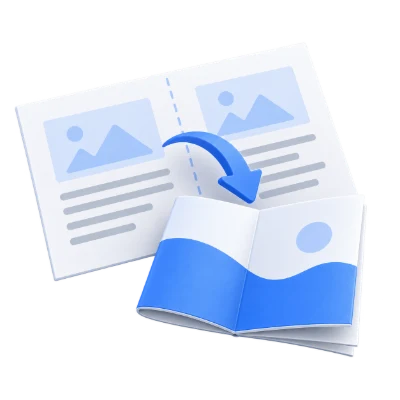
Preview two pages on each side of a half-fold booklet.
Choose A5, A4, A3, Letter, Legal or Tabloid, in landscape or portrait orientation. The folded size shown below the paper setting is half the sheet width by its full height. A4 landscape, for example, folds to approximately 148.5 × 210 mm.
Open Layout & finishing to set outer and inner margins separately, from 0 to 30 mm. The inner margin reserves space on each side of the fold. Fit to available space enlarges or shrinks pages proportionally; Shrink oversized pages only leaves smaller pages at their original size.
The active sheet side updates when you change settings.
Use Front and Back to switch between both sides of the same sheet. The page controls move through all sheet sides; the caption names the sheet, its side and the original page numbers. Blank labels identify added padding.
The preview prepares only the side you are viewing. Start prepares the complete download. Rotated backs are shown as they will be stored in the output, according to your printing method.
Choose how your printer turns over the paper.
For an automatic duplex printer, select short-edge or long-edge flipping and use the same setting in the printer dialog. The tool rotates back sides where needed. You download a single PDF containing all sheet sides.
For a printer without automatic duplex, choose Manual. The ZIP contains 1-fronts.pdf, 2-backs.pdf and Read-me.txt. Print the fronts, reload the paper and print the backs. Reverse back-sheet order and Rotate backs 180° accommodate different paper feeds. Test one sheet first.
Print at Actual size. Do not select booklet mode or multiple pages per sheet again in your viewer or printer: the downloaded pages already have the booklet arrangement.
Choose where blank pages go and how many pages each section contains.
Choose One booklet or sections of 4, 8, 12, 16, 24, 32 or 64 source pages. Fold and nest each section separately. Each sheet has four page positions, so an incomplete final section is padded to a multiple of four.
Blank pages go at the end by default. Before the last page keeps the original last page as the back cover. At the start of the final section inserts padding before that section’s first page. The summary shows the total sheets and added blanks. No source pages are removed.
Switch binding direction without changing the page artwork.
Right-to-left reverses the placement of each imposed page pair for Arabic and other right-to-left documents. Existing letter shapes and page content remain as supplied in your PDF.
Add fold marks draws short grey guides at the top and bottom of the centre fold. This is a half-fold layout with two pages per side, not a quarter-fold brochure. Crop marks, bleed and compensation for thick folded stacks are not added.
Create a separate booklet on your device.
PDF pages are placed into the output without converting each page into an image. Existing scans remain images; existing text and vector artwork retain their original kind. Your source file stays unchanged.
Supported form values are flattened for printing. Bookmarks, links and annotations are not retained as interactive features, and annotation appearances may be omitted. Keep the source document for its original interactive behavior. Processing takes place in your browser.
Open one PDF up to 100 MB and 750 pages. Additional output, memory and processing limits can apply to complex documents.
Processing takes place on your device without uploading the document. Download your result before closing the page; keep the original separately.
Know what to expect before you start.
On your deviceEach folded sheet has four page positions. The final section is padded to a multiple of four. Choose At the end, Before the last page to keep your back cover, or At the start of the final section.
Choose the same short-edge or long-edge option here and in your printer dialog. The tool adjusts back-side rotation to suit the sheet orientation. Print at Actual size and test one sheet before the whole booklet.
Yes. Manual printing downloads a ZIP with separate front and back PDFs and instructions. Print the fronts, reload the sheets and print the backs. Reverse back-sheet order or rotate backs if your printer feed requires it.
No. A half-fold booklet reorders pages for folding, for example the last page beside the first. N-up PDF places pages in a regular sequence. This tool produces two pages per side; it does not make quarter-fold layouts.
Yes. Select right-to-left reading direction. Page pairs switch sides for right binding, while the original Arabic letters and artwork remain unchanged.
Fold marks are optional short lines at the top and bottom of the centre fold. The tool does not add crop marks, bleed or compensation for the thickness of folded sheets.